 G Force Logbook and Scheduling
A tour of the app
Every feature, one step at a time.
See G Force Logbook and Scheduling the way a pilot or a flight attendant uses it, screen by screen, with a made-up airline and its crew. Then try the real app in your browser.
The same made-up schedule, crew and messages. No account, and nothing you do is saved or sent. Get the Android app; the iPhone app is on its way.
The app for pilots
Your schedule, your crew and your layovers, and a logbook that fills itself from your flying.
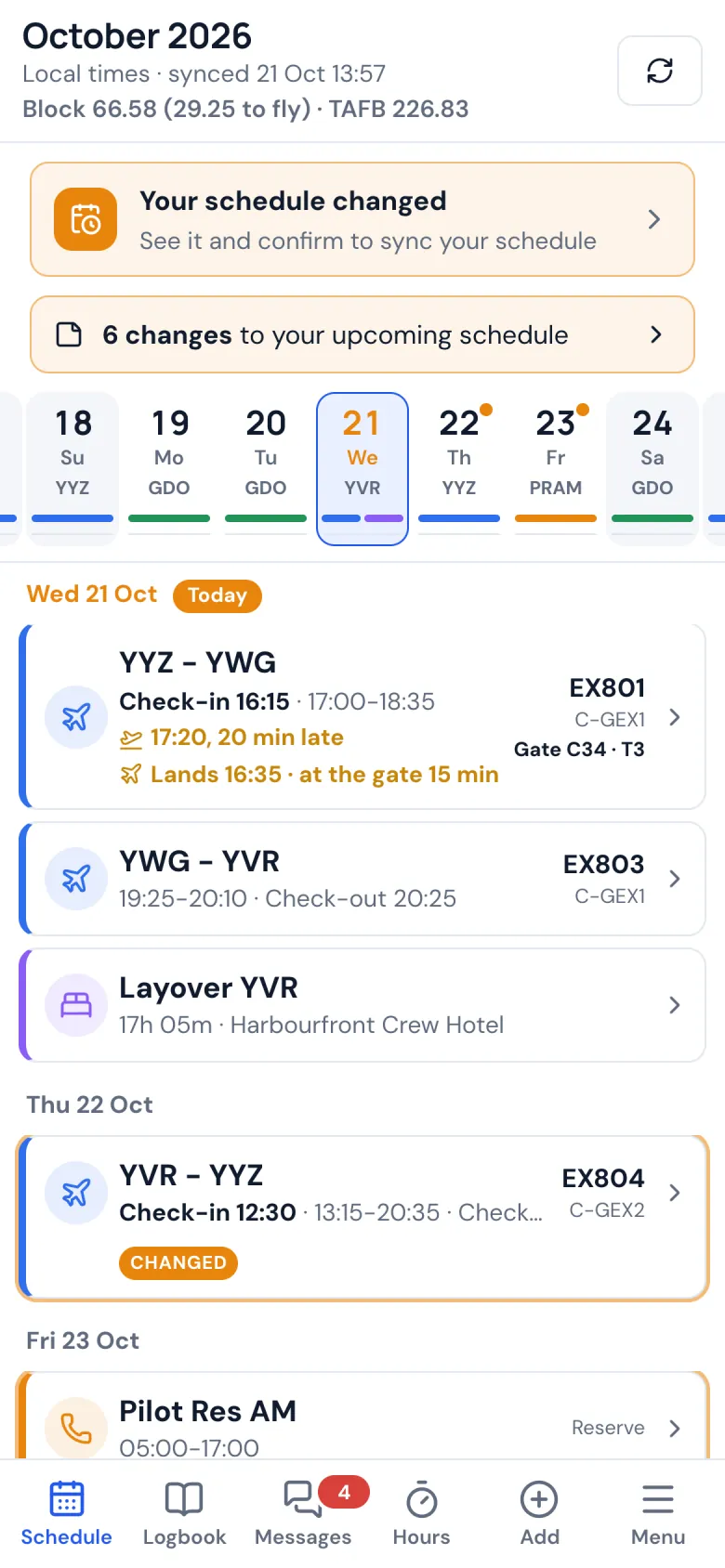
Schedule · Step 1 of 35
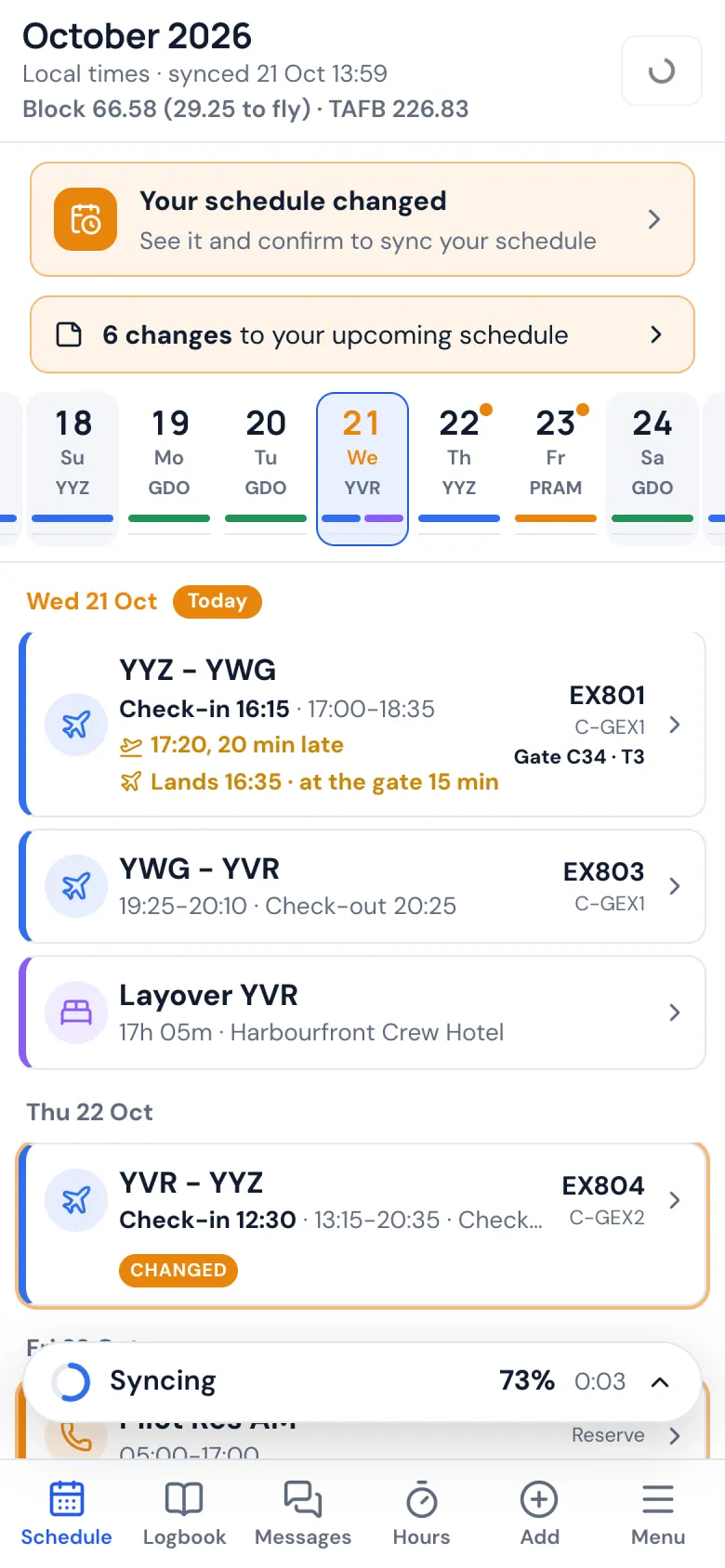
Your schedule, synced
Your roster on your phone in local time, today first: check-in and check-out, each flight with its delay and gate, and the layover.
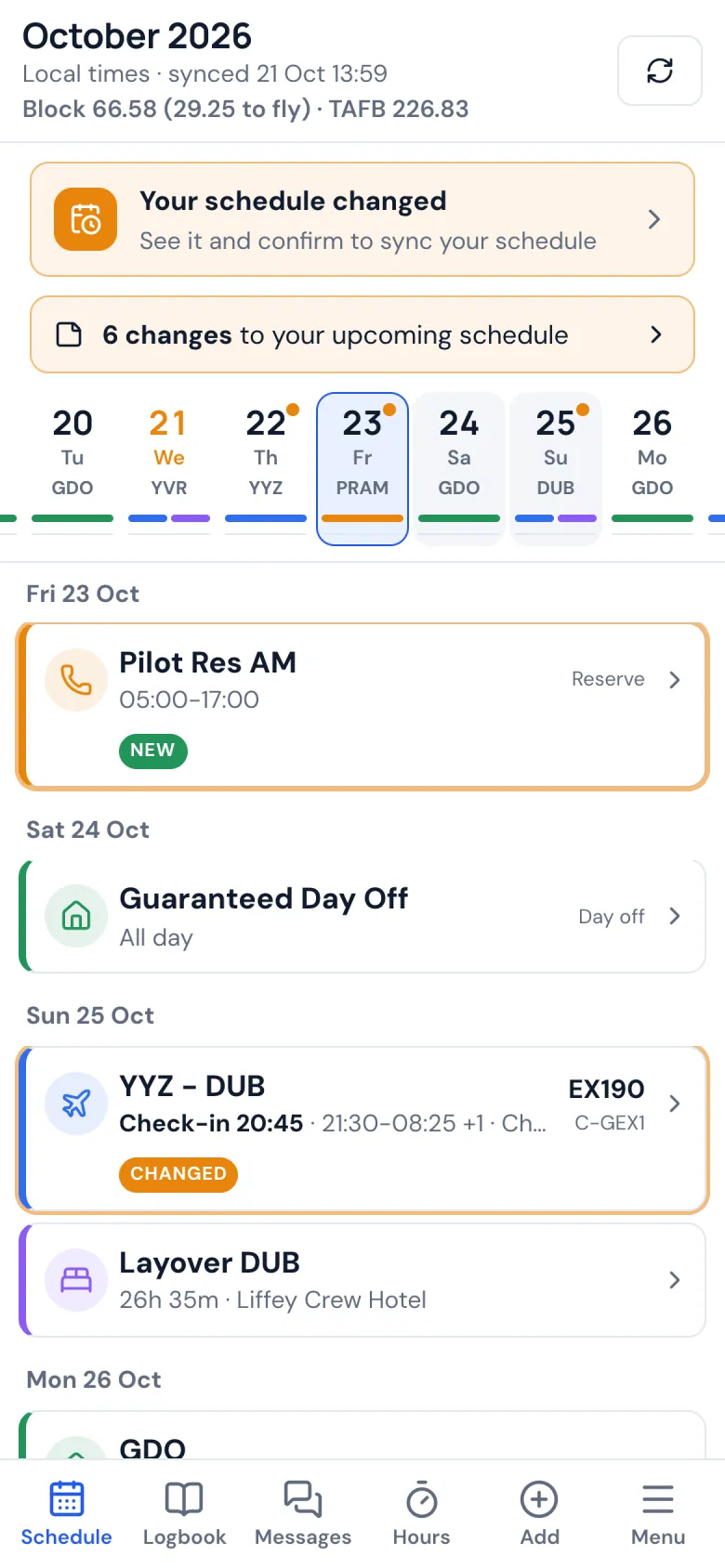
Schedule · Step 2 of 35
The whole month
Scroll through the month: flights, reserve, training and days off, day by day. The strip at the top jumps to any date.
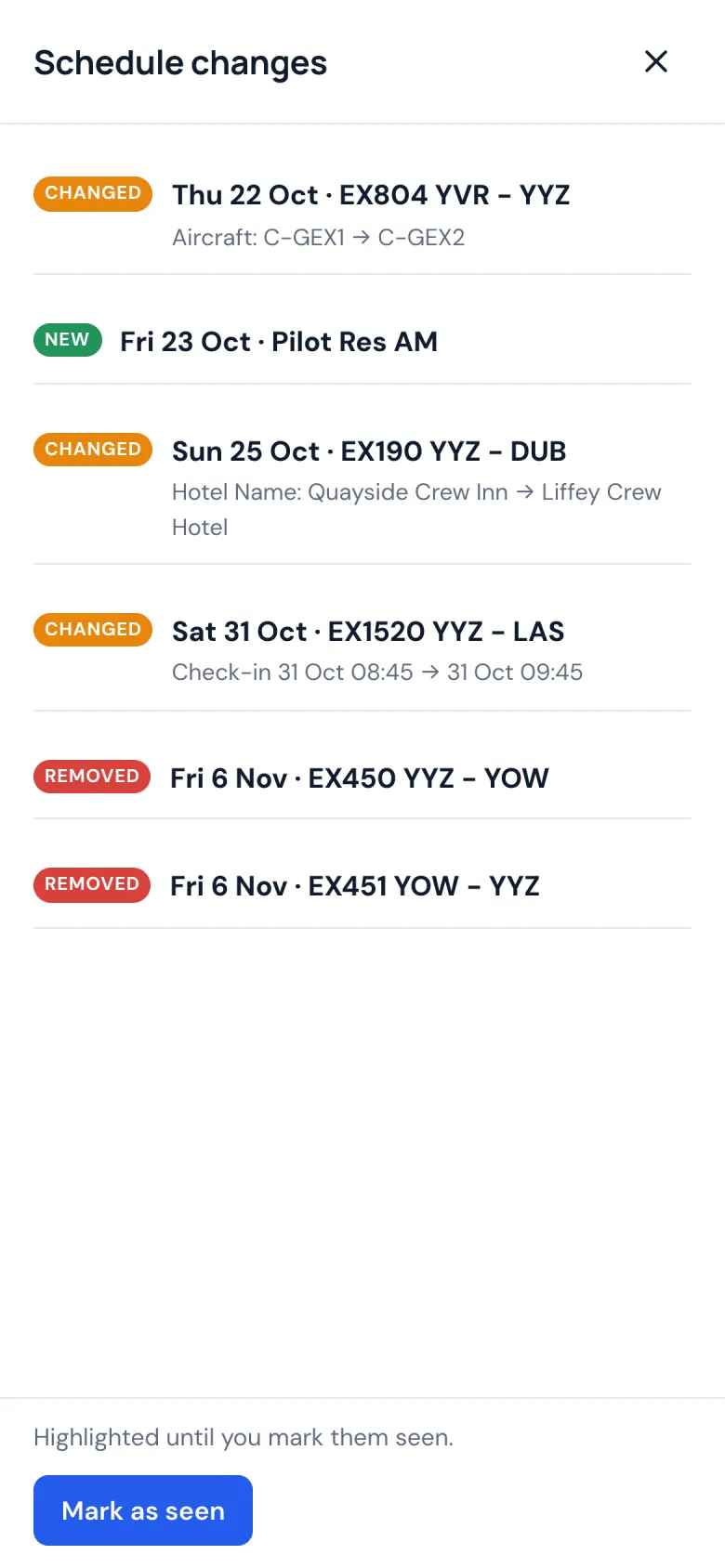
Schedule · Step 3 of 35
What changed
After a sync you see exactly what moved: a new time, another aircraft, a flight added or taken off. It stays highlighted until you mark it seen.
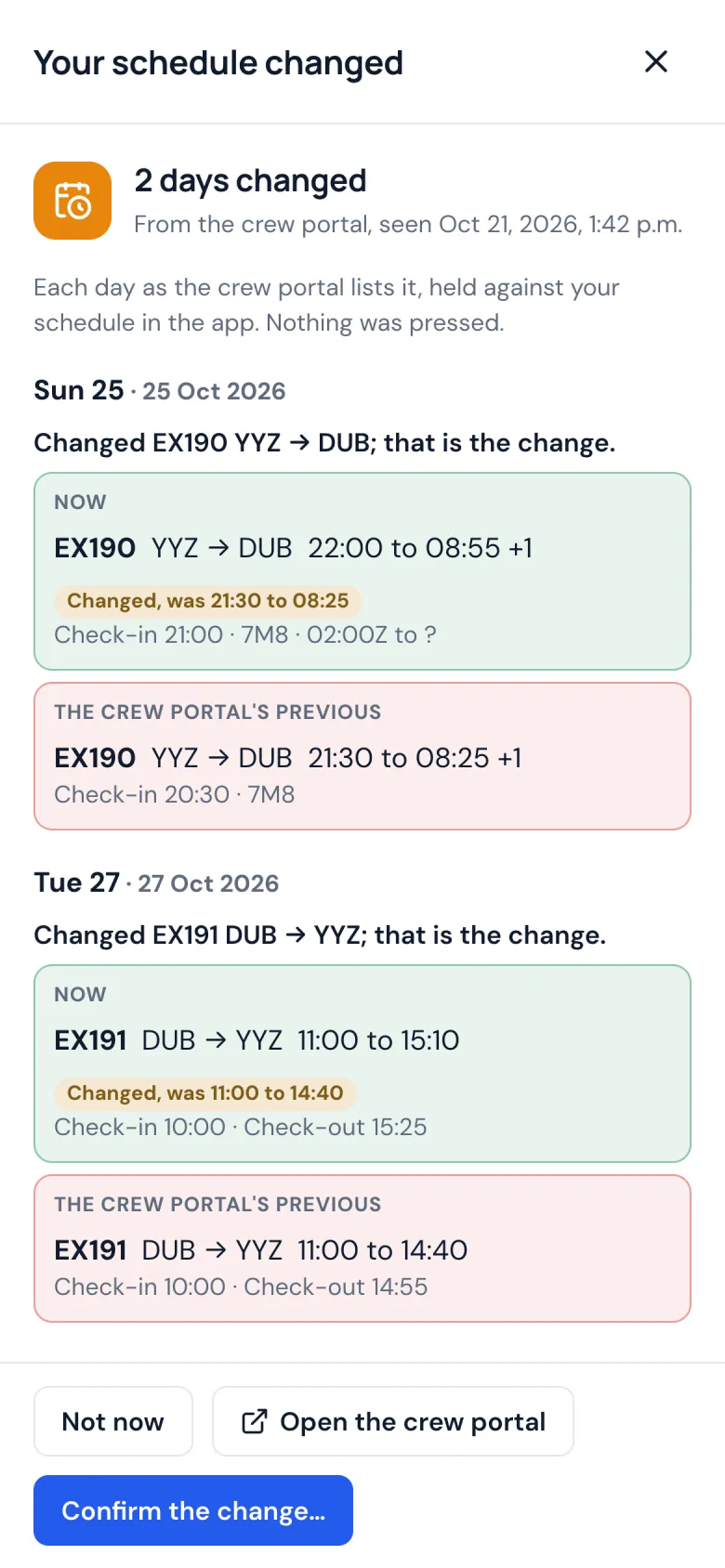
Schedule · Step 4 of 35
Confirm a change
Where your airline asks crews to confirm schedule changes, read the change in the app and confirm it there. Nothing is confirmed until you say yes.
Schedule · Step 5 of 35
Sync from your phone
Tap Sync in the phone app and your schedule is read from your airline's crew system with your own login, over your own connection. Your password stays on your phone.
Flights and crew · Step 6 of 35
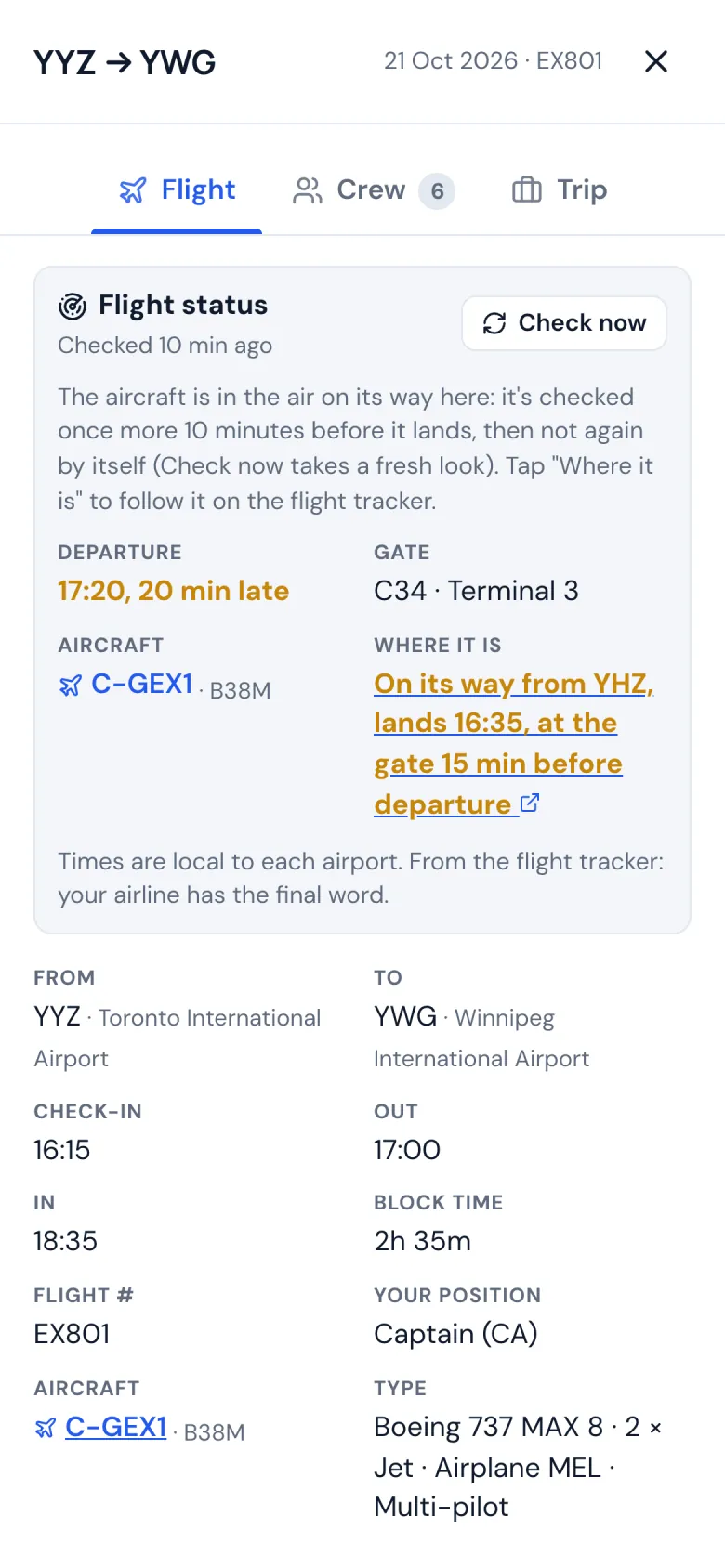
Every flight in detail
Times, gate and terminal, the aircraft and the flight's status on the day: a delay, and where the aircraft is coming from. A notification tells you when your first flight of the day is late.
Flights and crew · Step 7 of 35
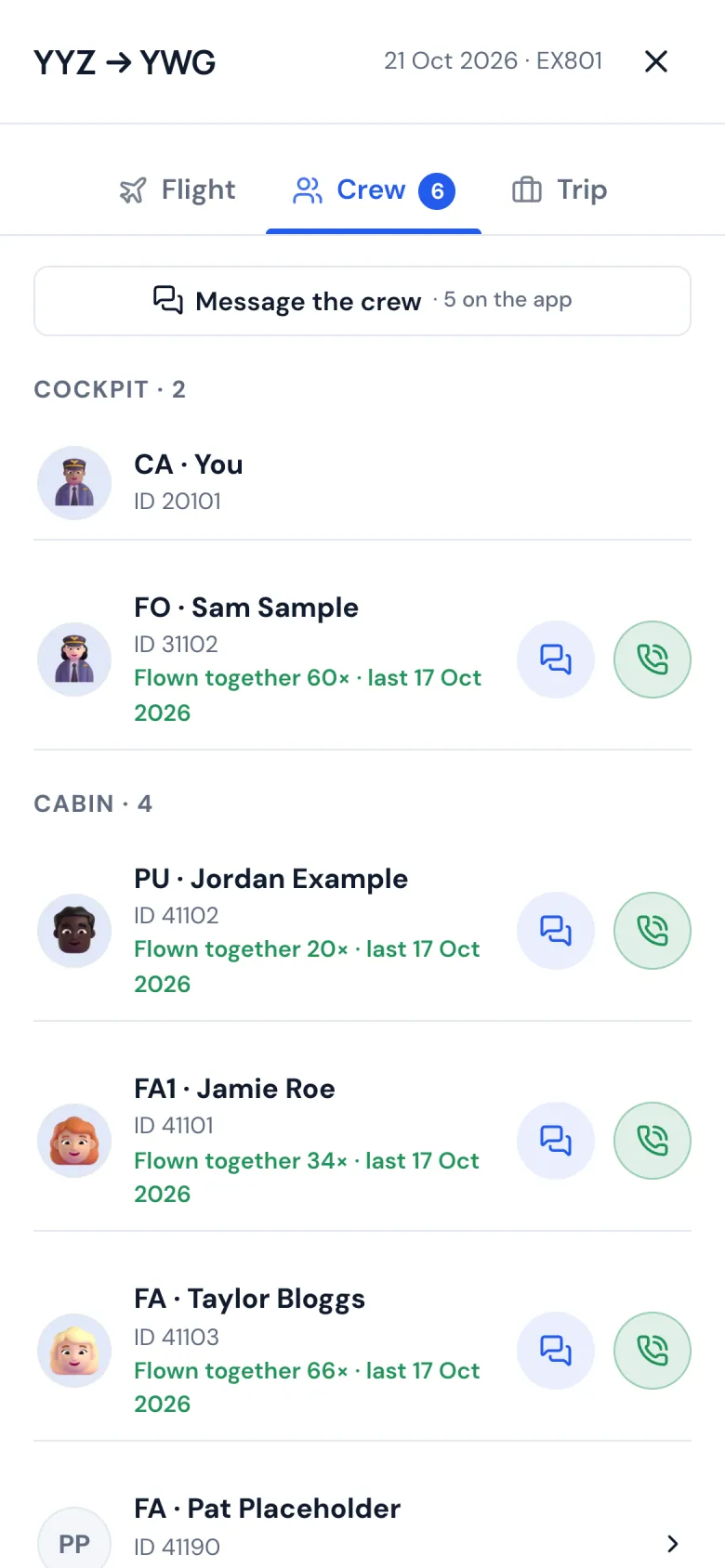
Who you're flying with
Everyone on the flight with their position and picture. Call or message anyone whose number you have, or the whole crew at once.
Flights and crew · Step 8 of 35
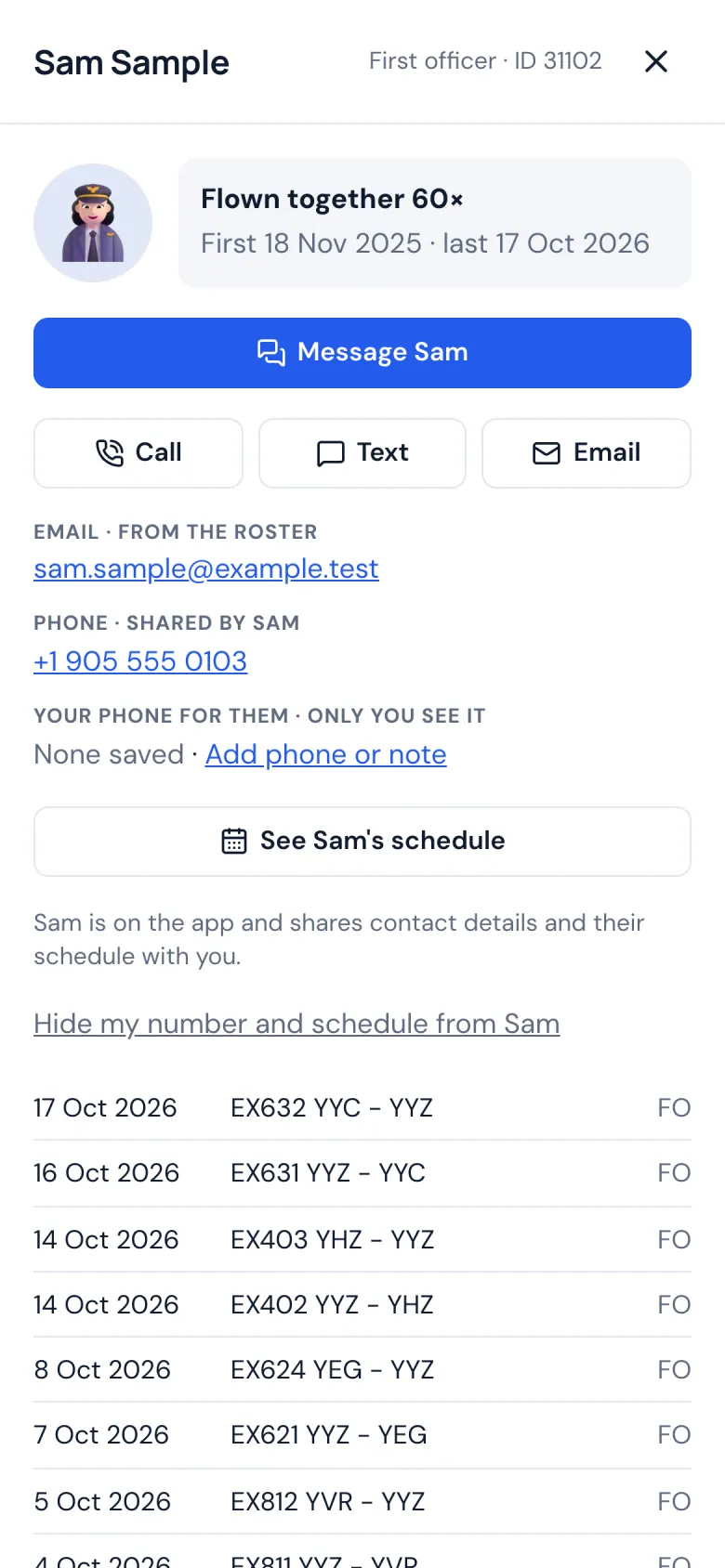
A card for each crewmate
The flights you've flown together, a private note only you can read, and their schedule when they share it with you.
Flights and crew · Step 9 of 35
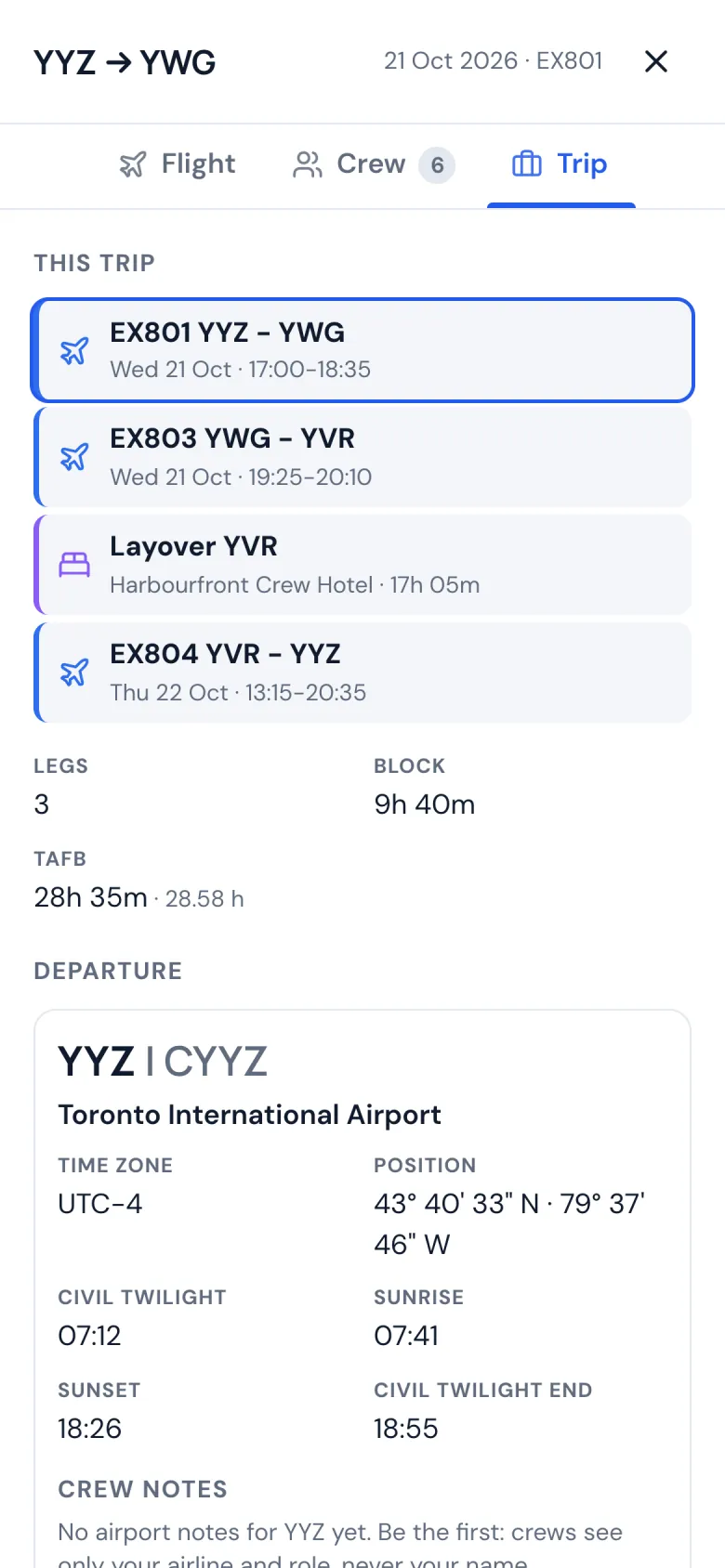
The whole trip
Every leg of the trip in one place with the layover, the block time and the time away from base, and each airport's time zone, sunrise and sunset.
Flights and crew · Step 10 of 35
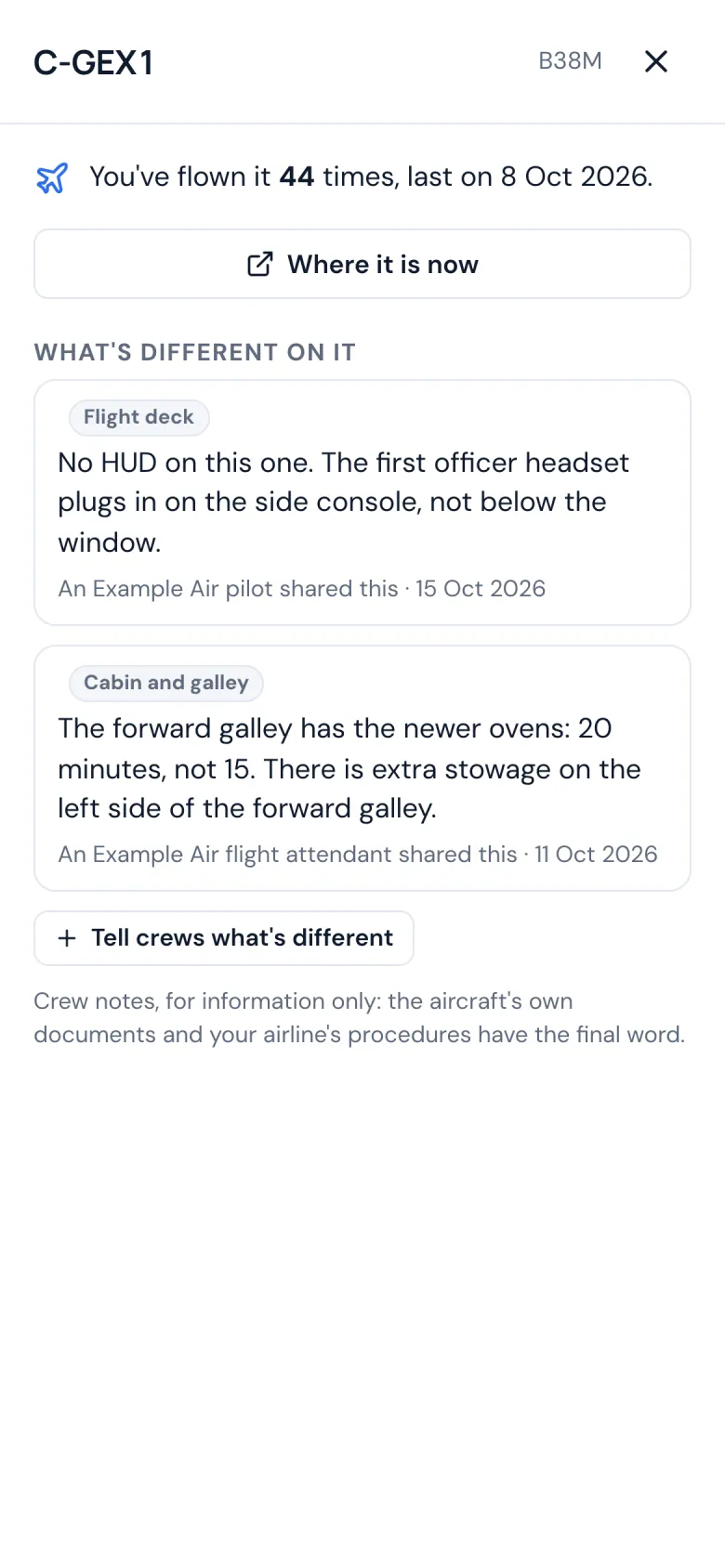
Notes on the aircraft
Tap a registration for that aircraft: how often you've flown it and what crews say is different on it. Add a note for the next crew.
Layovers · Step 11 of 35
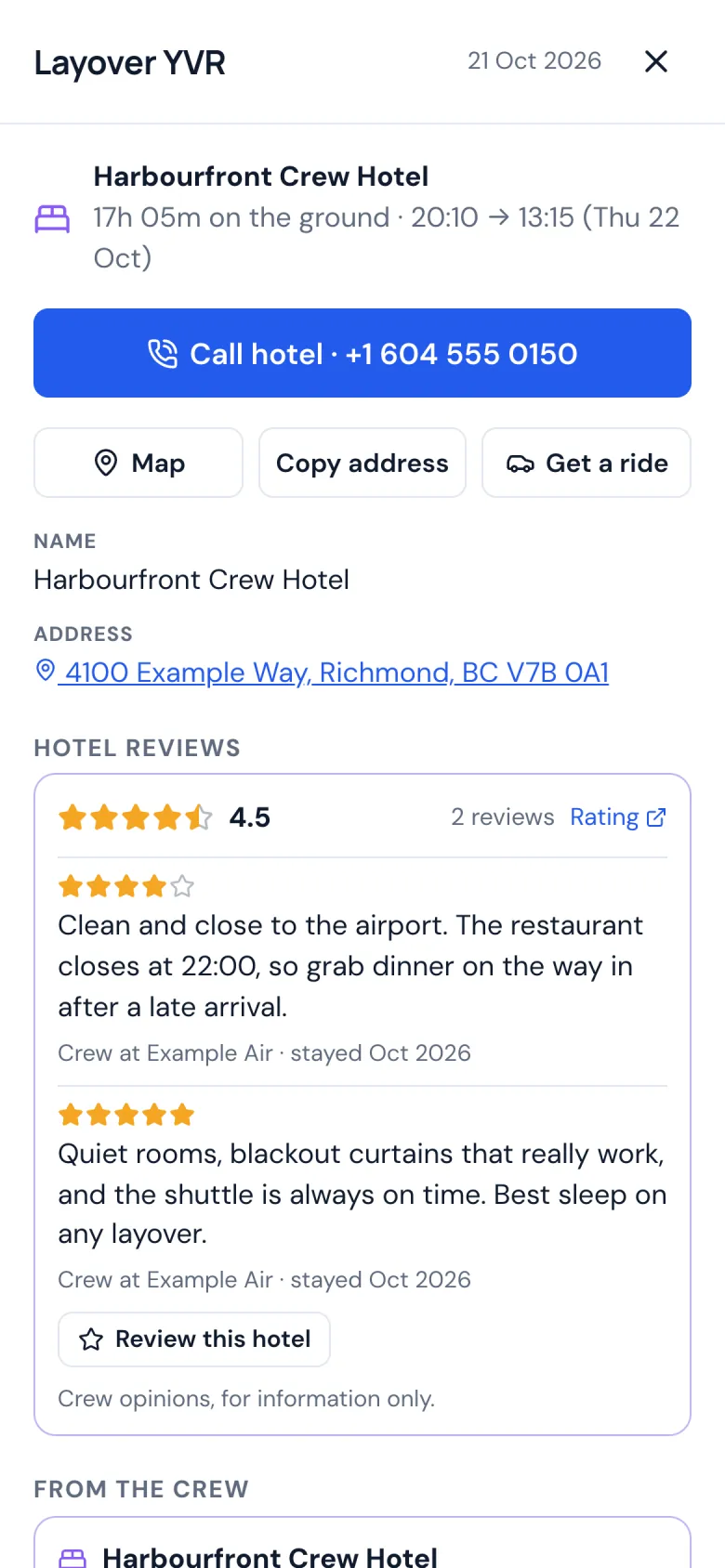
Layovers and hotels
The hotel with one tap to call, get directions or a ride, and reviews from crews who stayed there. Add your own after your stay.
Layovers · Step 12 of 35
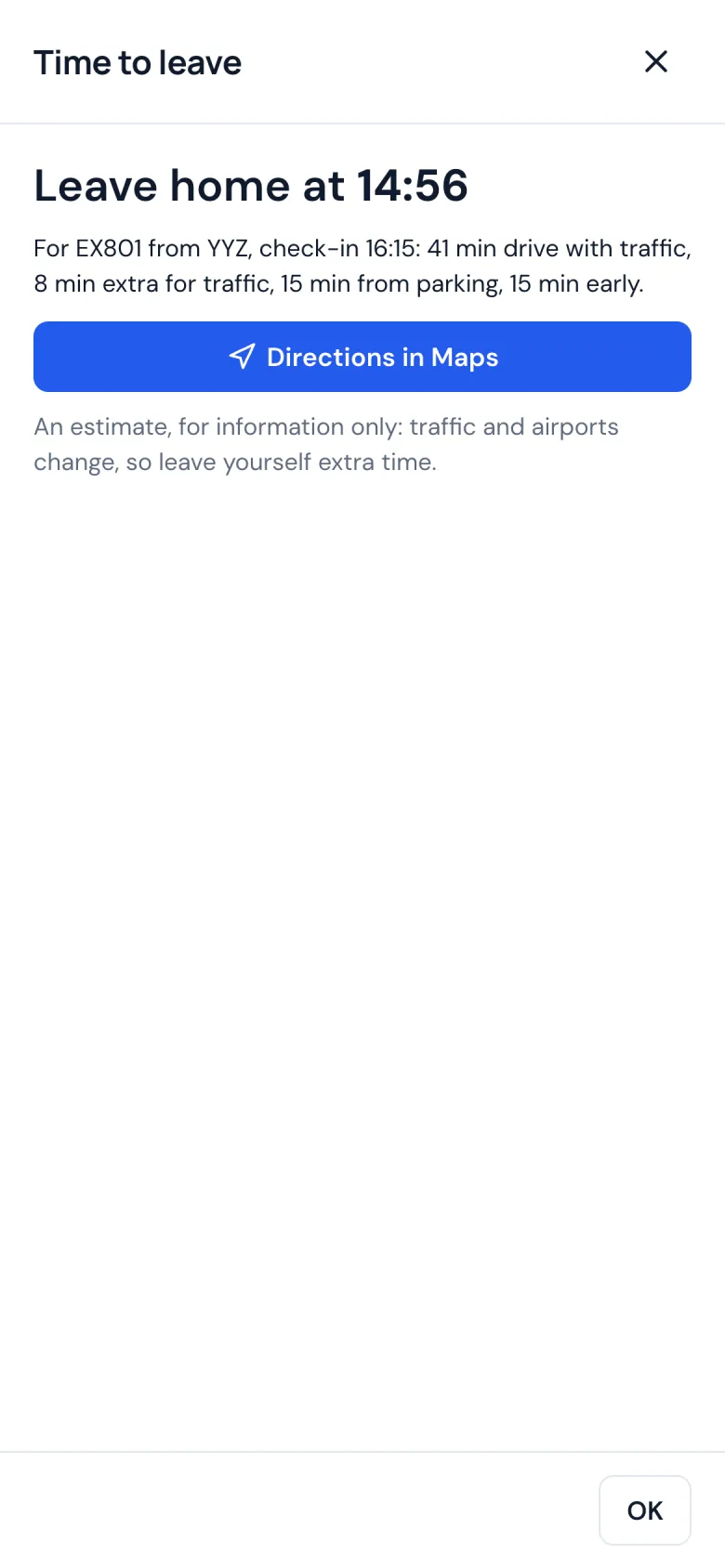
Time to leave
When to leave home for check-in, worked out with today's traffic and the time from parking. One tap opens the directions.
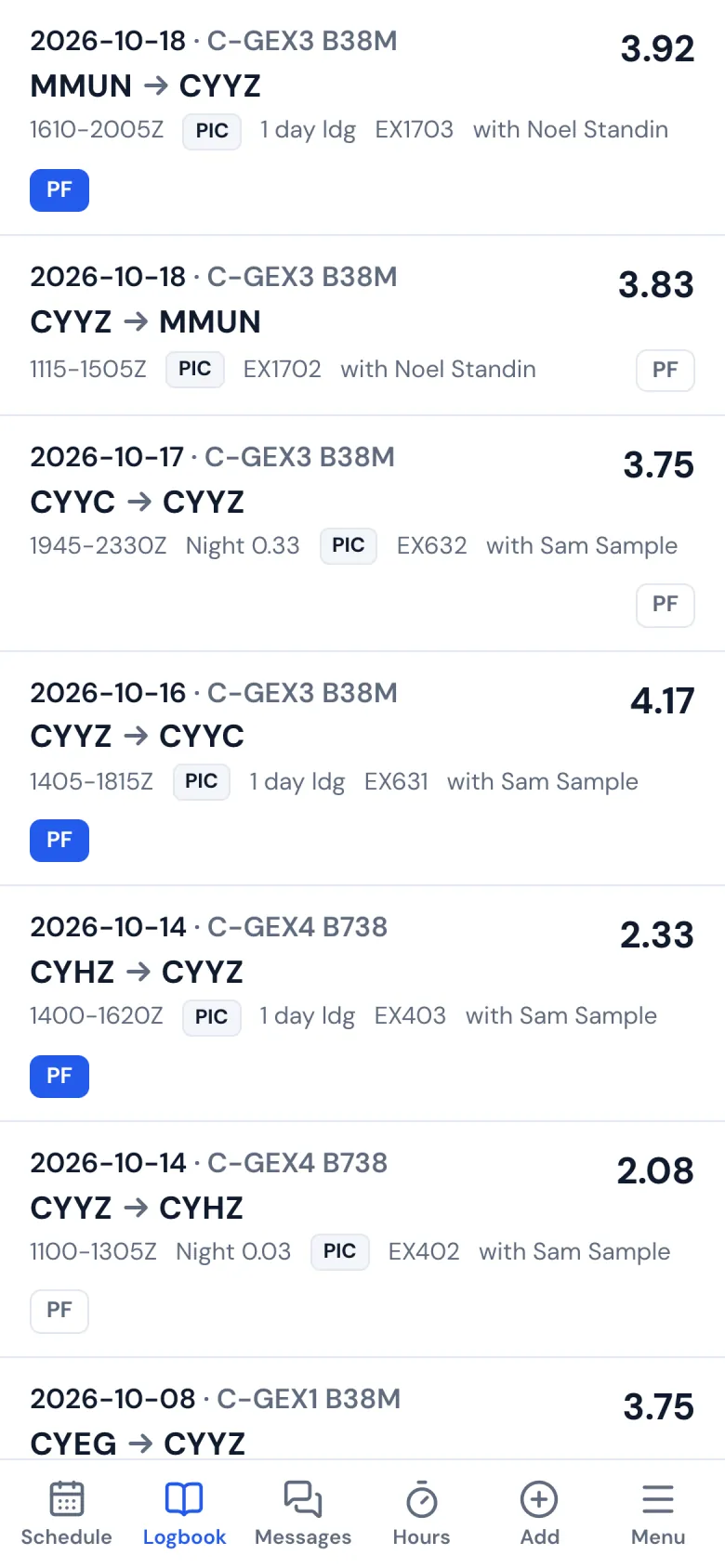
Logbook · Step 13 of 35
A logbook that fills itself
Each flight you fly goes into your logbook from your roster, with out and in times, night time, takeoffs and landings worked out by your rules.
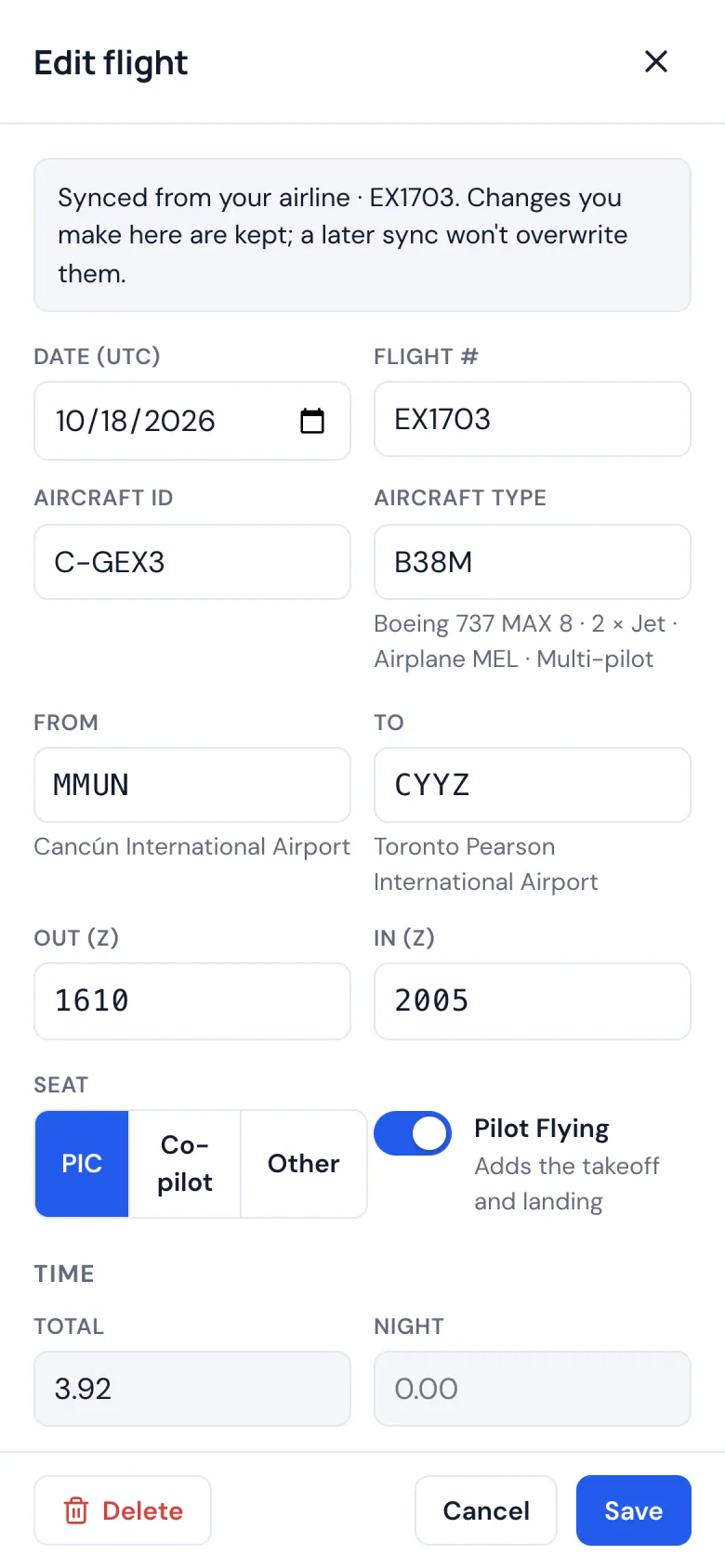
Logbook · Step 14 of 35
Change anything
Open a flight to fix a time, change who was flying, add an approach or a remark.
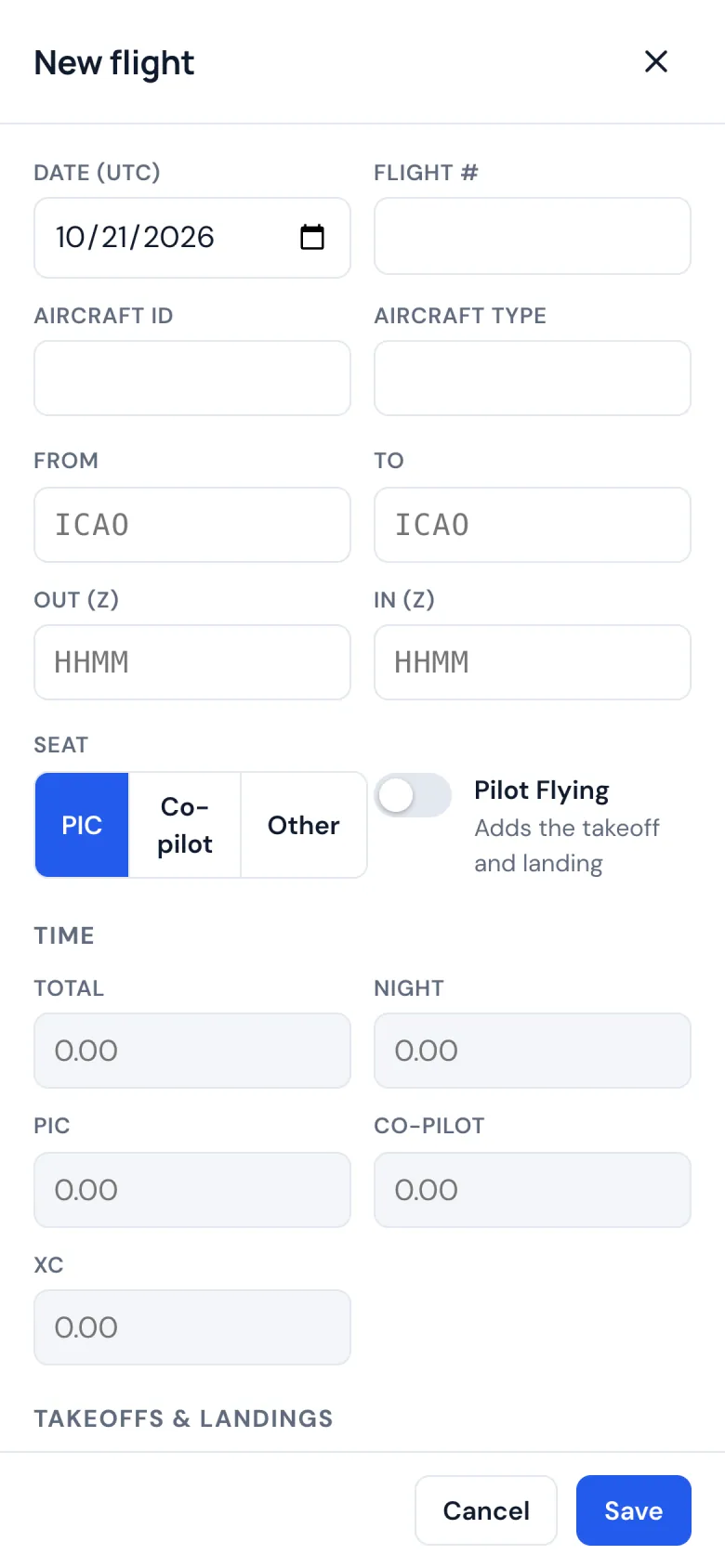
Logbook · Step 15 of 35
Add a flight
A training flight, a simulator session or flying from another job: add it by hand in a few taps.
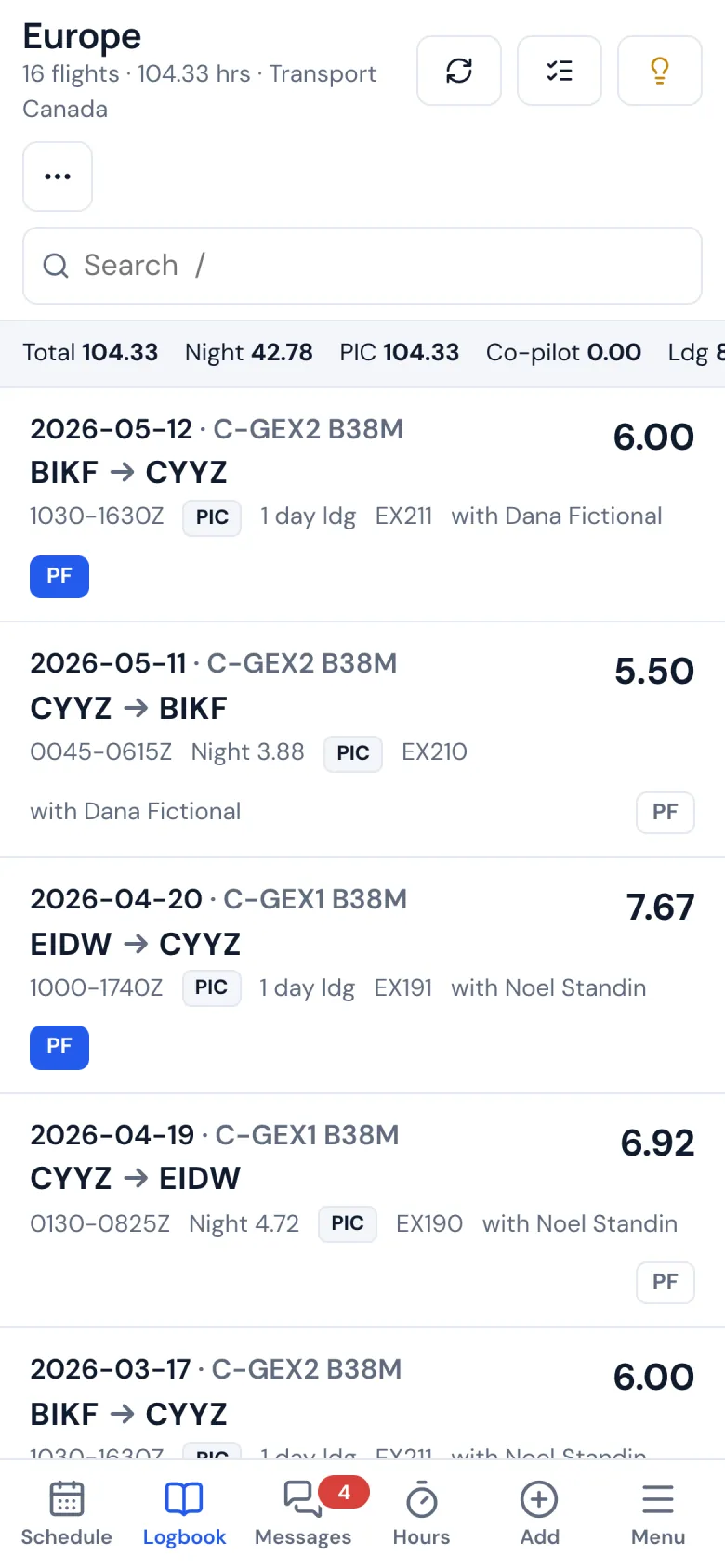
Logbook · Step 16 of 35
Filters and regions
Filter by aircraft, role, night, region or dates, and see the hours for exactly what you picked.
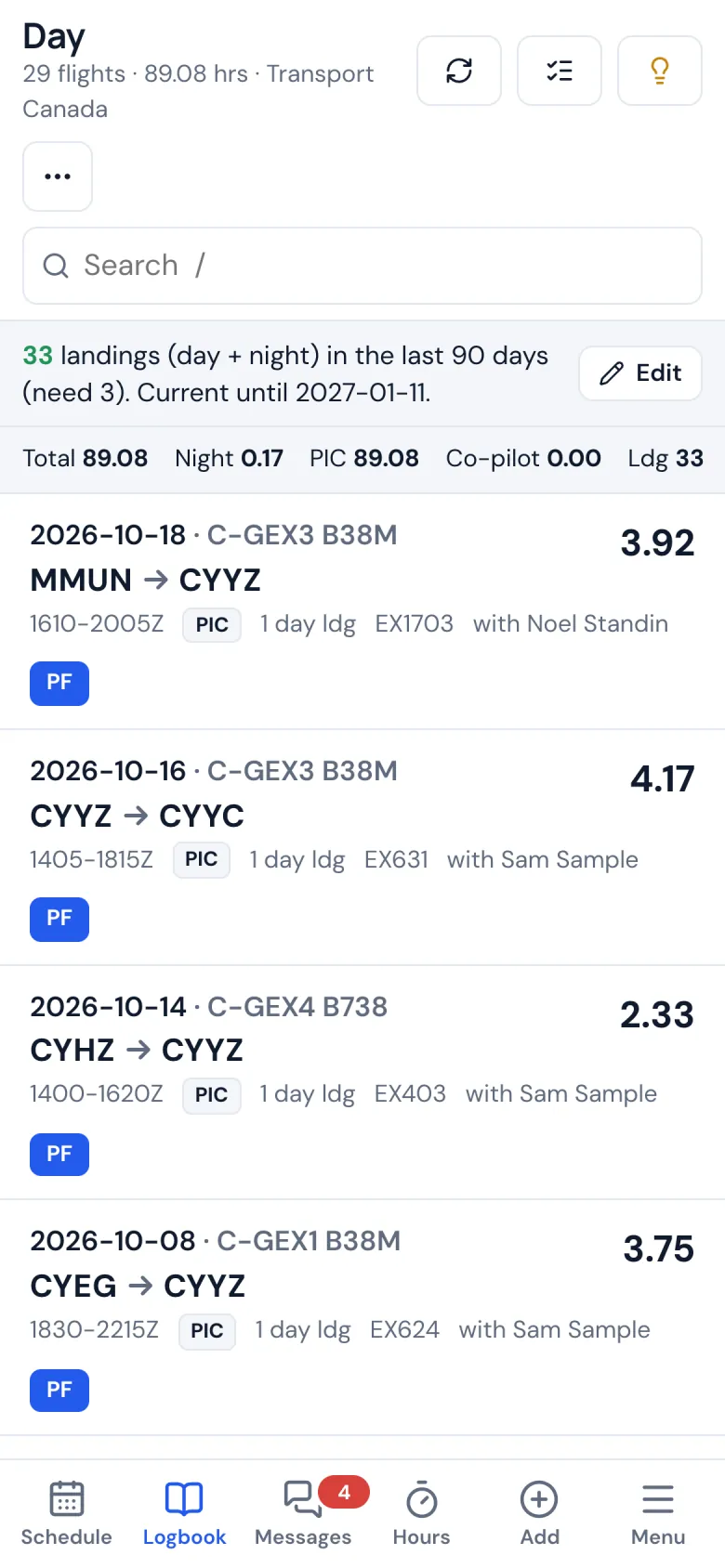
Logbook · Step 17 of 35
Currency
Your takeoffs and landings in the last 90 days, day and night, and when each one runs out.
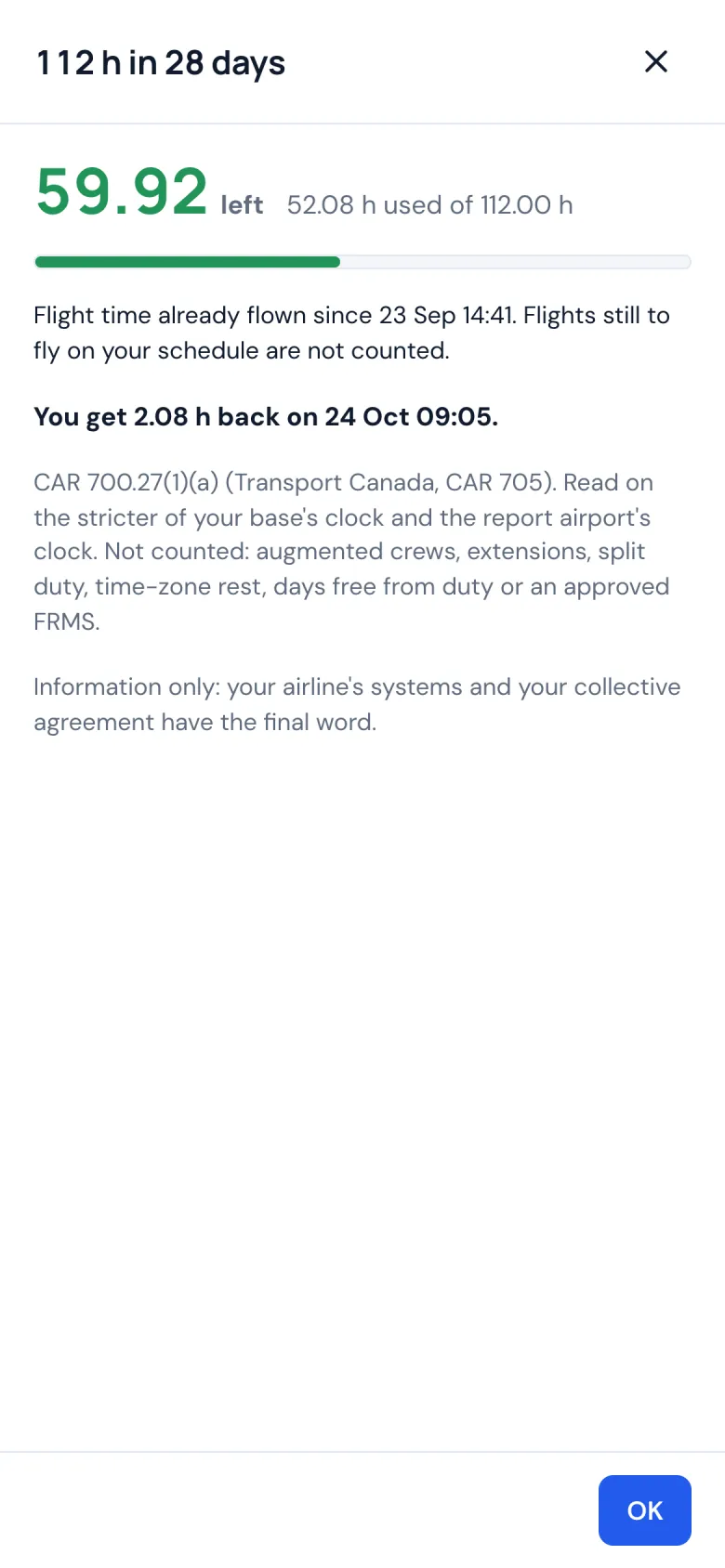
Logbook · Step 18 of 35
Flight and duty limits
Your flight time against each limit of the rules you fly under: the hours left, and when hours come back.
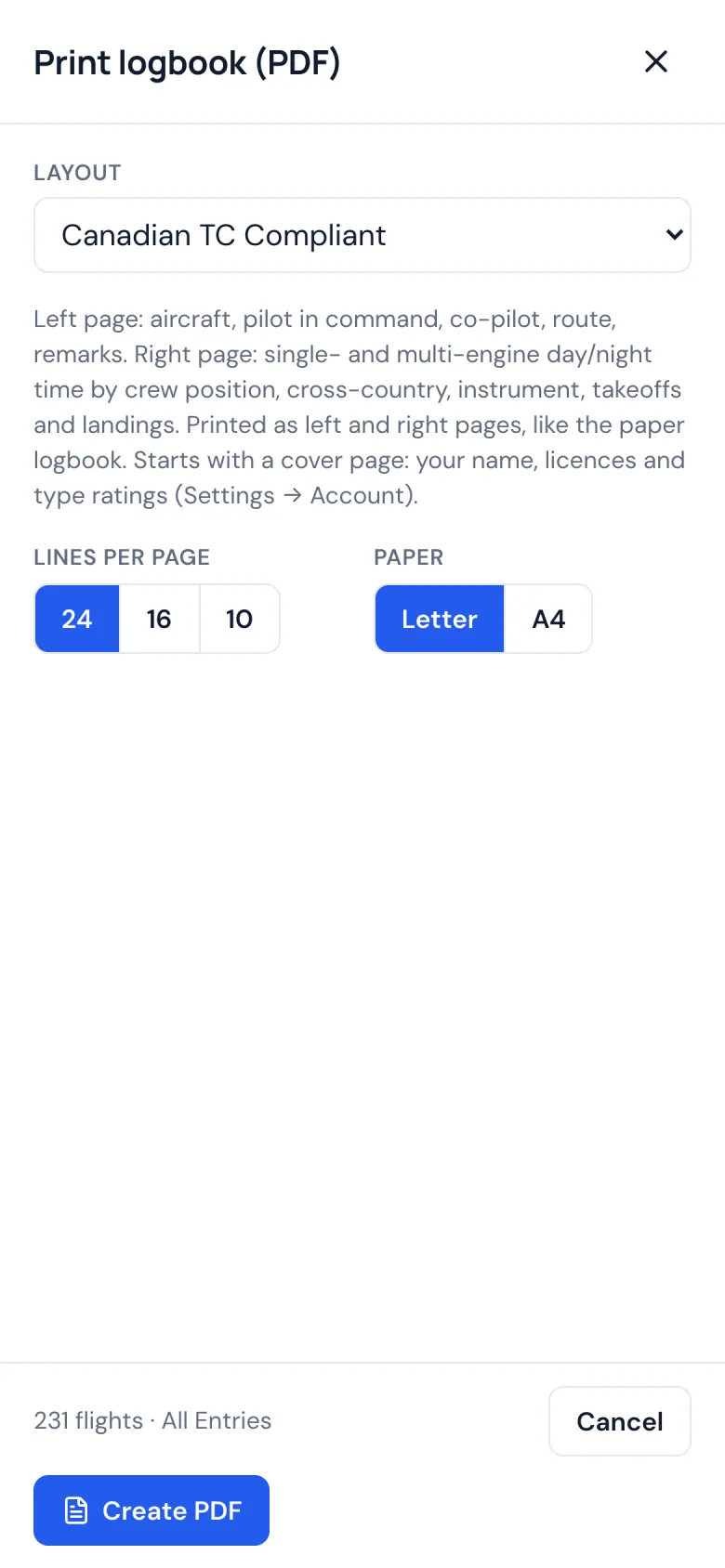
Logbook · Step 19 of 35
Print it like paper
PDF pages laid out like a paper logbook, FAA, Transport Canada or EASA, on letter or A4, with totals and your signature on every page.
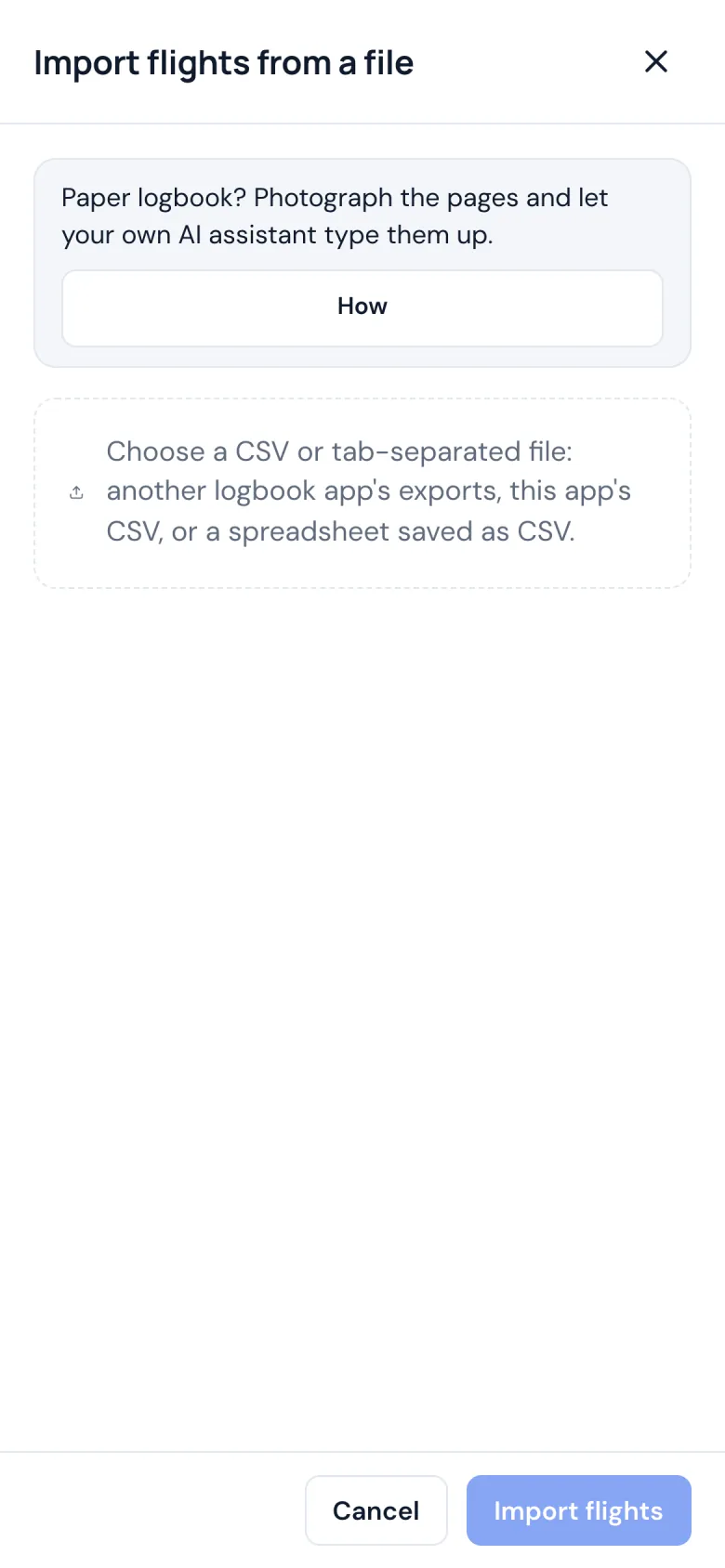
Logbook · Step 20 of 35
Import and export
Bring in a file from another logbook app or a spreadsheet and export one whenever you like, or have your own AI assistant type up photos of a paper logbook.
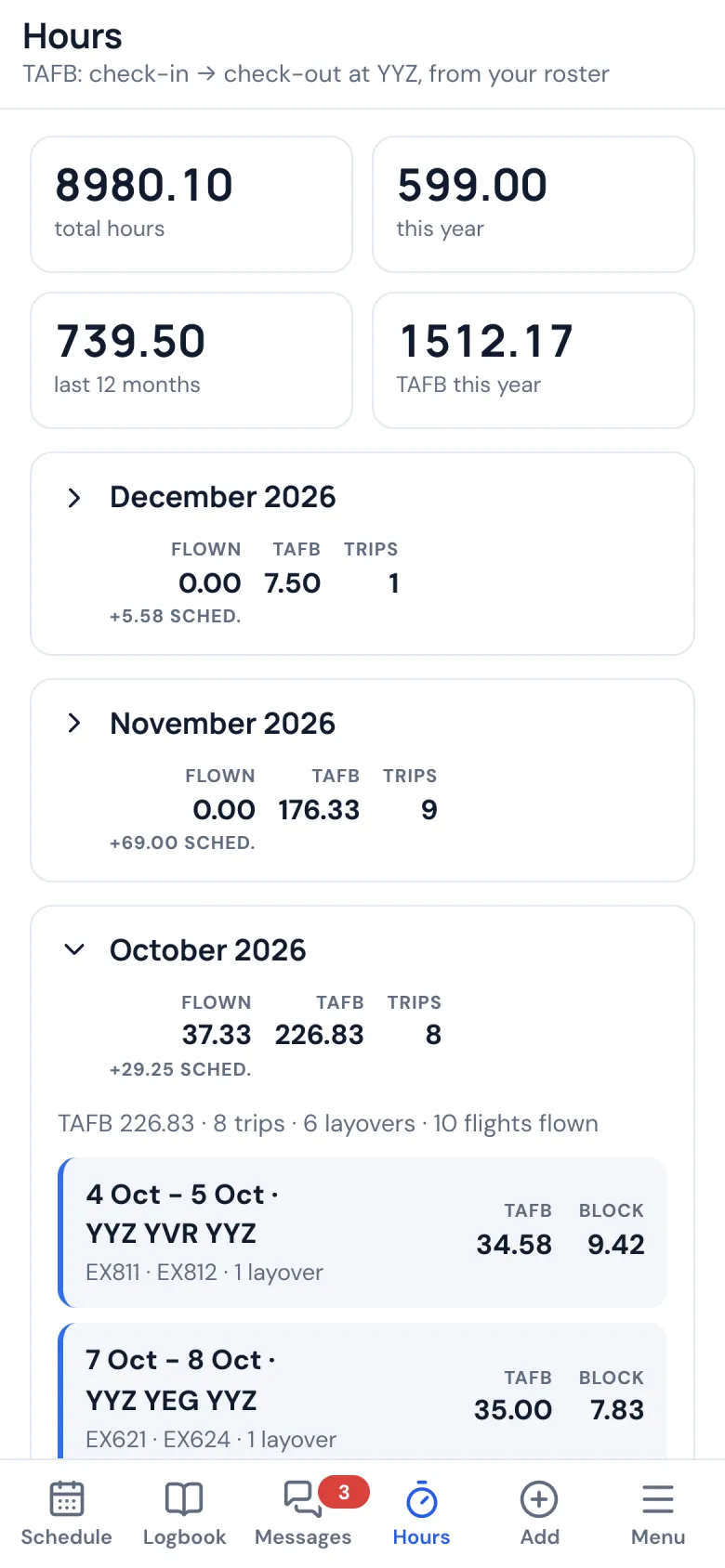
Hours · Step 21 of 35
Hours and time away
Your total hours, this year and the last 12 months, and time away from base, month by month and trip by trip.
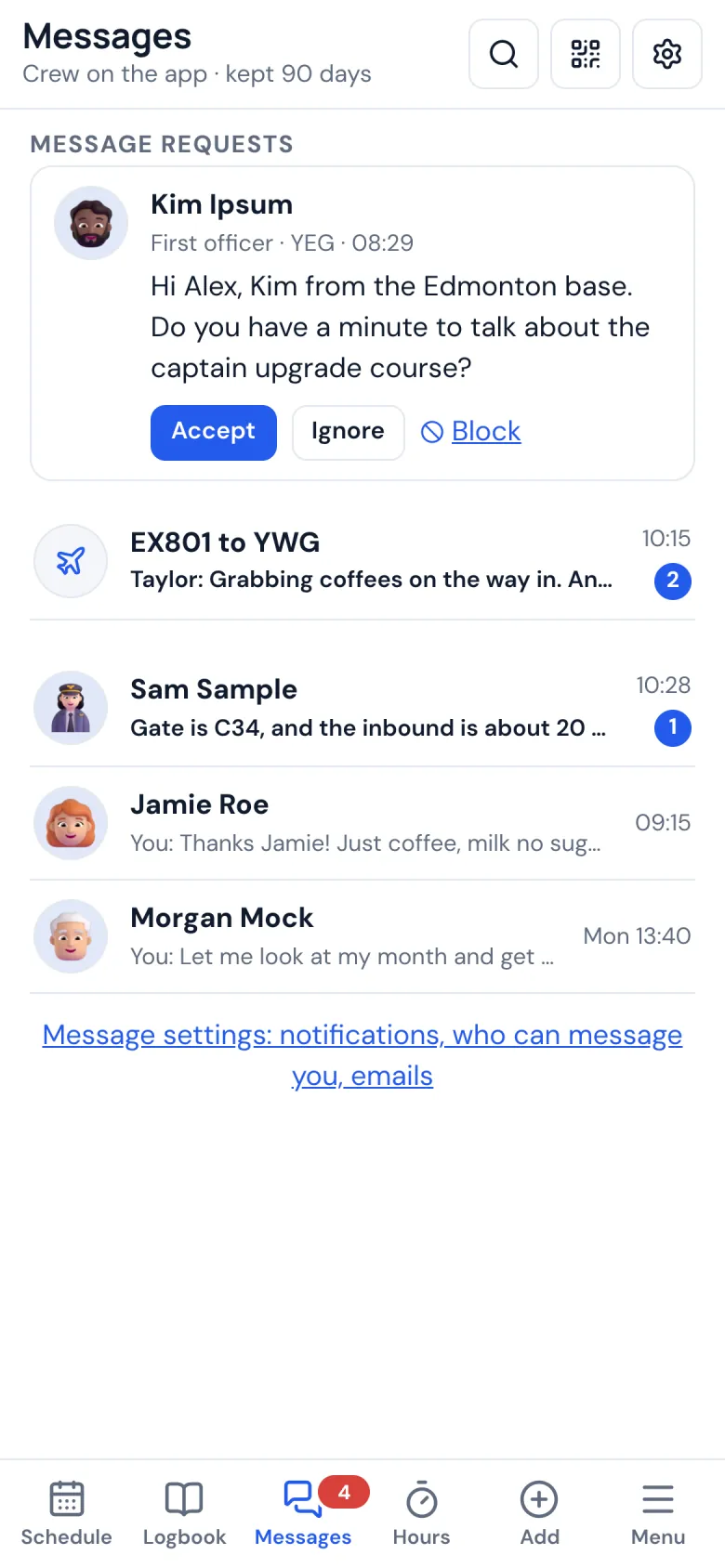
Messages · Step 22 of 35
Messages
Message the crew you fly with in the phone app, with read receipts and who's online. A new crewmate asks first, and you choose who can reach you.
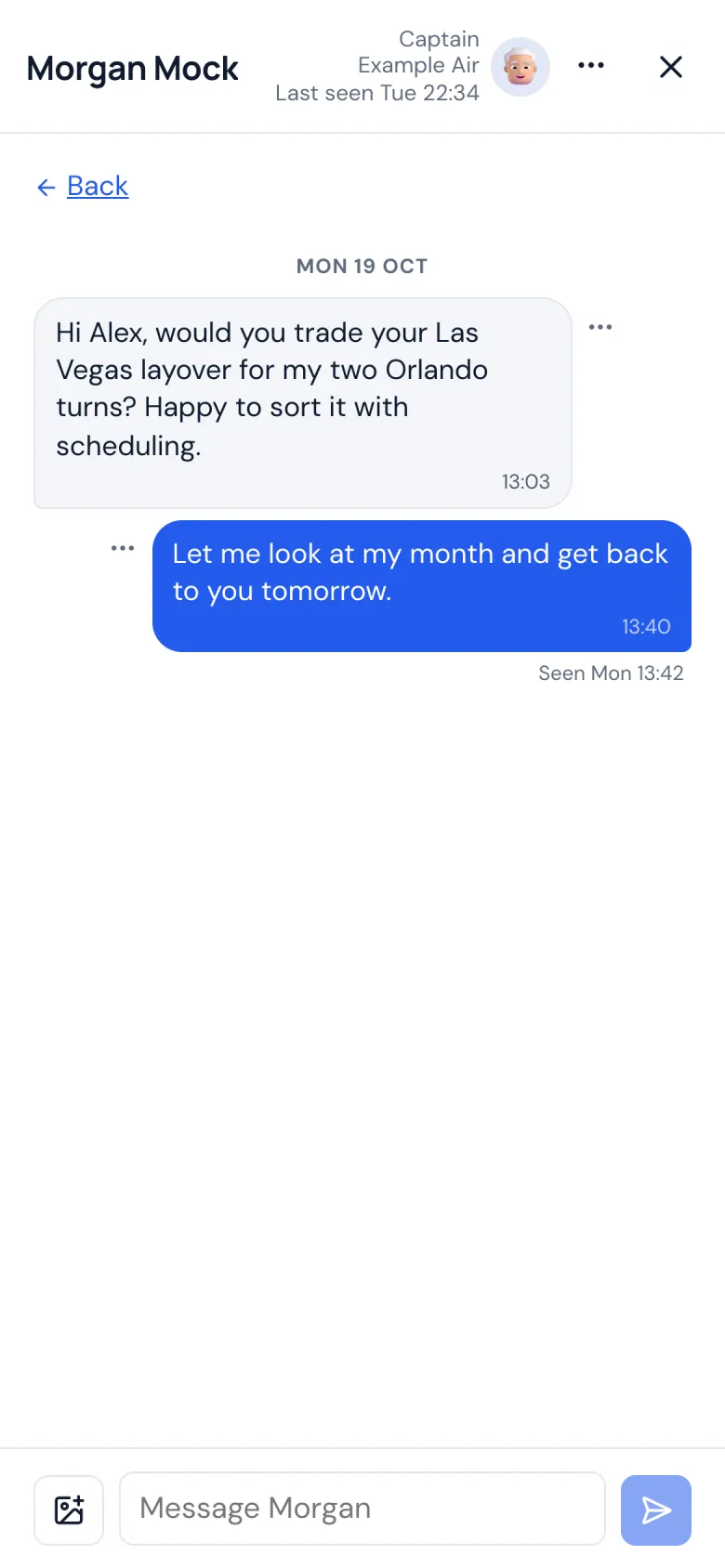
Messages · Step 23 of 35
A conversation
Write, react, change or take back what you sent. Conversations can't be captured in a screenshot in the phone app.
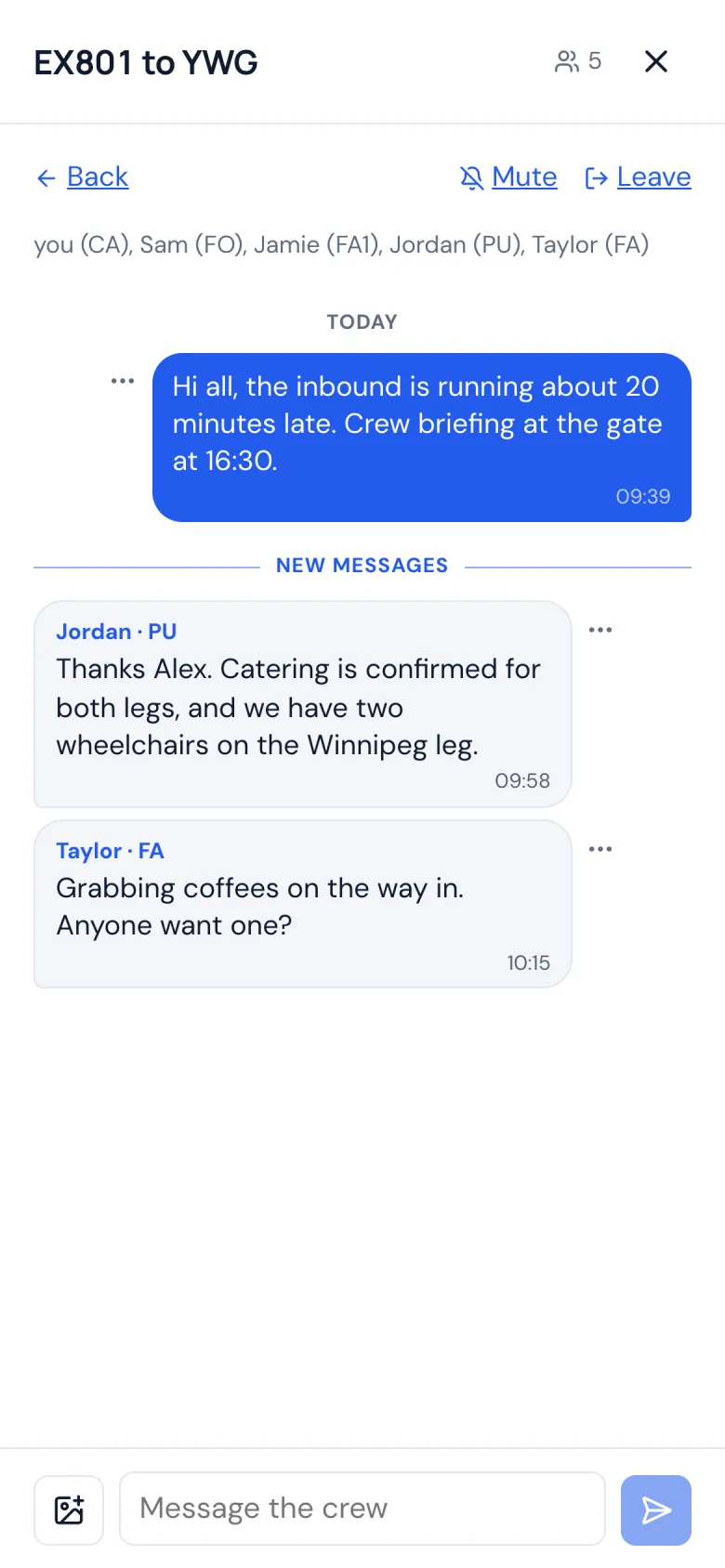
Messages · Step 24 of 35
A chat for the flight
Everyone on the flight who has the app, pilots and cabin crew, in one chat named for the flight.

Messages · Step 25 of 35
Find crew
Look up crew at your airline who chose to be found, by name or crew number, and message them.
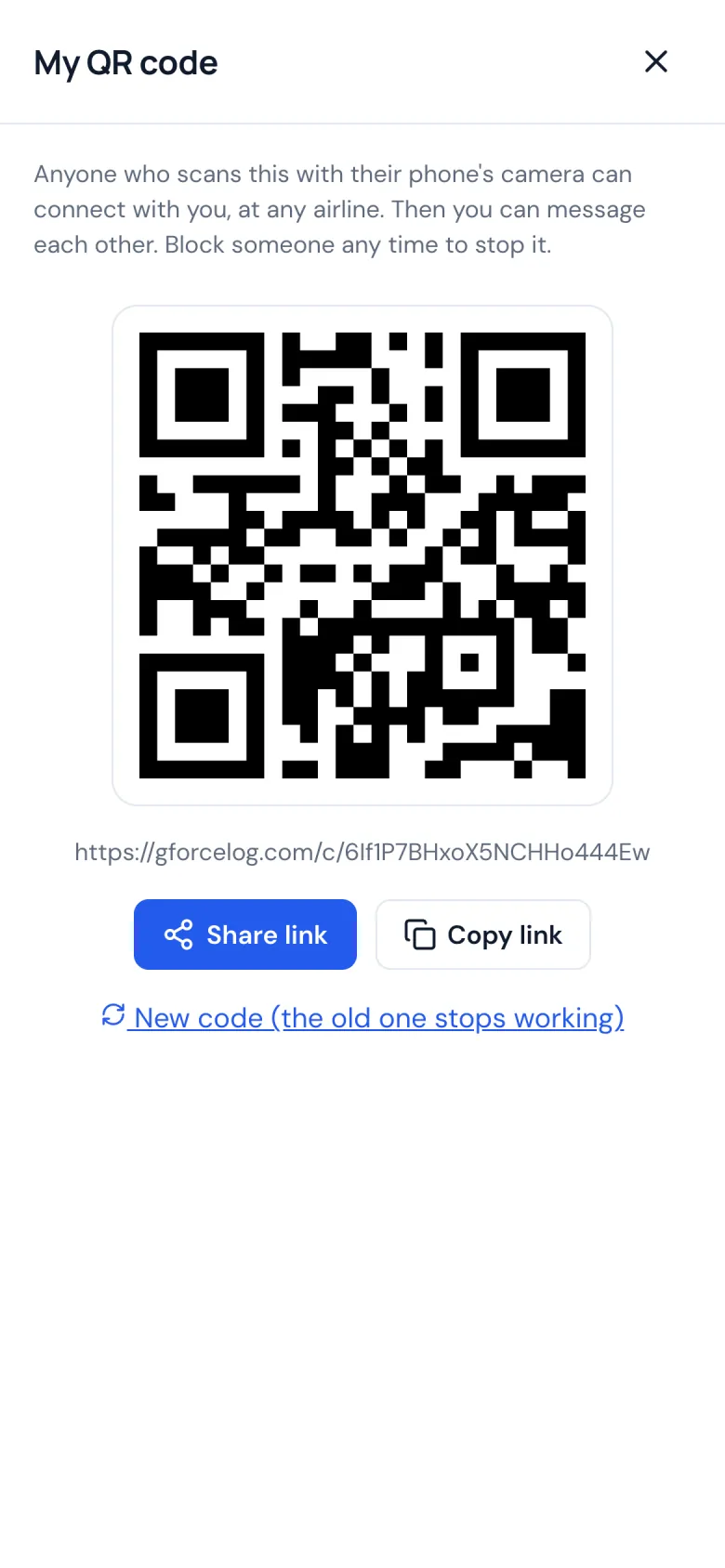
Messages · Step 26 of 35
Connect by QR code
Met crew from another airline on a layover? They scan your code, and you can message each other.
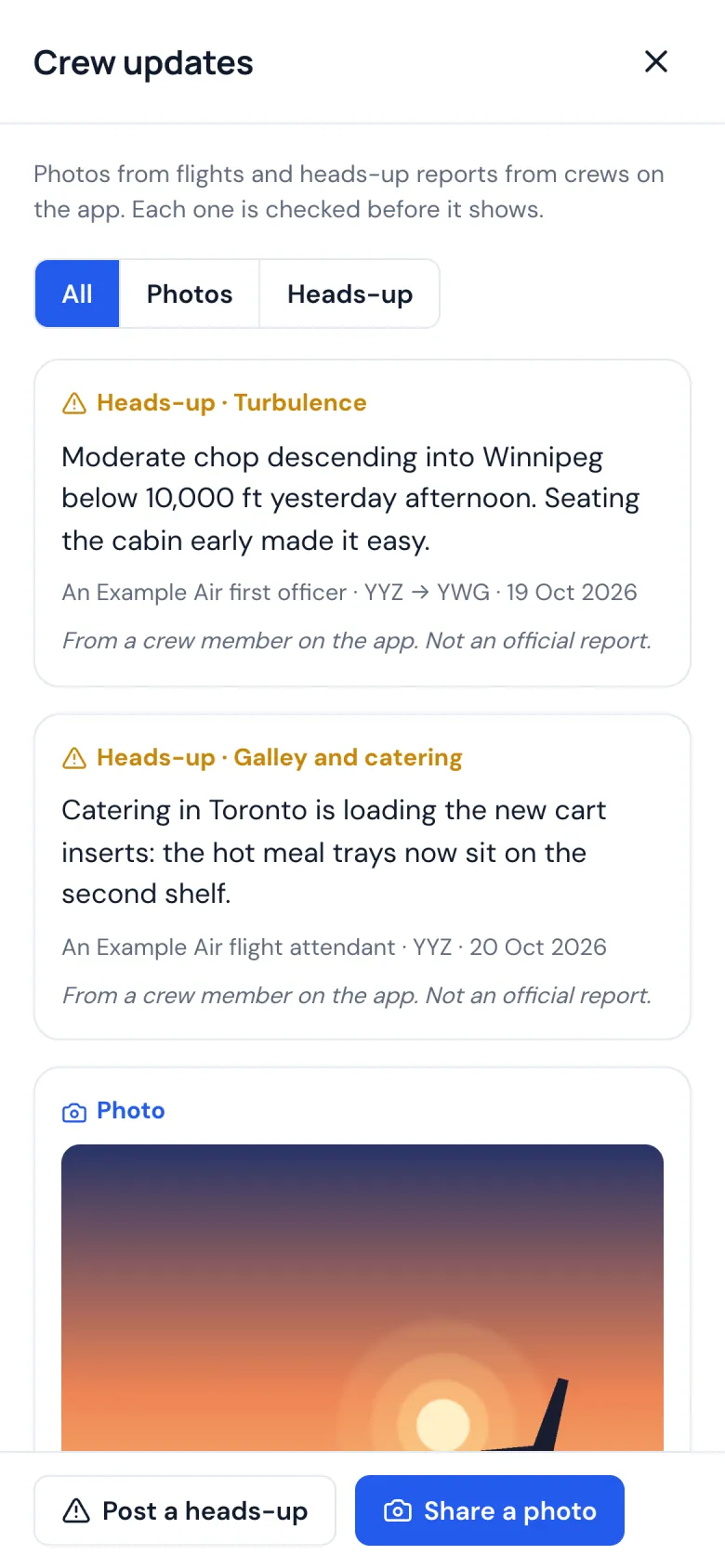
Crew on the app · Step 27 of 35
Crew updates
Photos from the flight deck and the cabin, and heads-up reports for the crews behind you: the weather, an approach, the airport. Every post is checked before it shows.
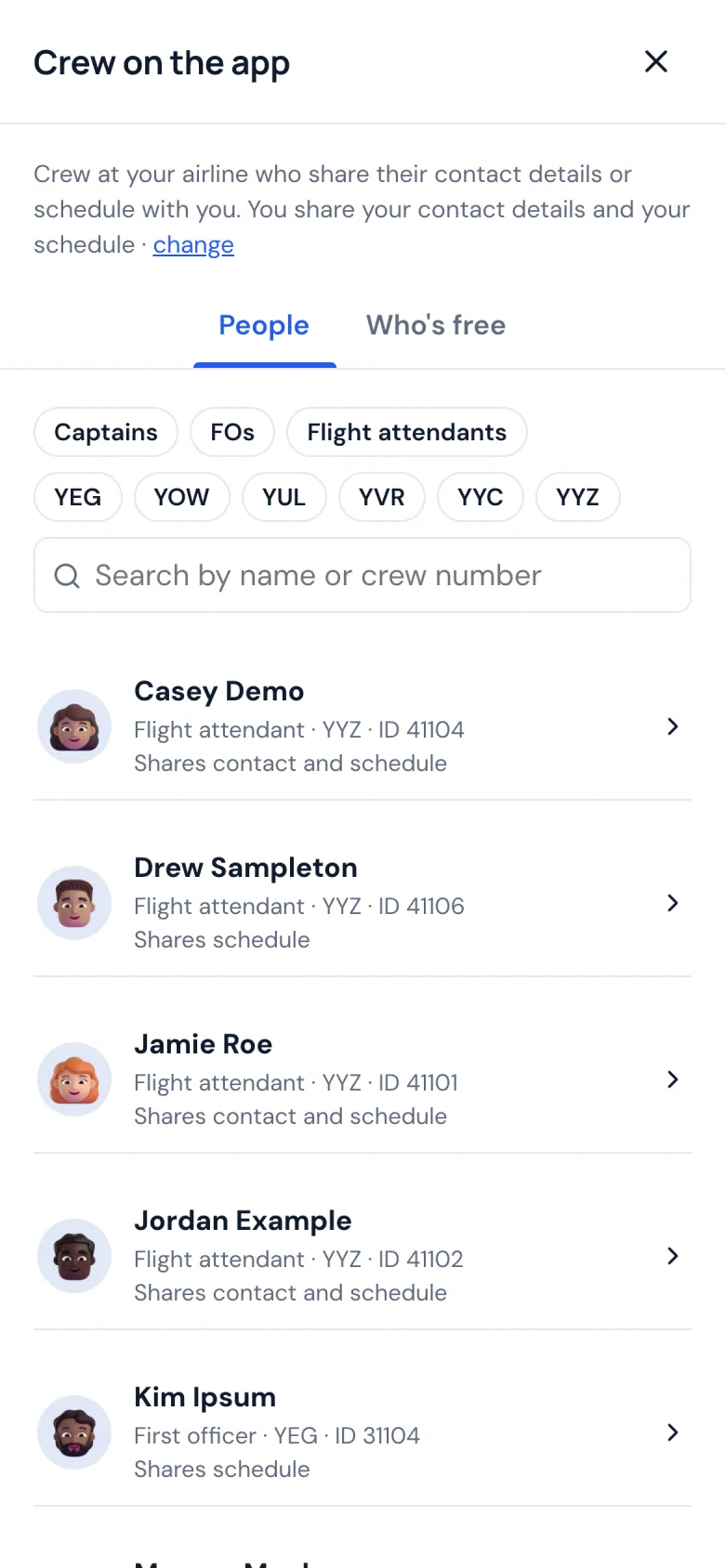
Crew on the app · Step 28 of 35
Crew on the app
Colleagues who share their contact details or schedule with you, by position and base.
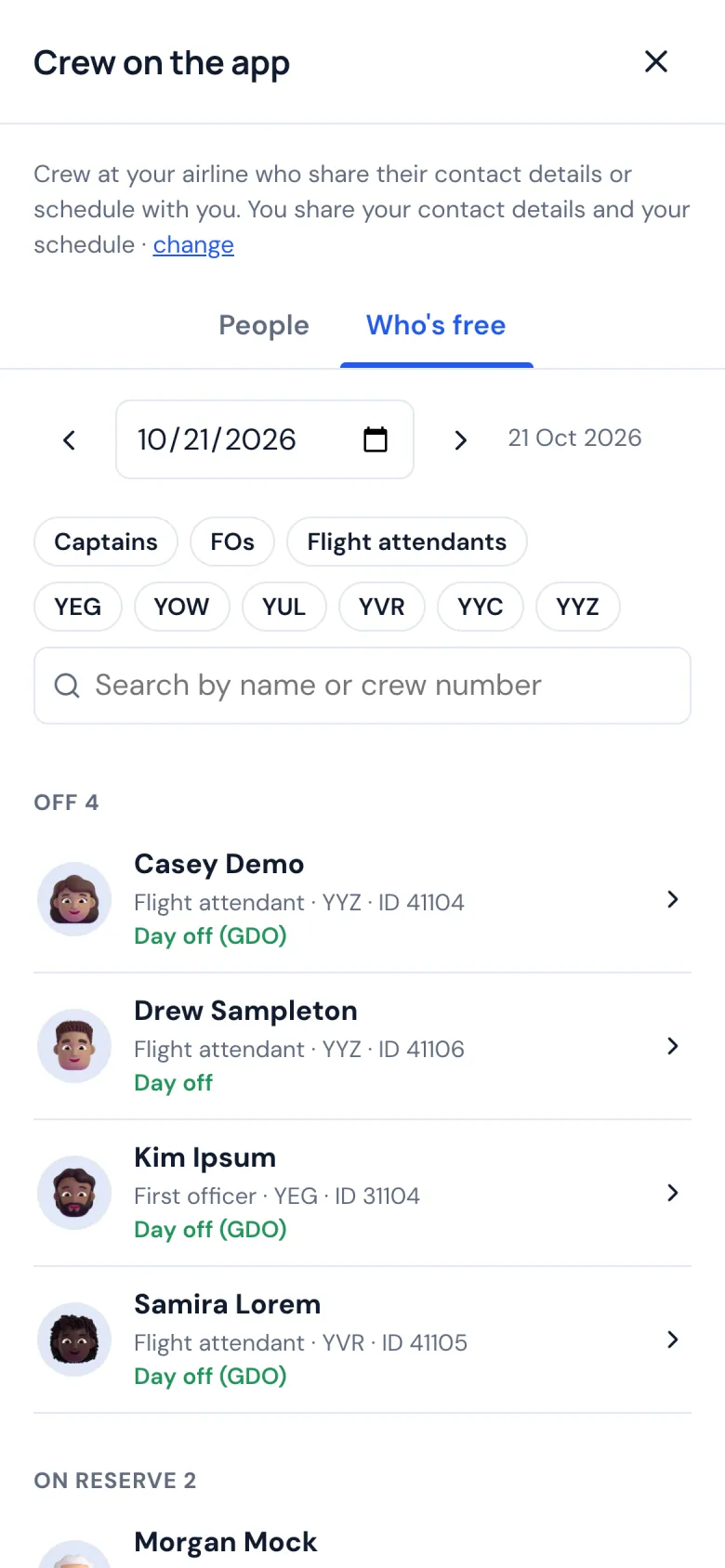
Crew on the app · Step 29 of 35
Who's free
Pick a day and see who's off, on reserve or flying among the colleagues who share their schedule with you.
Crew on the app · Step 30 of 35
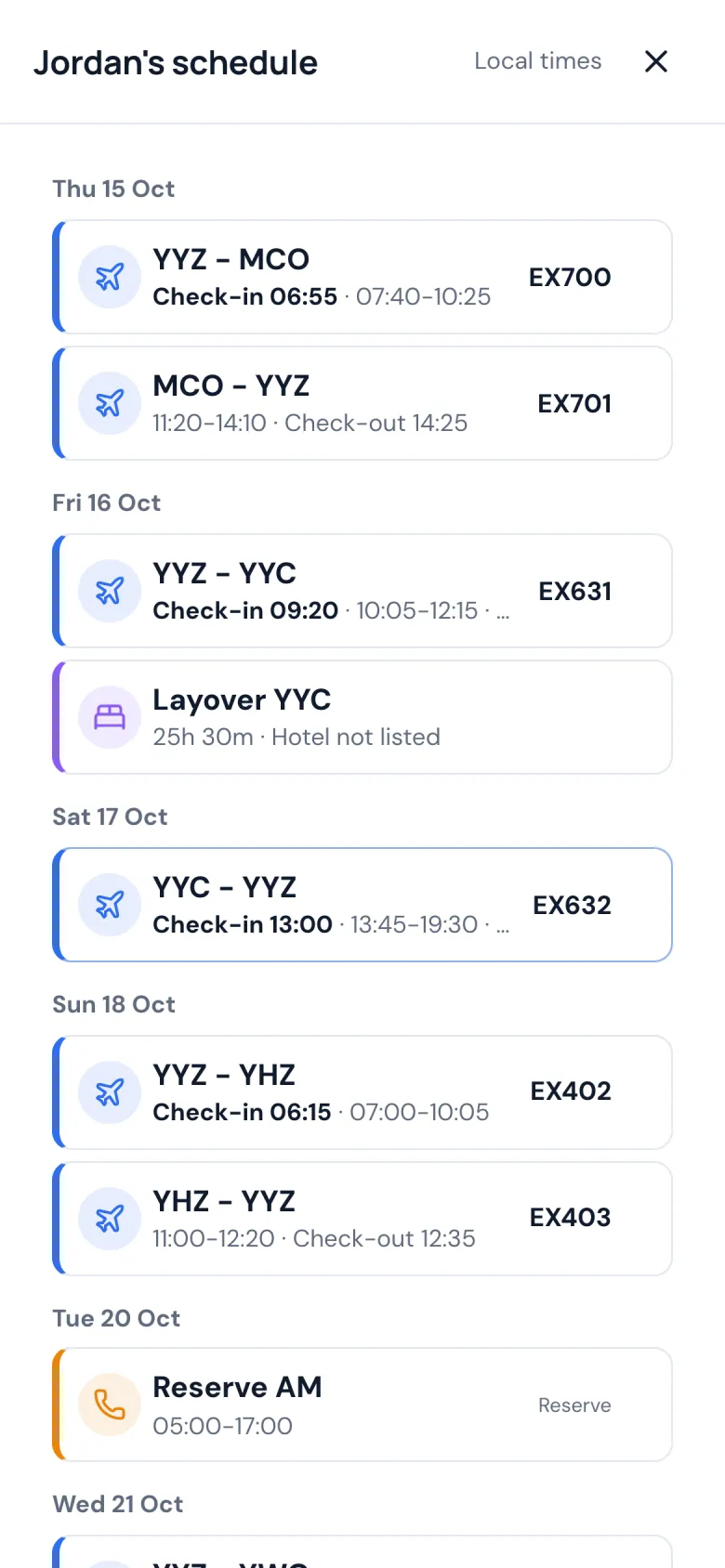
Shared schedules
Share your schedule with the crew you choose, and see theirs when they share it with you.
Where you've flown · Step 31 of 35
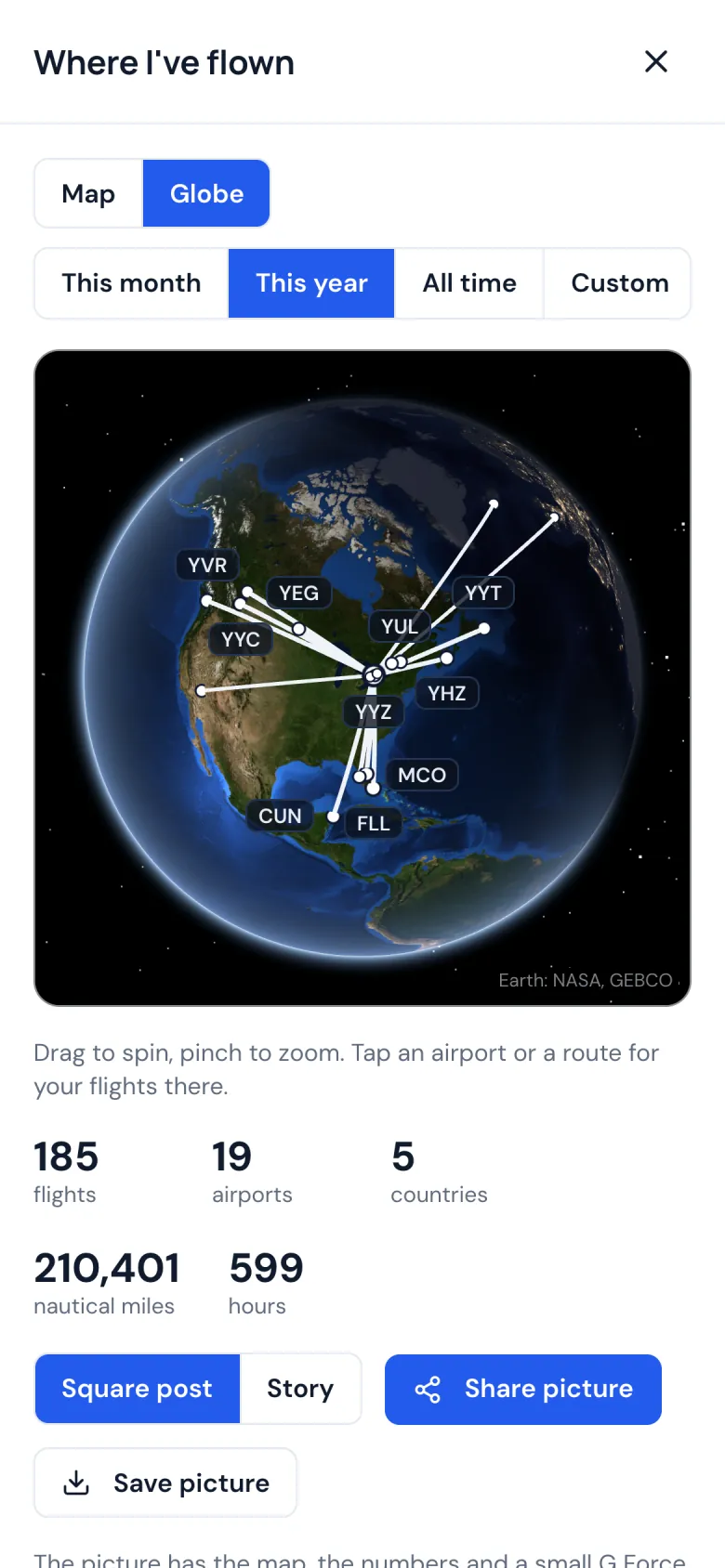
Every place you've been
Every airport and route on a globe, or on a flat map a tap away: this month, this year, all time or the dates you choose. Save it as a picture, sized for a post or a story.
Where you've flown · Step 32 of 35
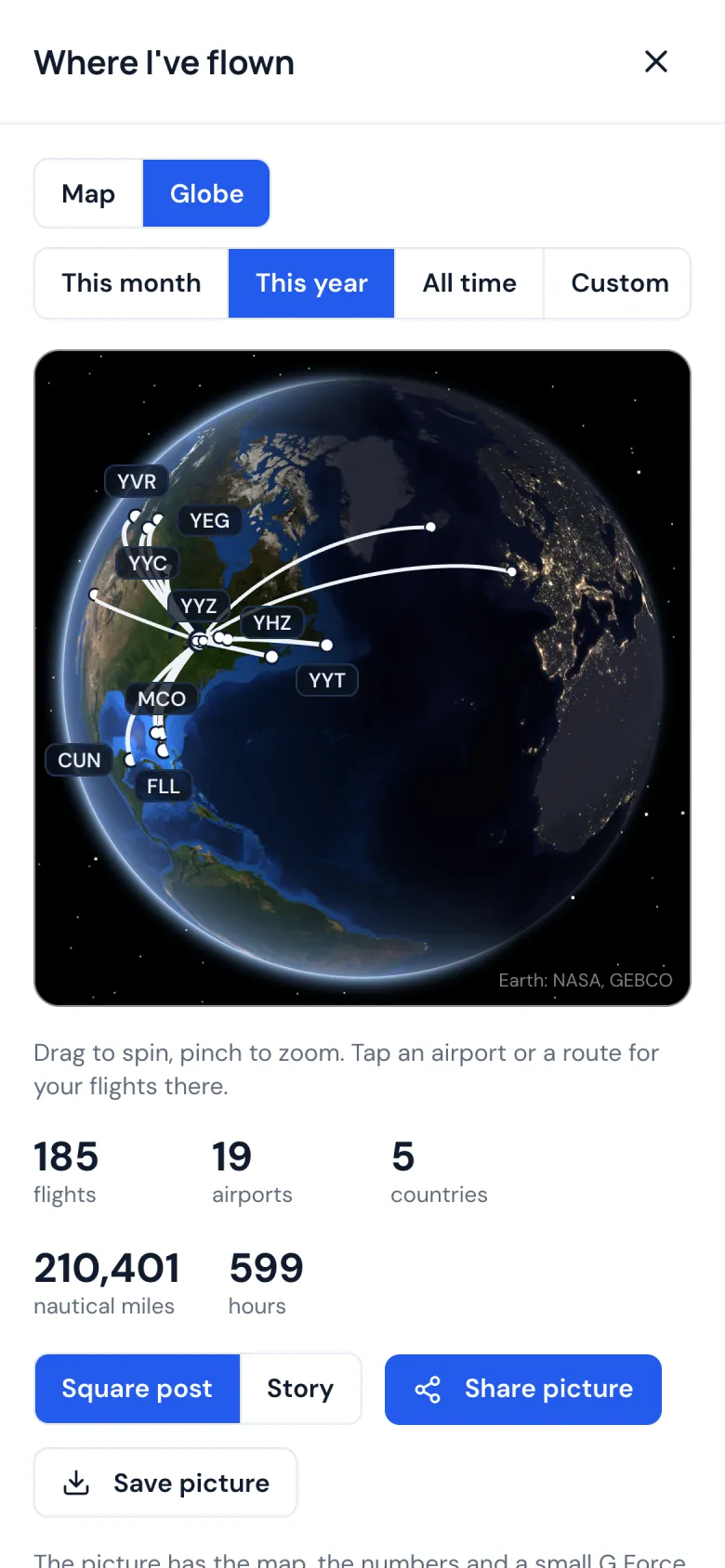
Spin it and zoom in
Turn the globe with a finger and zoom in, with day and night as they are right now. Tap an airport or a route for your flights there.
Settings · Step 33 of 35
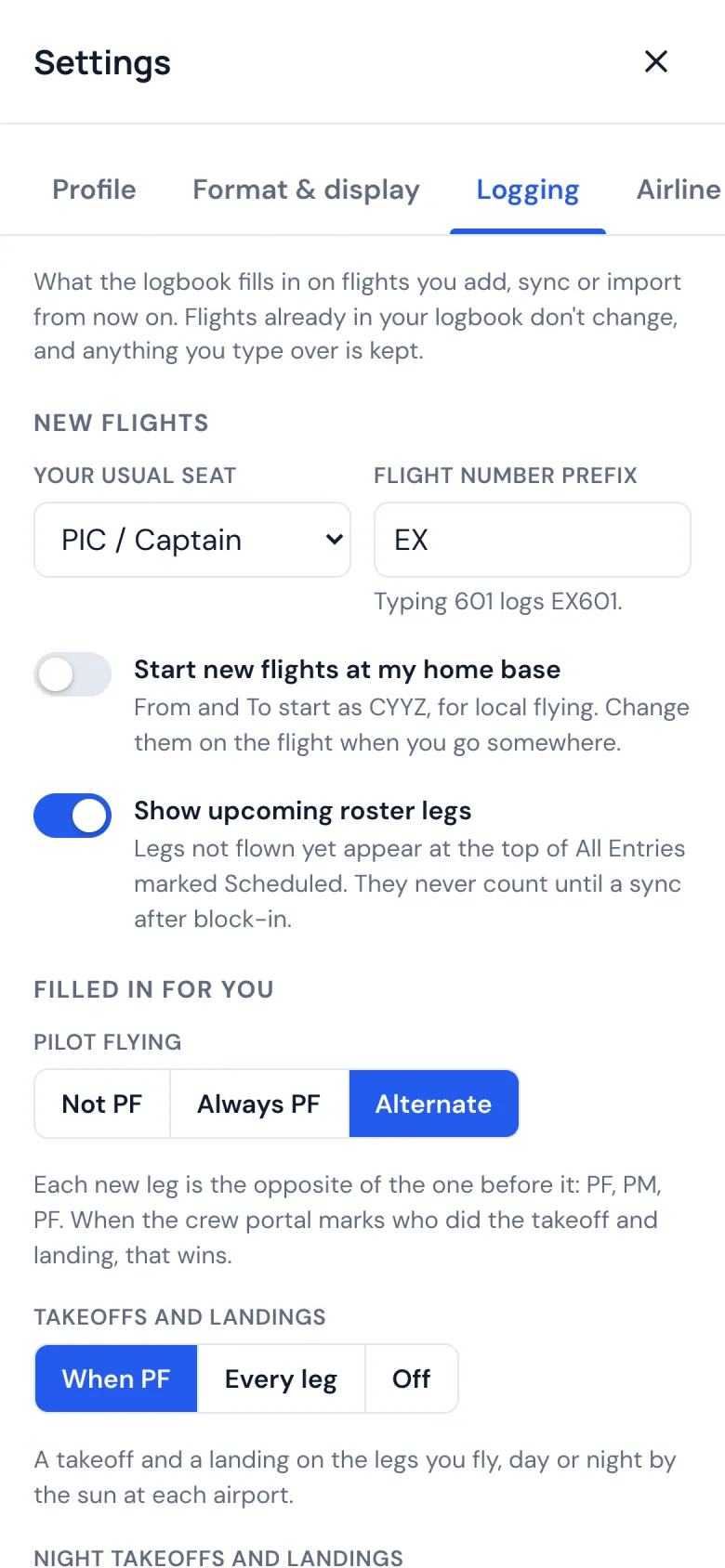
Your logbook, your rules
Your usual seat, who was pilot flying, when takeoffs and landings count, and the format your authority uses. Every new flight follows them.
Settings · Step 34 of 35
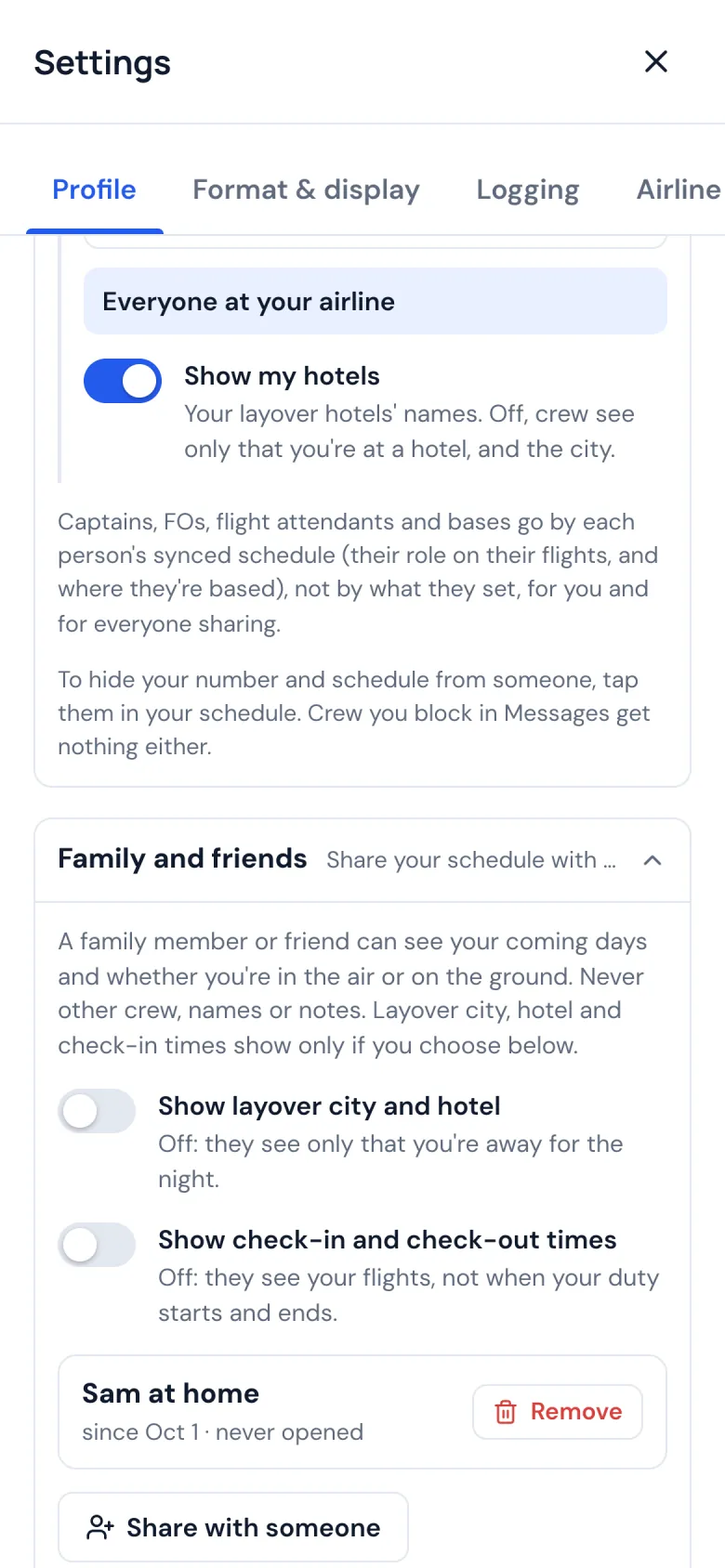
You choose what's shared
Who sees your hotels, your number and your schedule, and family or friends who can follow your days: in the air or on the ground, never your crew.
Settings · Step 35 of 35
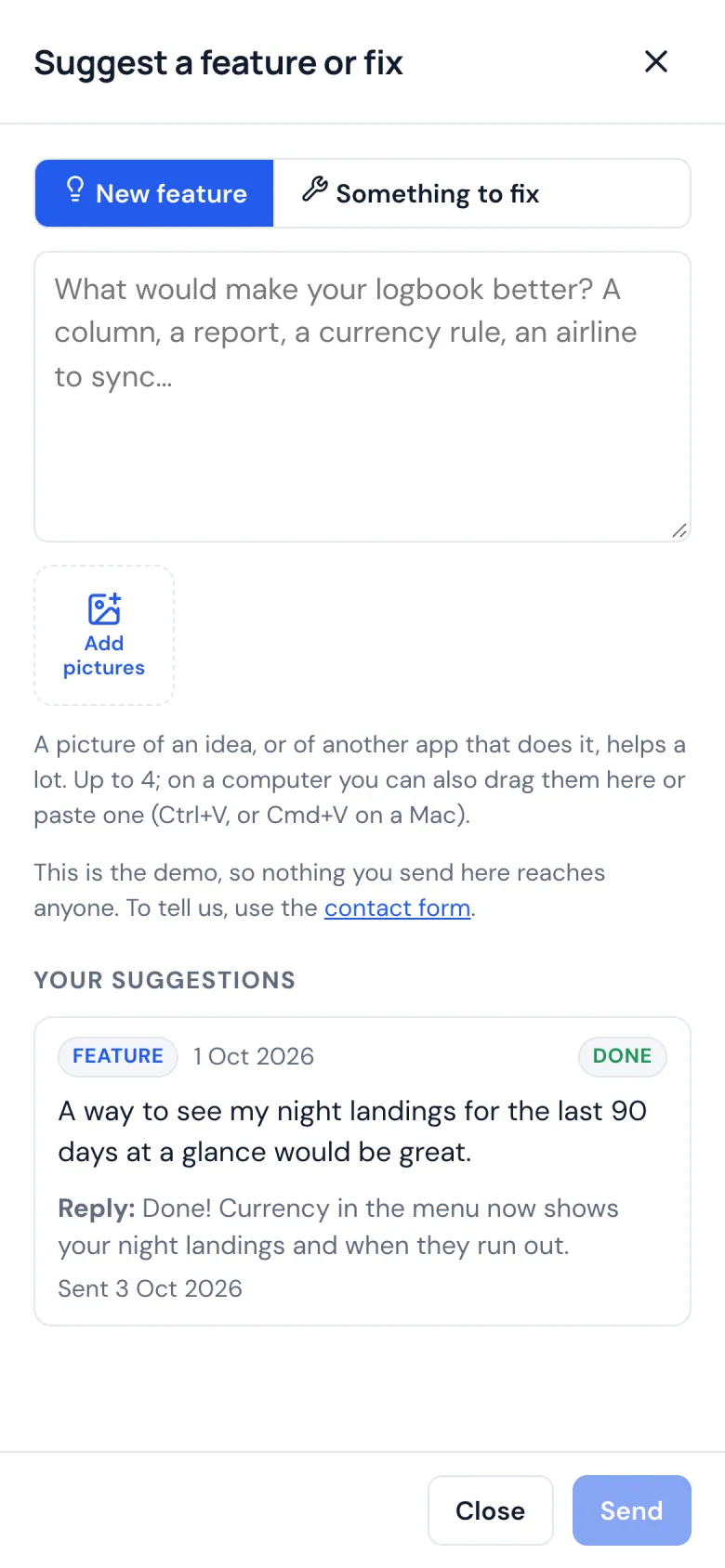
Suggest a feature or fix
Ask for a feature or tell us what to fix, with pictures if they help. The reply comes back to you in the app.
The app for flight attendants
Your schedule, your crew and your layovers, and your time away from base, with no logbook to fill in.
Schedule · Step 1 of 28
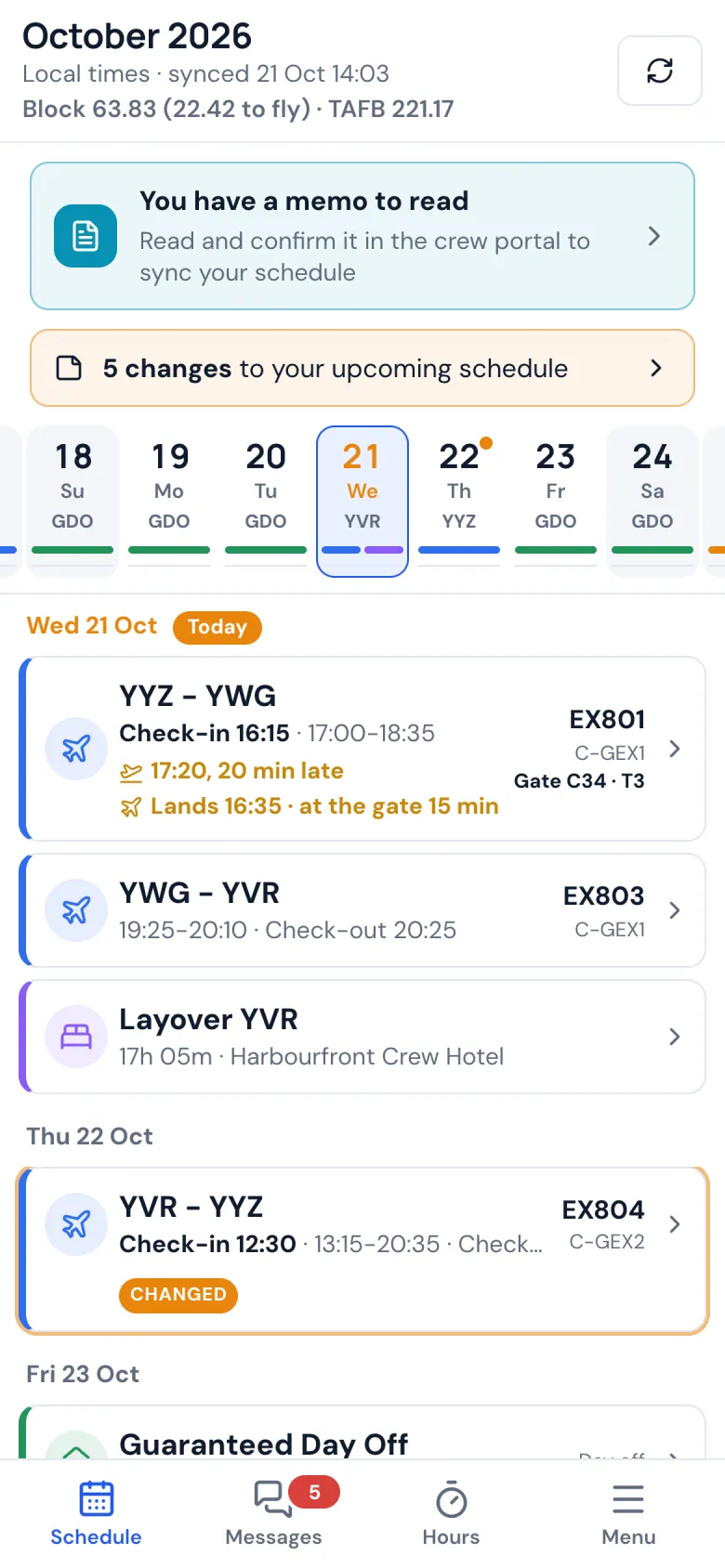
Your schedule, synced
Your roster on your phone in local time, today first: check-in and check-out, each flight with its delay and gate, and the layover and its hotel.
Schedule · Step 2 of 28
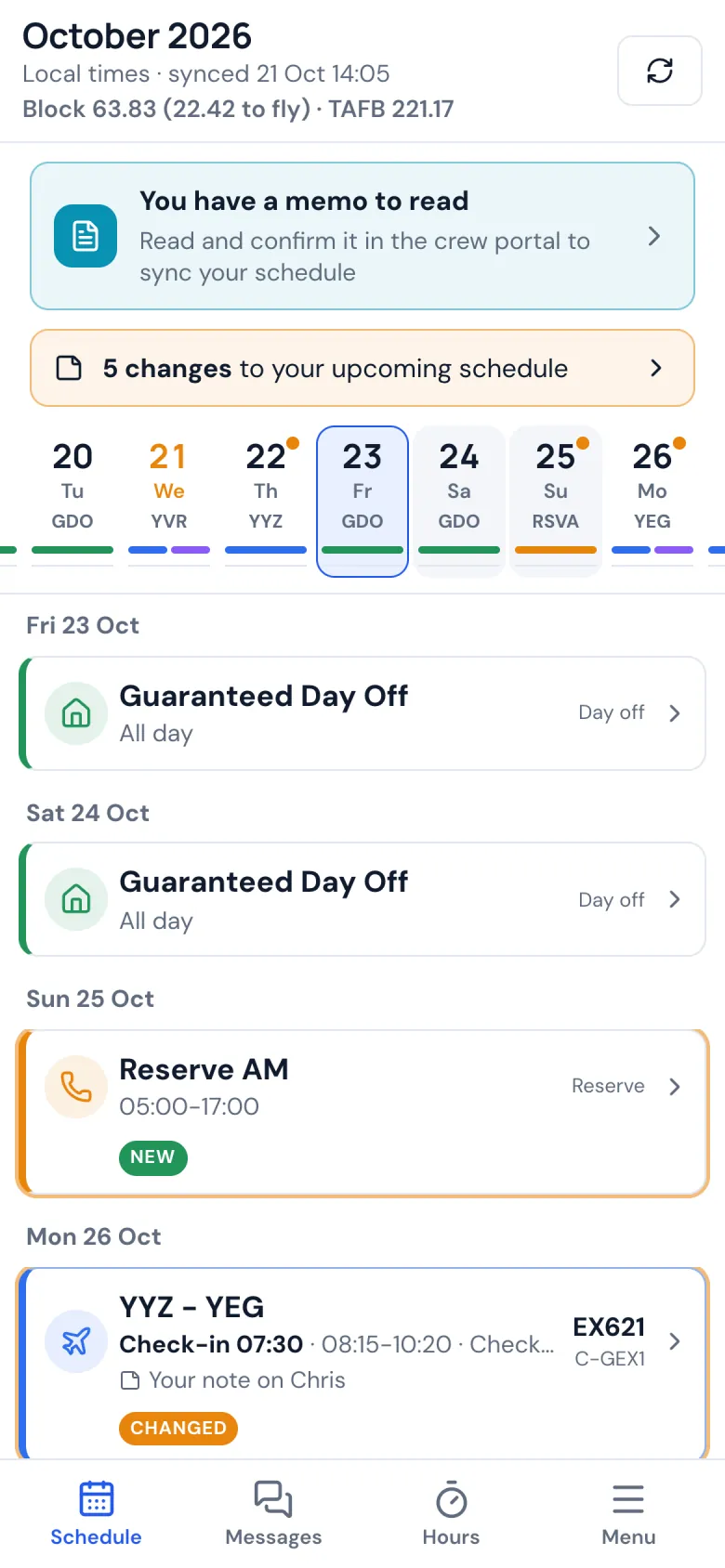
The whole month
Scroll through the month: flights, reserve, training and days off, day by day. The strip at the top jumps to any date.
Schedule · Step 3 of 28
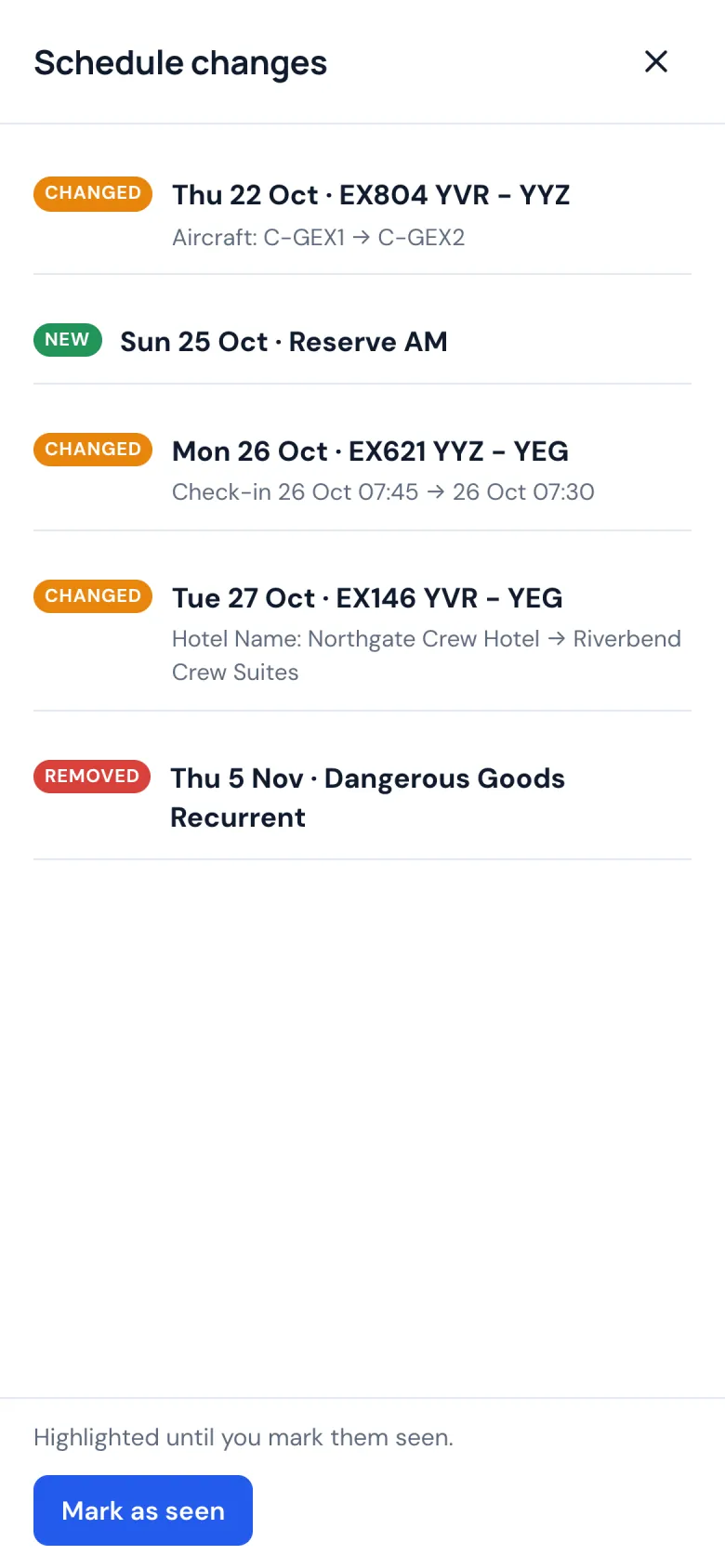
What changed
After a sync you see exactly what moved: a new time, another aircraft, a flight added or taken off. It stays highlighted until you mark it seen.
Schedule · Step 4 of 28
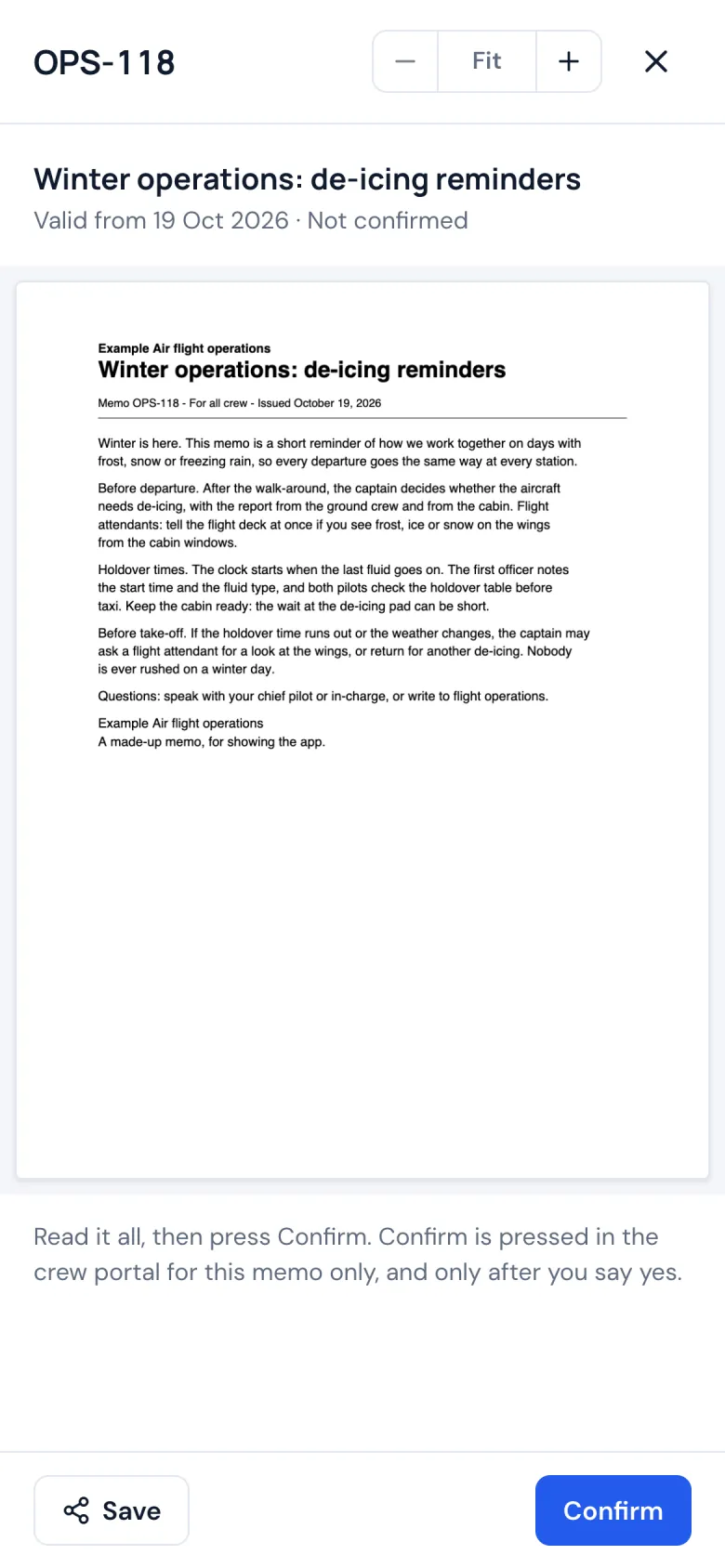
Memos from your airline
Where your airline asks crews to read and confirm memos, open them in the app and confirm each one once you've read it.
Schedule · Step 5 of 28
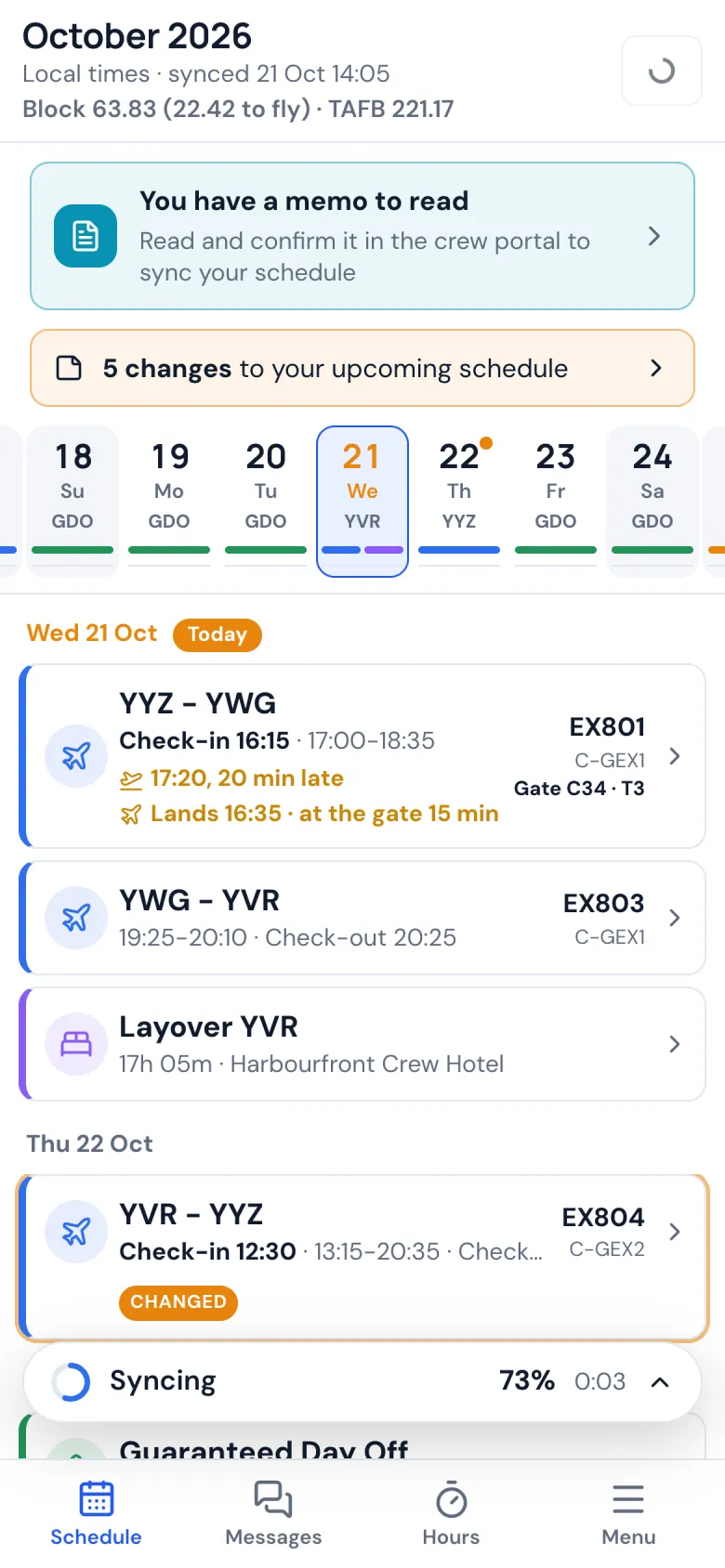
Sync from your phone
Tap Sync in the phone app and your schedule is read from your airline's crew system with your own login, over your own connection. Your password stays on your phone.
Flights and crew · Step 6 of 28
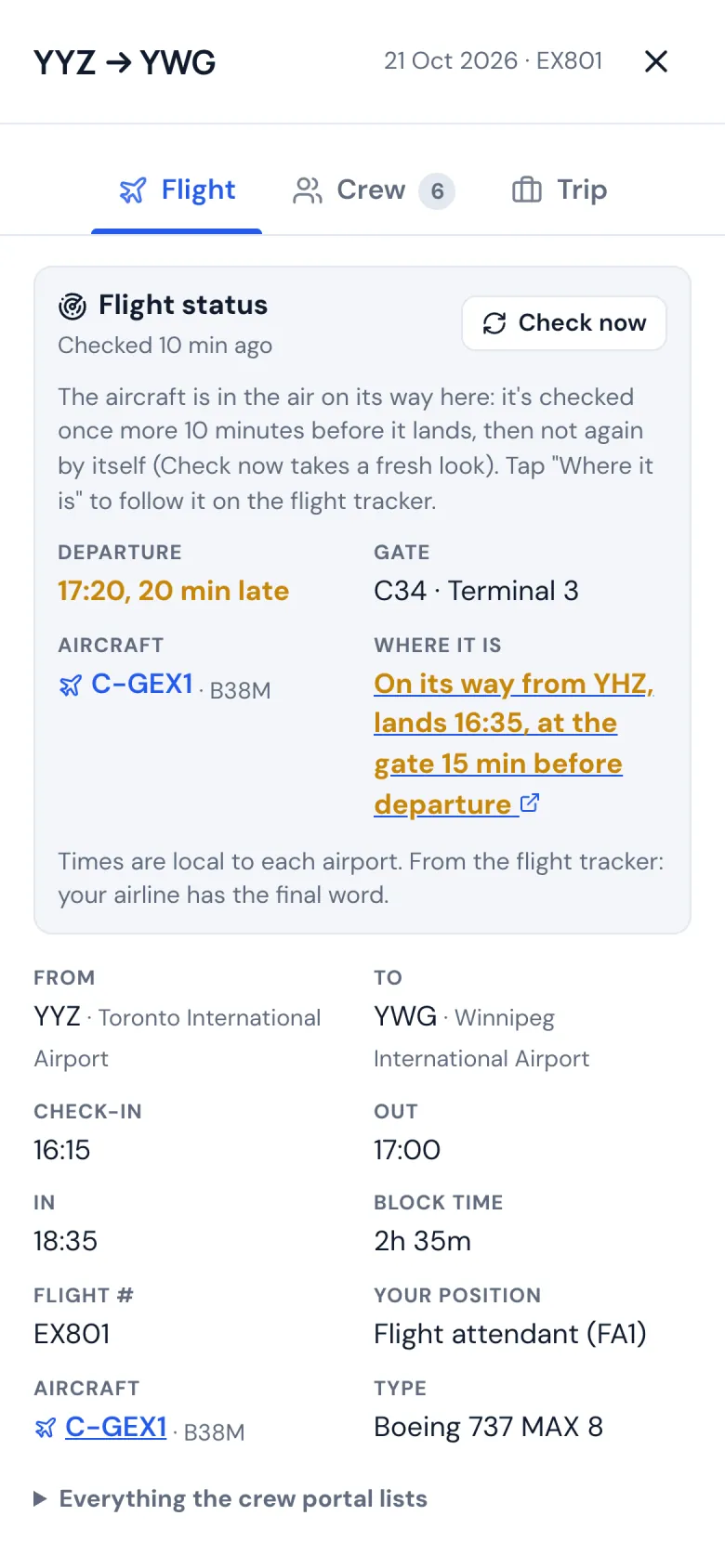
Every flight in detail
Times, gate and terminal, the aircraft, your position and the flight's status on the day: a delay, and where the aircraft is coming from. A notification tells you when your first flight of the day is late.
Flights and crew · Step 7 of 28
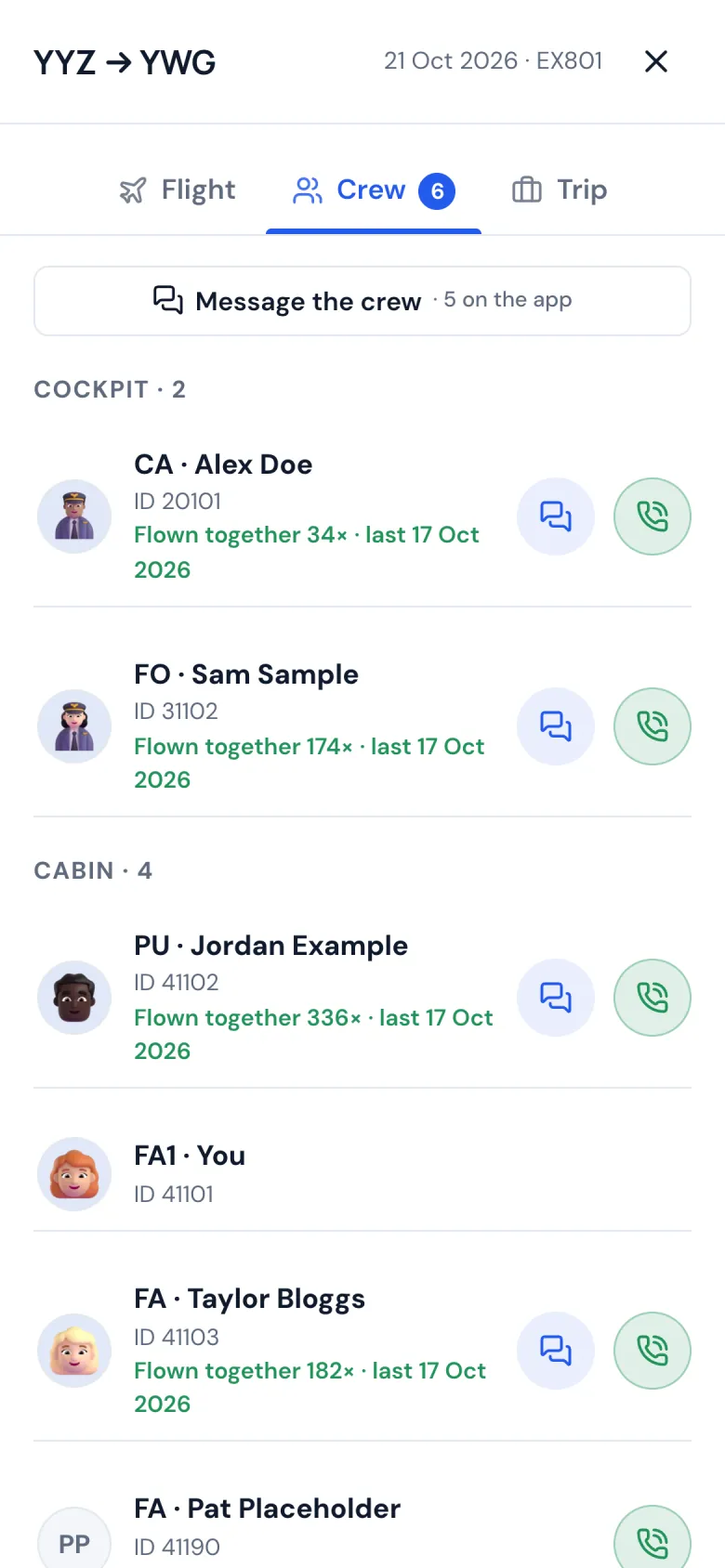
Who you're flying with
Everyone on the flight with their position and picture. Call or message anyone whose number you have, or the whole crew at once.
Flights and crew · Step 8 of 28
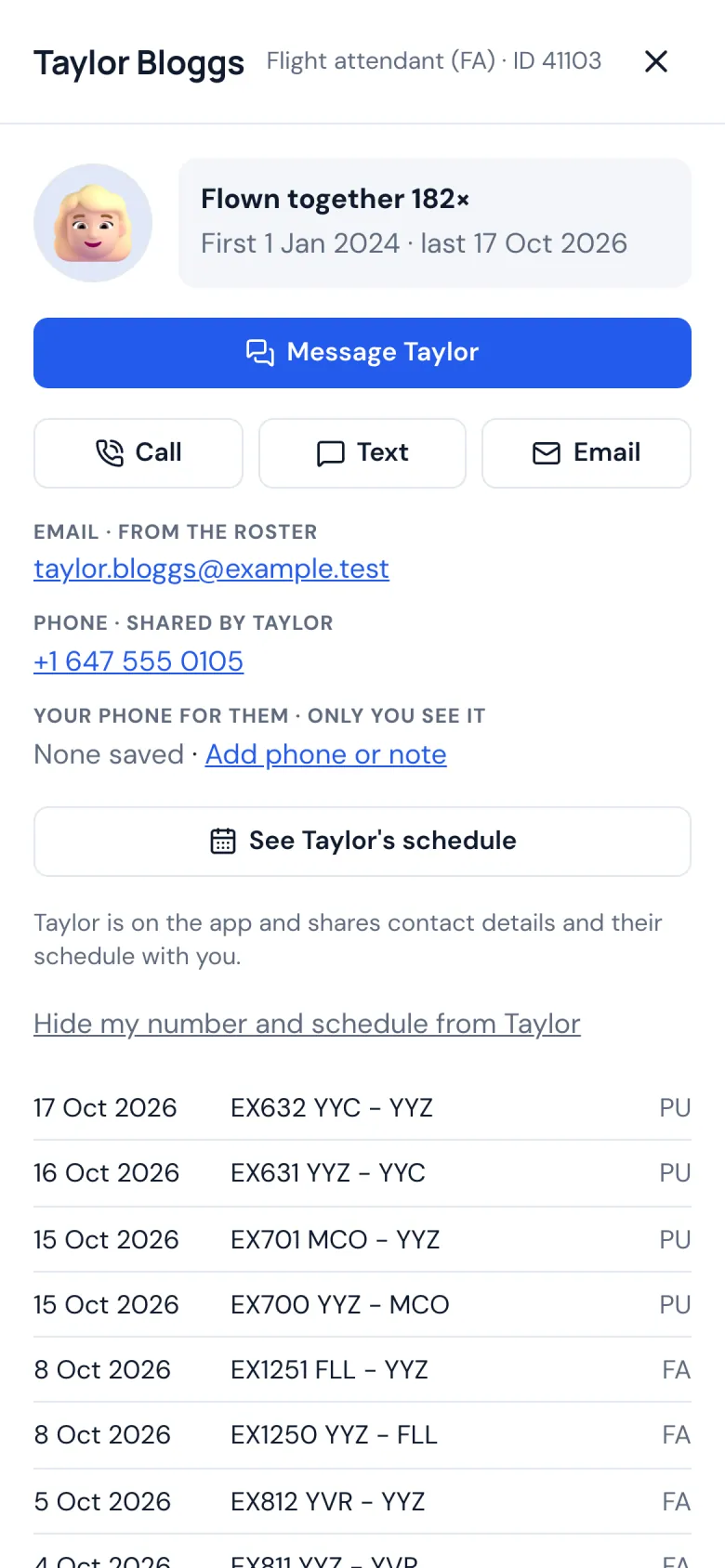
A card for each crewmate
The flights you've flown together, a private note only you can read, and their schedule when they share it with you.
Flights and crew · Step 9 of 28
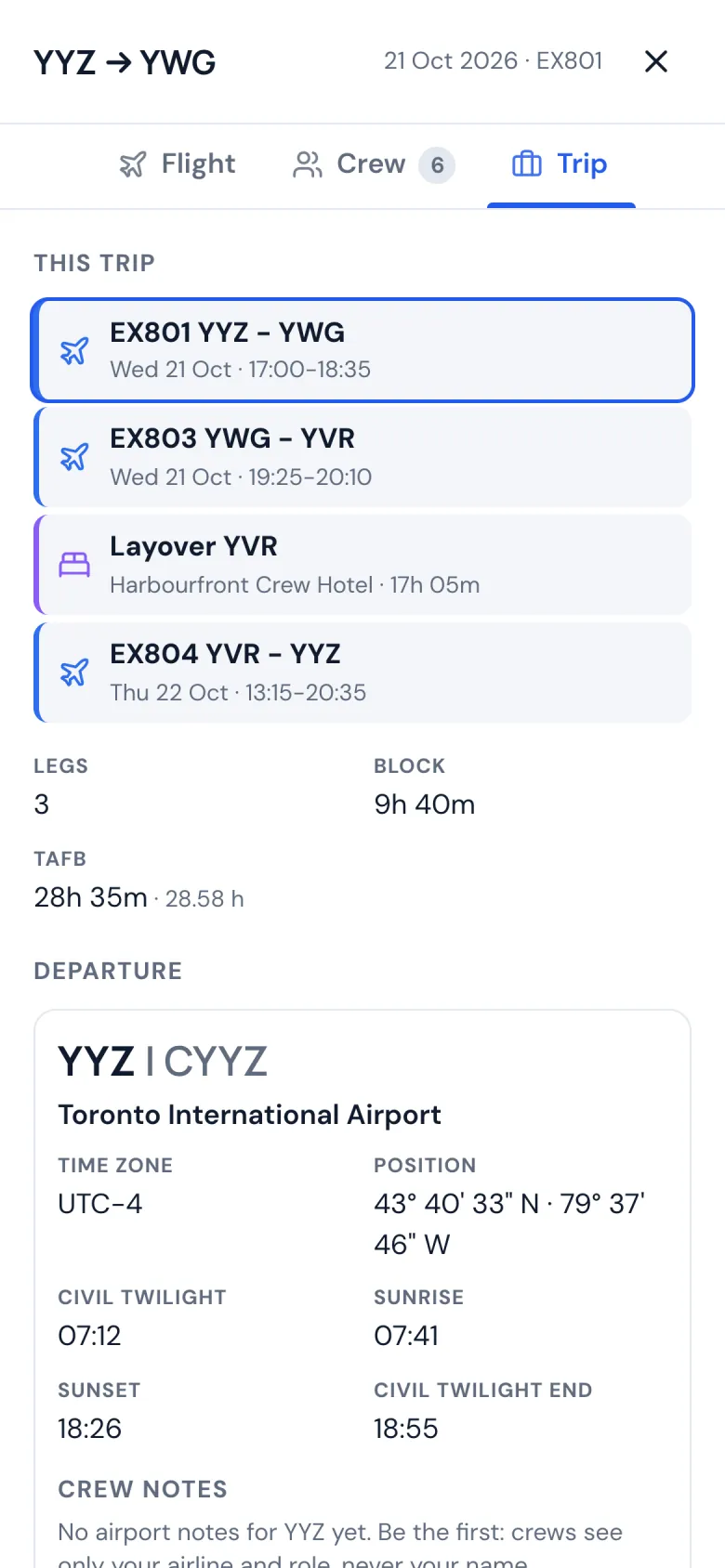
The whole trip
Every leg of the trip in one place with the layover, the block time and the time away from base, and each airport's time zone, sunrise and sunset.
Flights and crew · Step 10 of 28
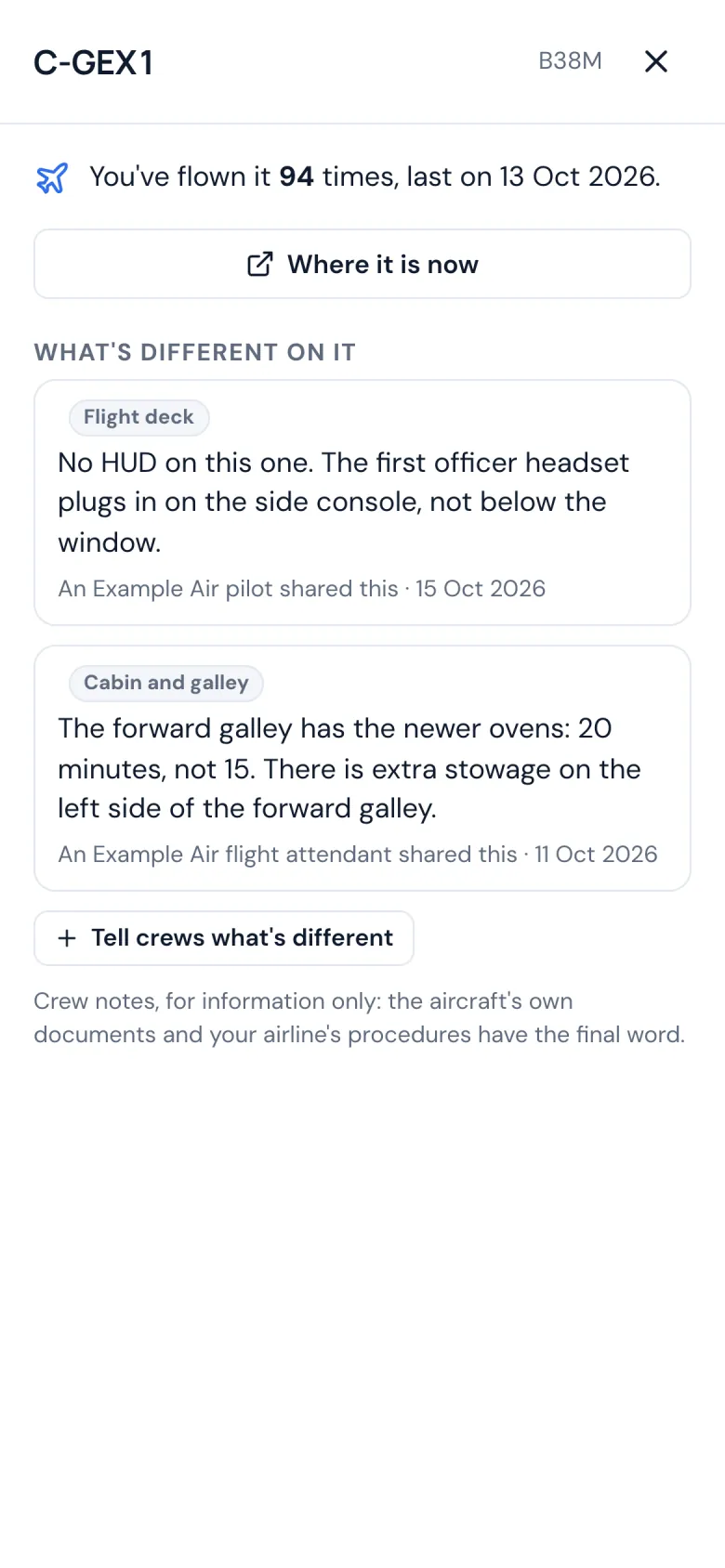
Notes on the aircraft
Tap a registration for that aircraft: how often you've worked it and what crews say is different on it. Add a note for the next crew.
Flights and crew · Step 11 of 28
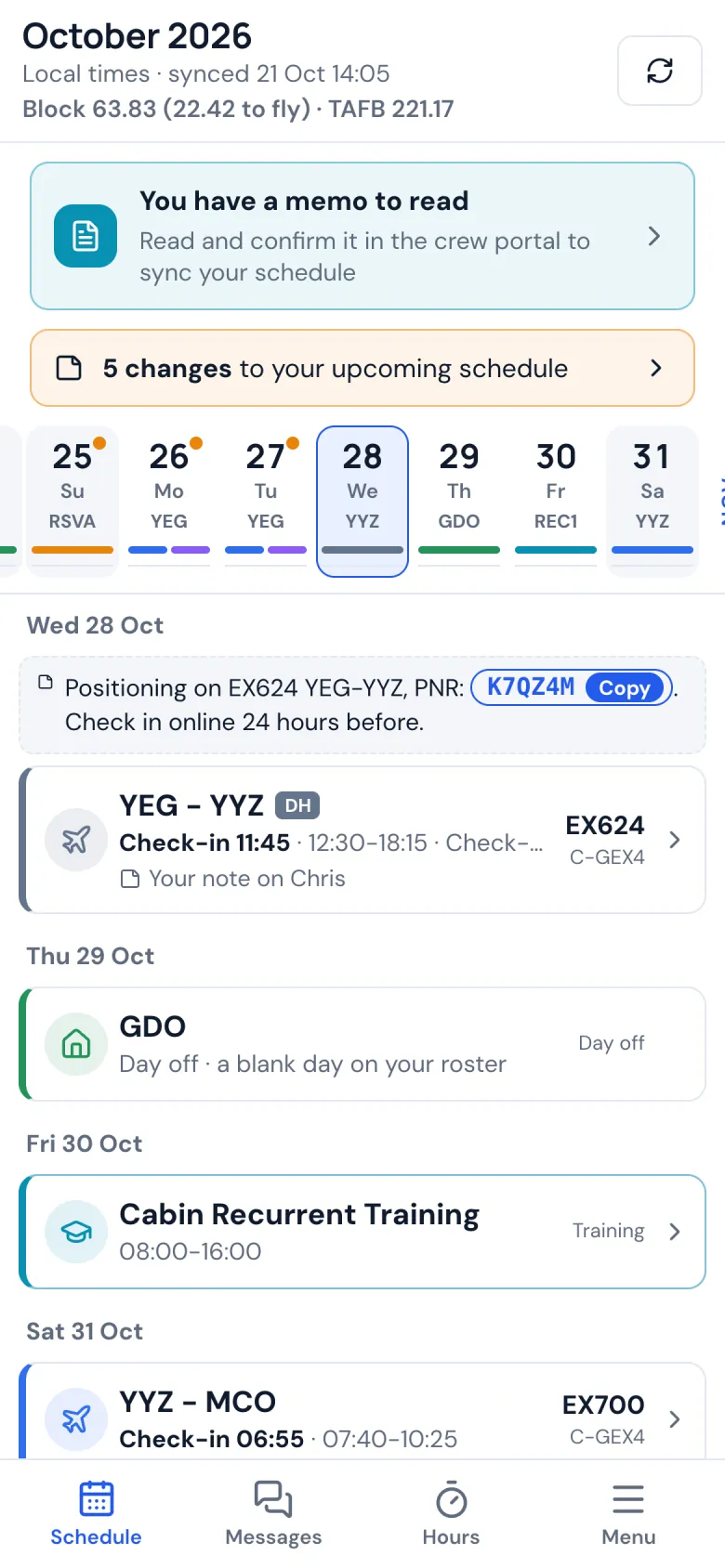
Positioning flights
A deadhead shows its booking reference on the schedule, ready to copy when you check in.
Layovers · Step 12 of 28
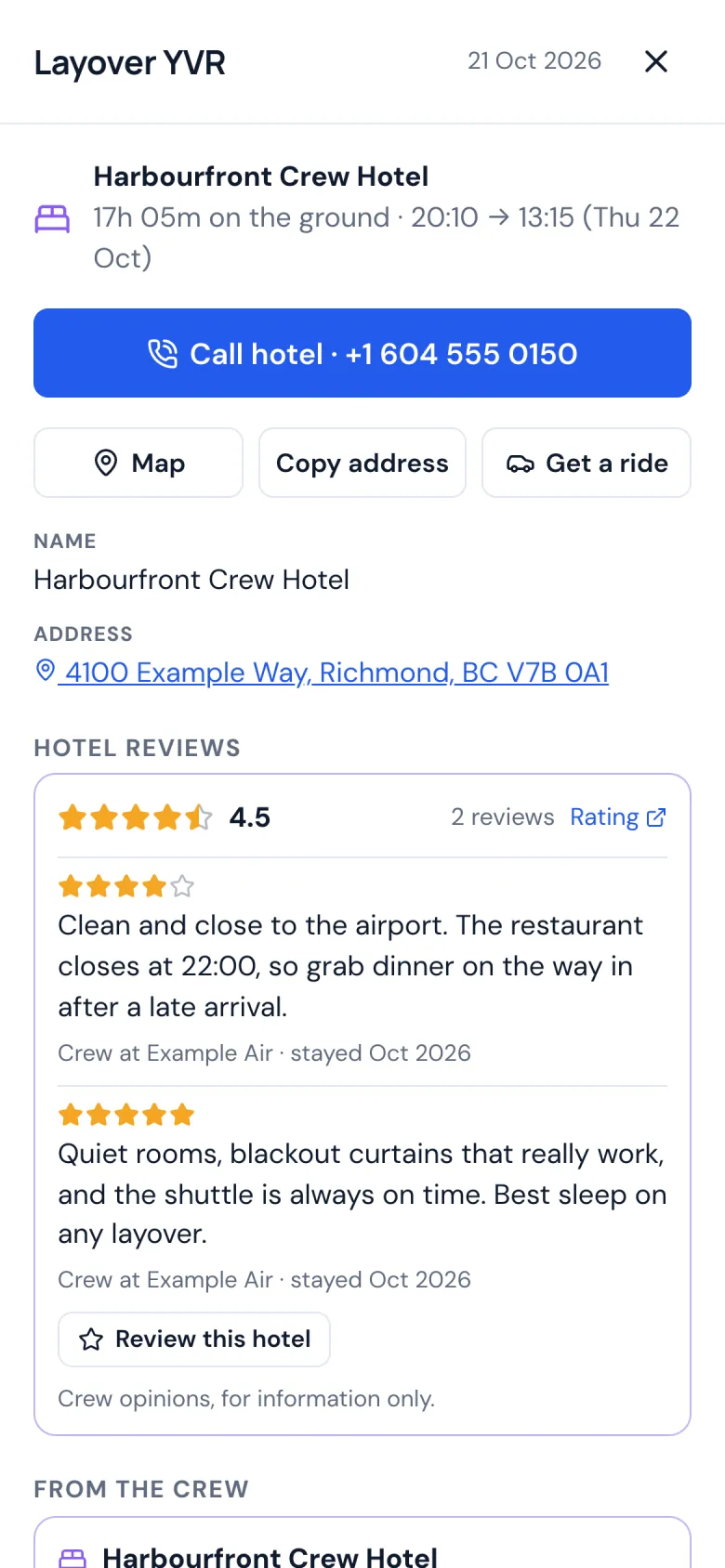
Layovers and hotels
The hotel with one tap to call, get directions or a ride, and reviews from crews who stayed there. Add your own after your stay.
Layovers · Step 13 of 28
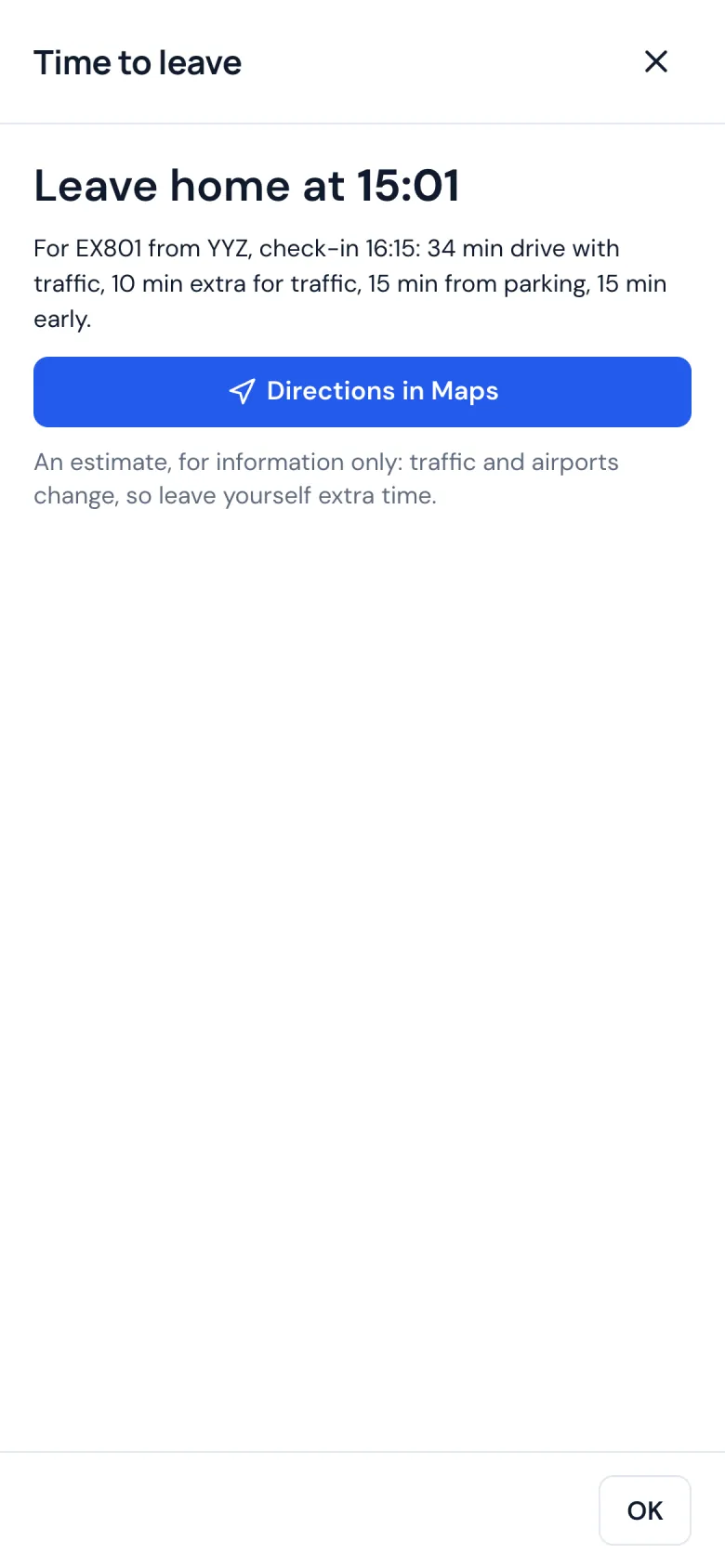
Time to leave
When to leave home for check-in, worked out with today's traffic and the time from parking. One tap opens the directions.
Hours · Step 14 of 28
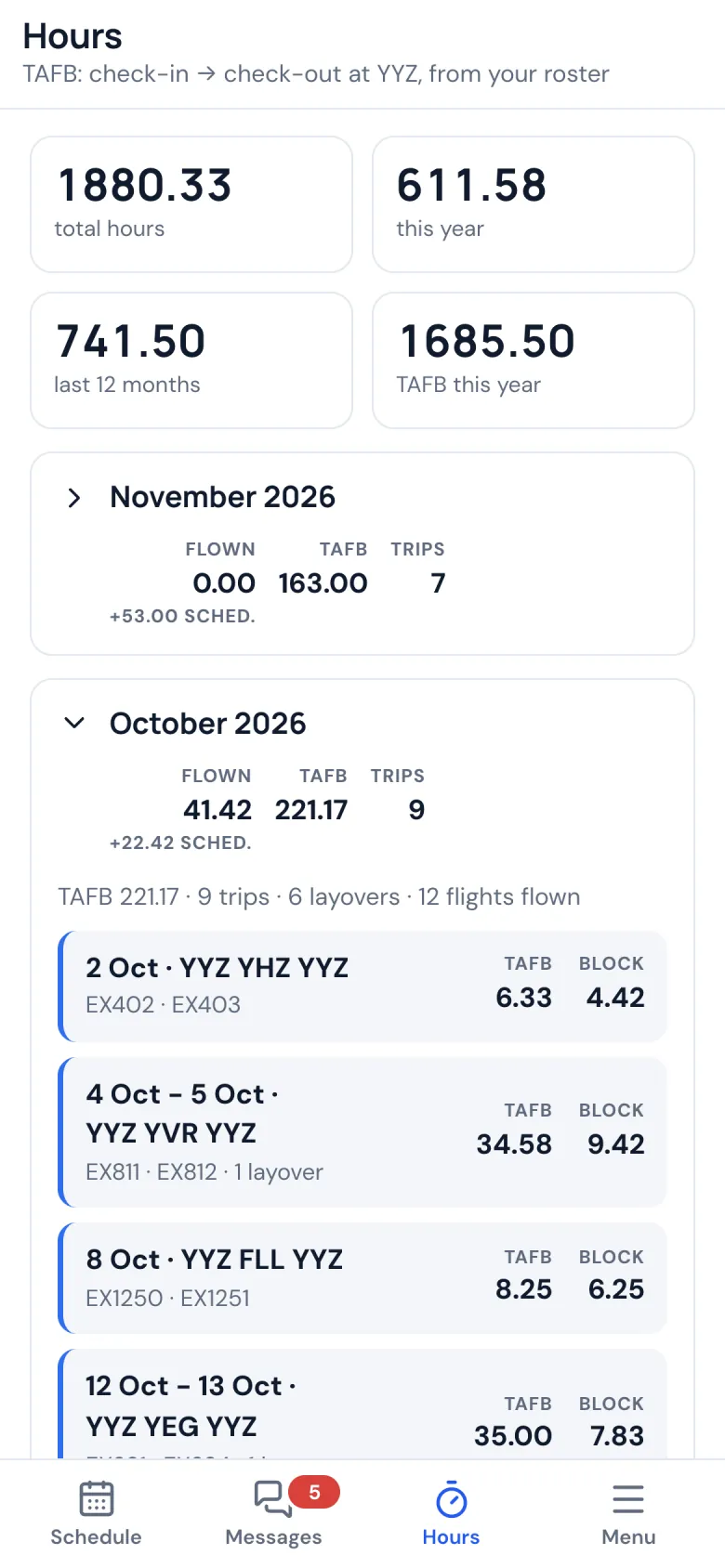
Hours and time away
Your flying hours and your time away from base, this year and the last 12 months, month by month and trip by trip.
Messages · Step 15 of 28
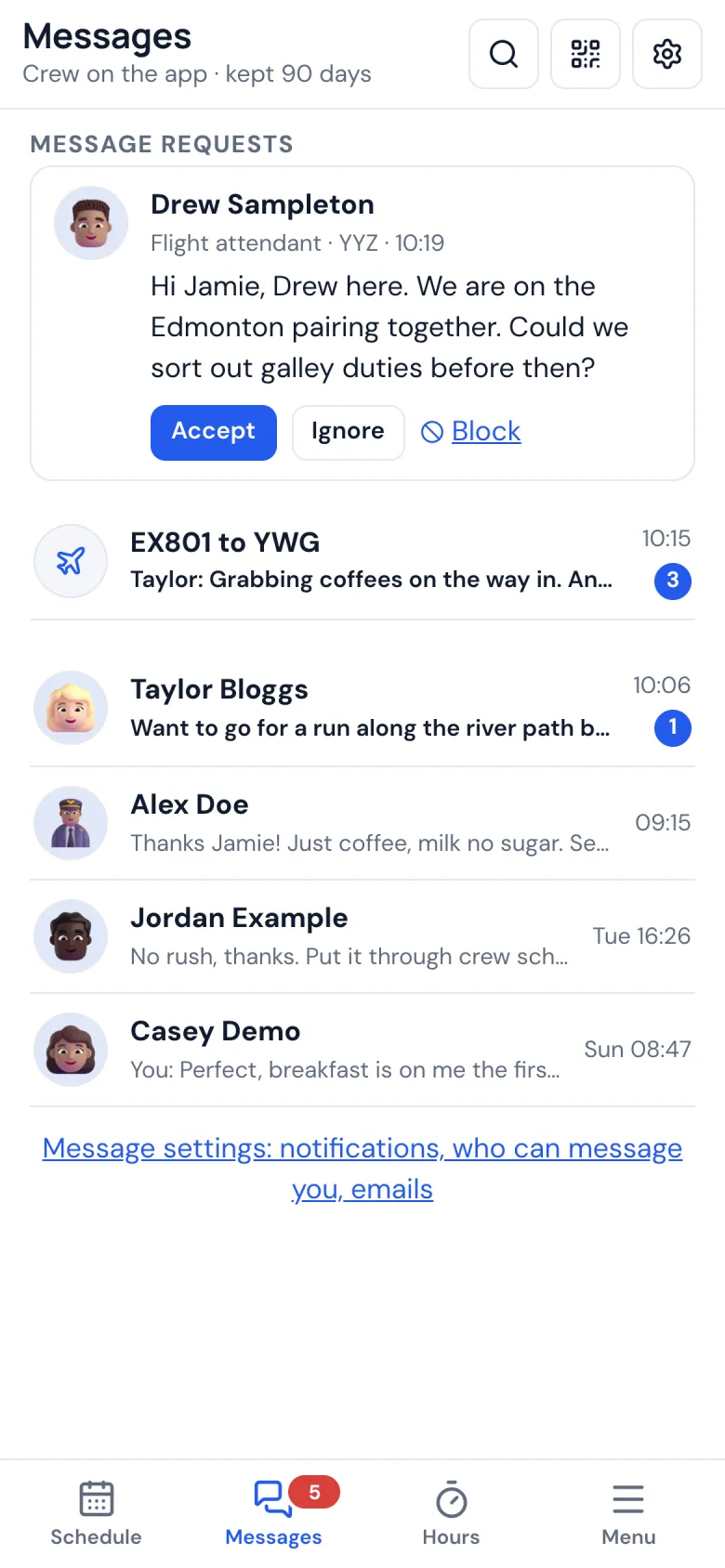
Messages
Message the crew you fly with in the phone app, with read receipts and who's online. A new crewmate asks first, and you choose who can reach you.
Messages · Step 16 of 28
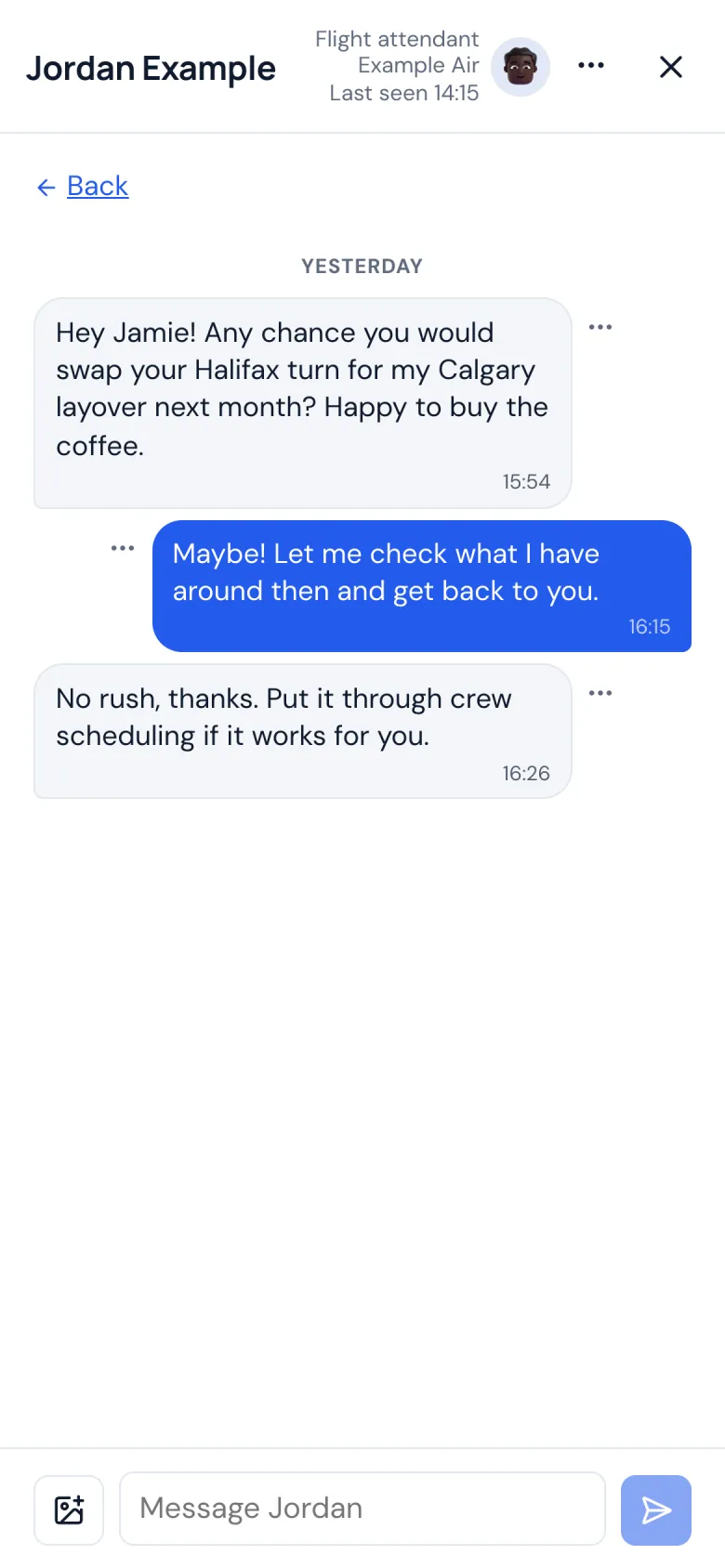
A conversation
Write, react, change or take back what you sent. Conversations can't be captured in a screenshot in the phone app.
Messages · Step 17 of 28
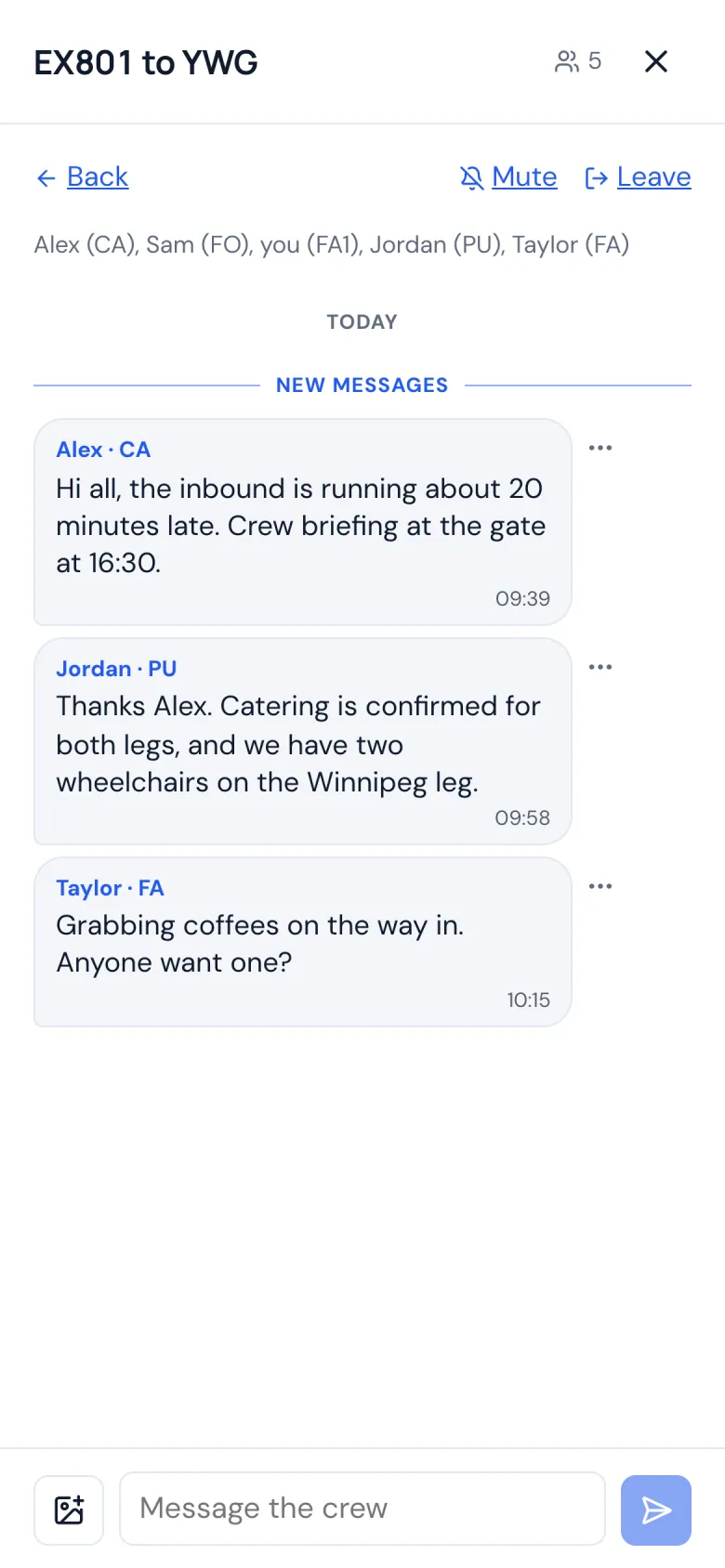
A chat for the flight
Everyone on the flight who has the app, pilots and cabin crew, in one chat named for the flight.

Messages · Step 18 of 28
Find crew
Look up crew at your airline who chose to be found, by name or crew number, and message them.
Messages · Step 19 of 28
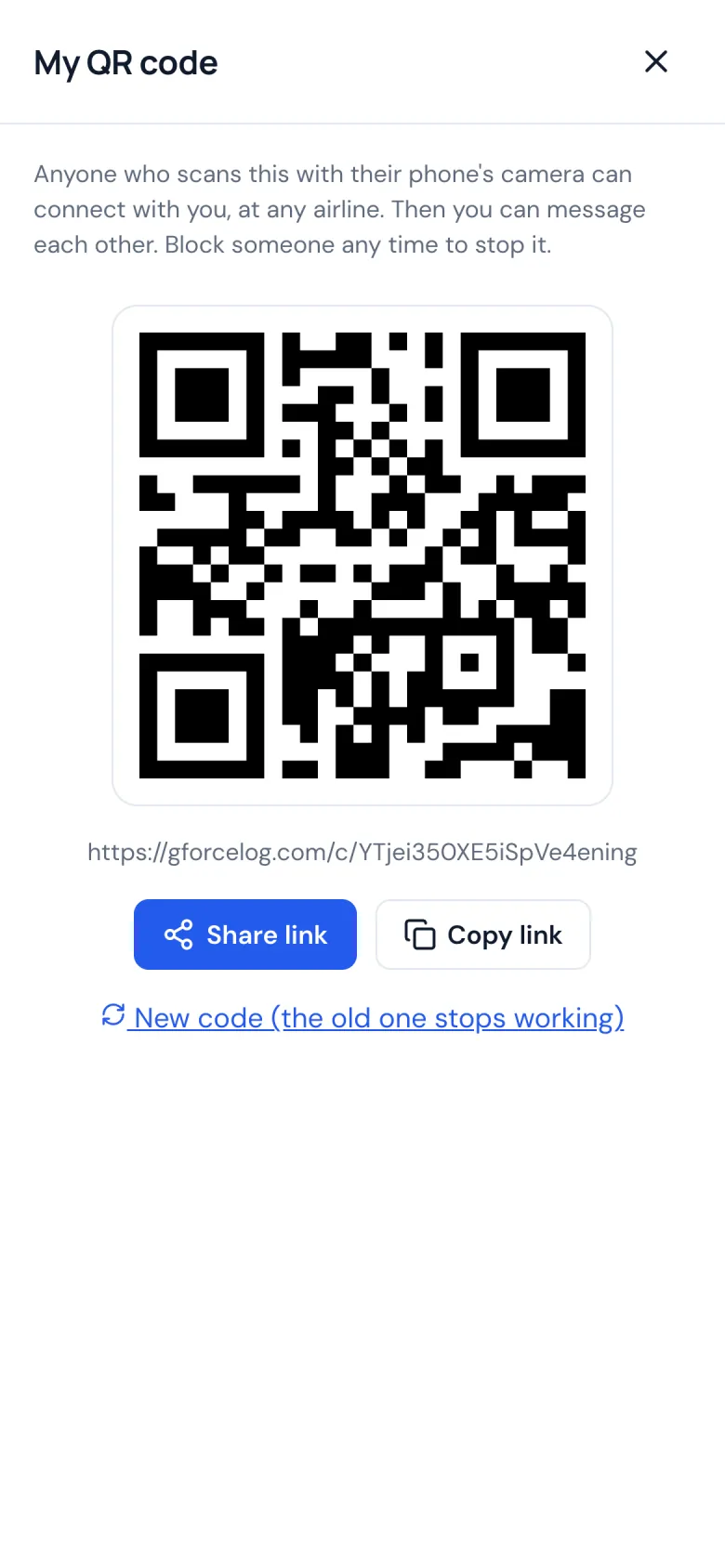
Connect by QR code
Met crew from another airline on a layover? They scan your code, and you can message each other.
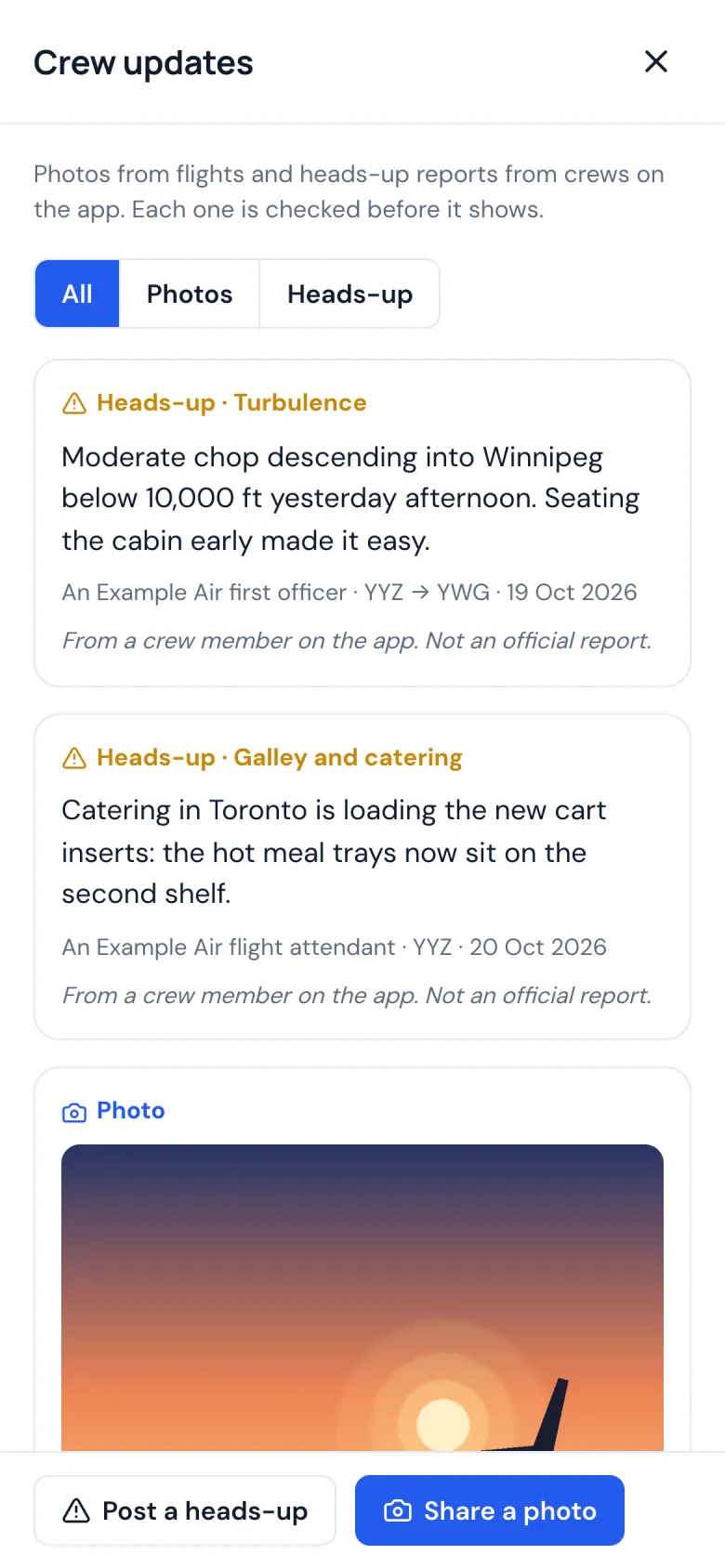
Crew on the app · Step 20 of 28
Crew updates
Photos from the flight deck and the cabin, and heads-up reports for the crews behind you: the weather, an approach, the airport. Every post is checked before it shows.
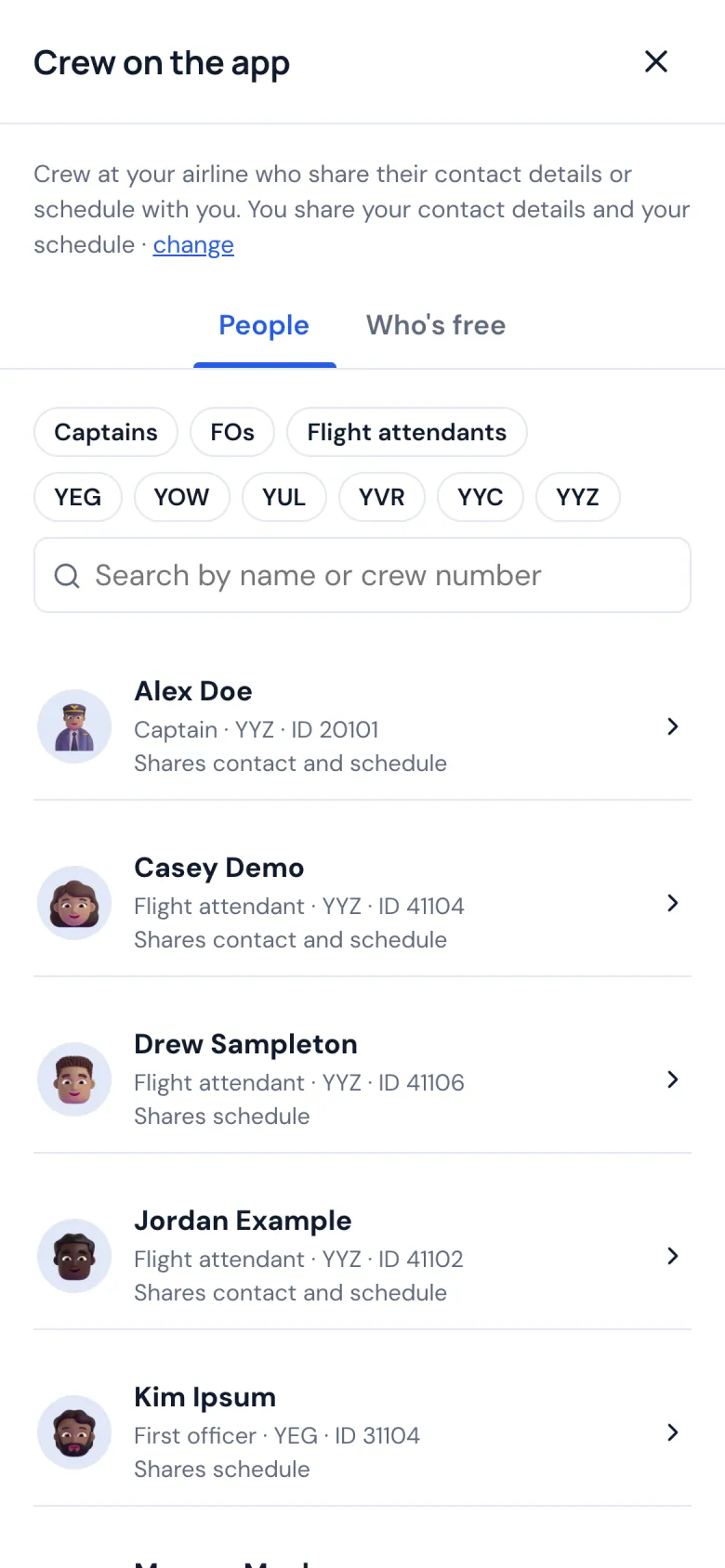
Crew on the app · Step 21 of 28
Crew on the app
Colleagues who share their contact details or schedule with you, by position and base.
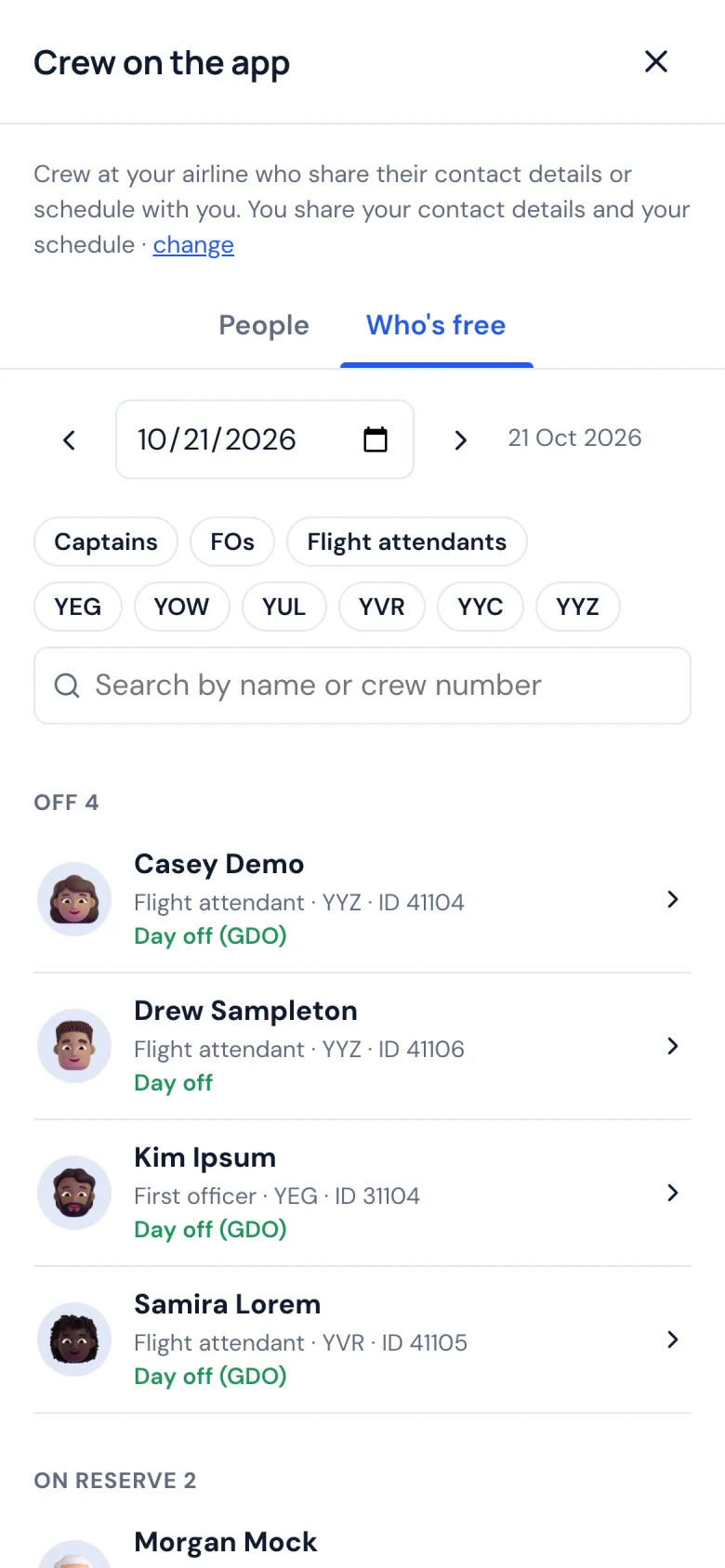
Crew on the app · Step 22 of 28
Who's free
Pick a day and see who's off, on reserve or flying among the colleagues who share their schedule with you.
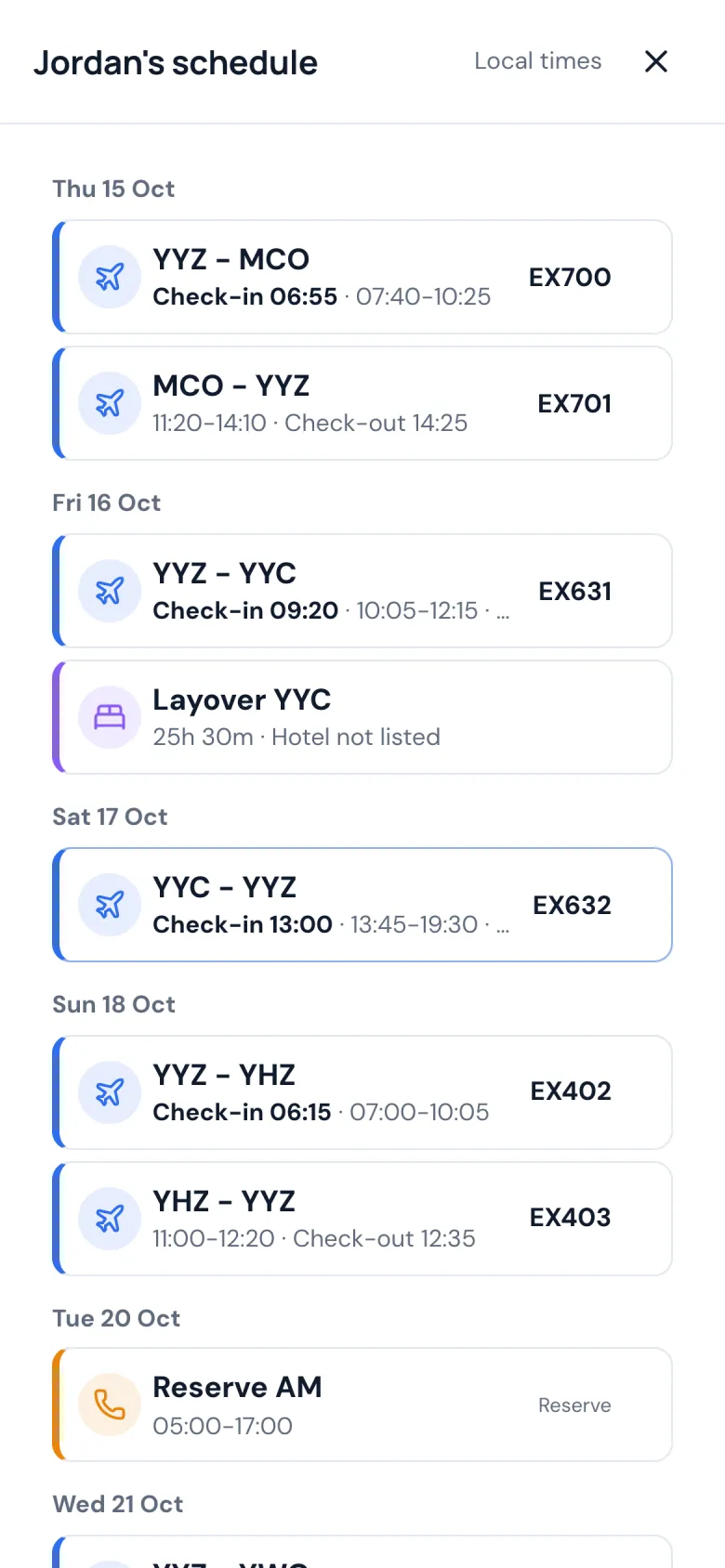
Crew on the app · Step 23 of 28
Shared schedules
Share your schedule with the crew you choose, and see theirs when they share it with you.
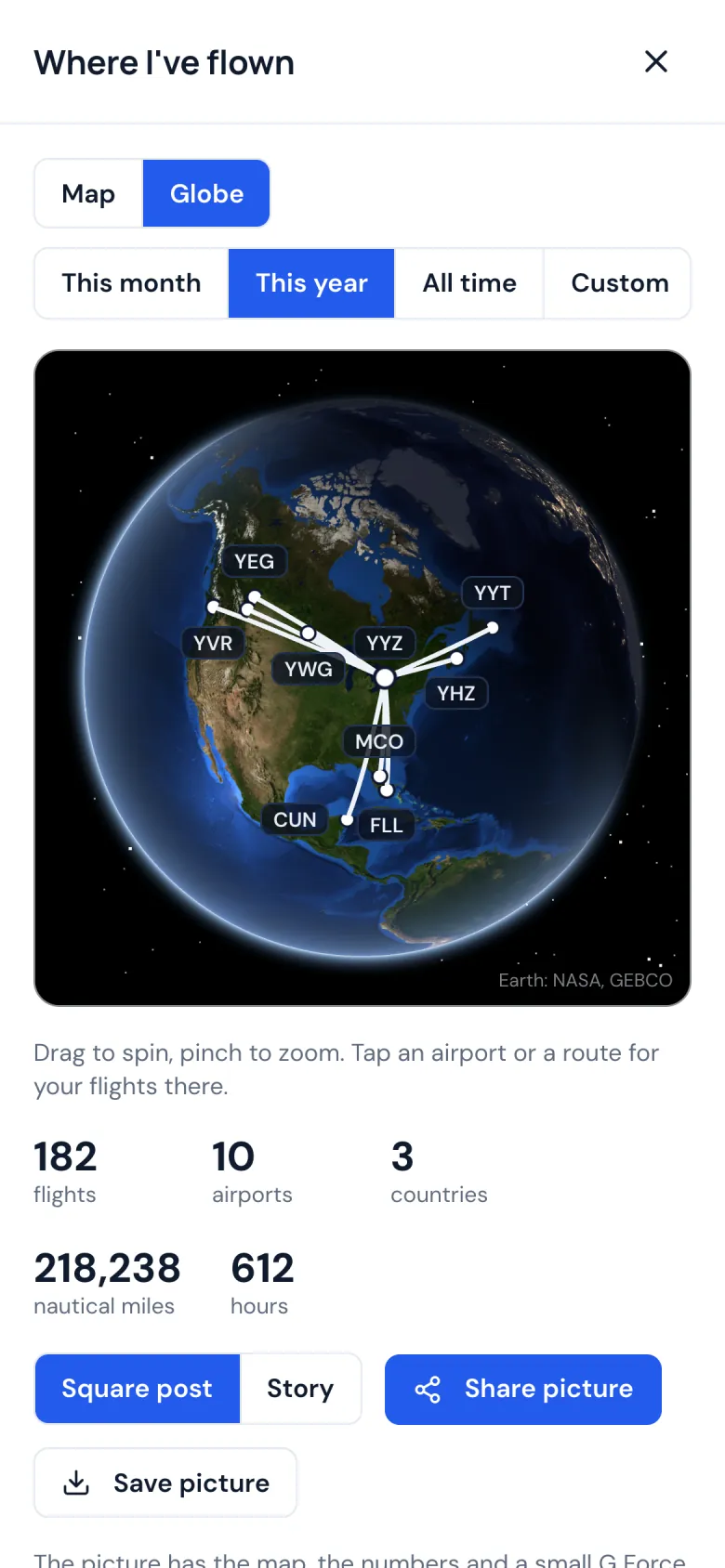
Where you've flown · Step 24 of 28
Every place you've been
Every airport and route on a globe, or on a flat map a tap away: this month, this year, all time or the dates you choose. Save it as a picture, sized for a post or a story.
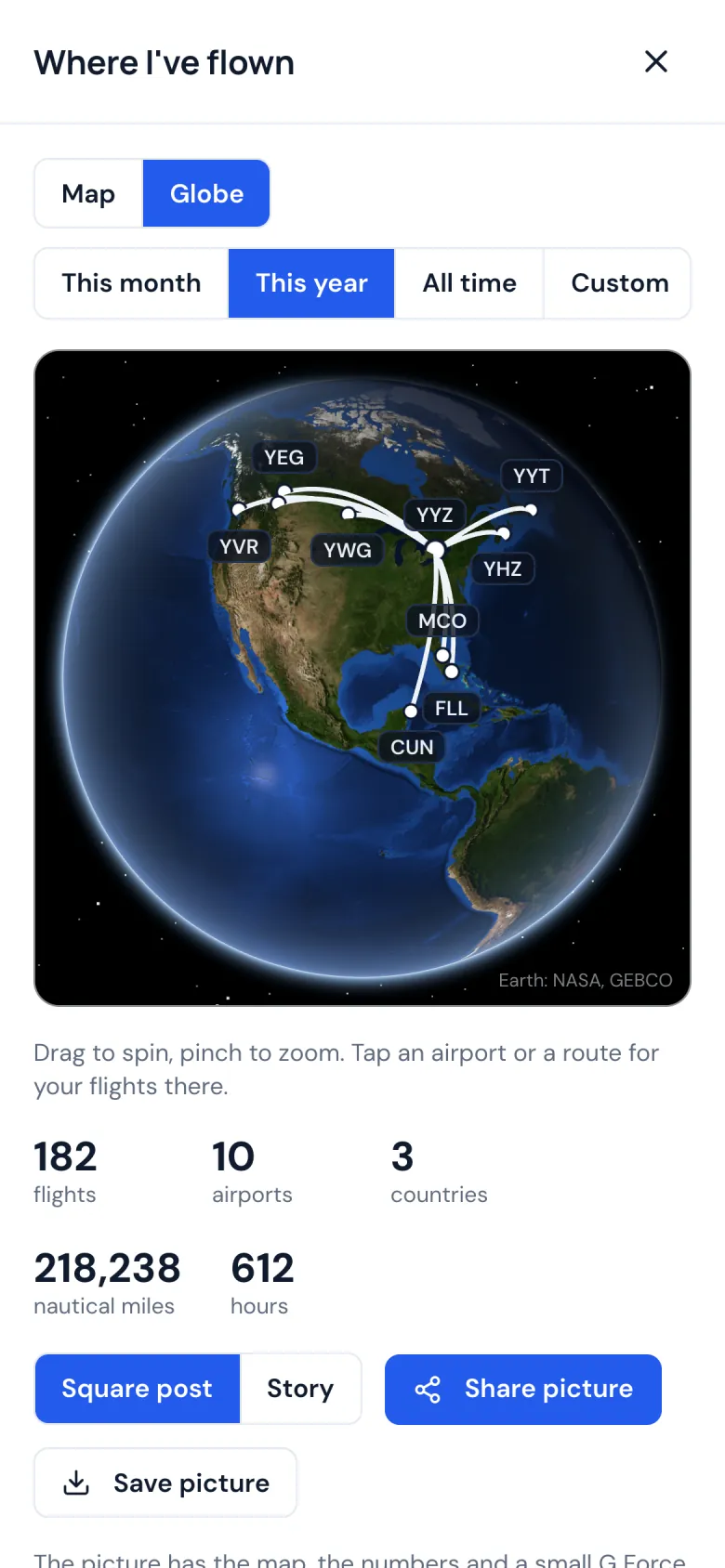
Where you've flown · Step 25 of 28
Spin it and zoom in
Turn the globe with a finger and zoom in, with day and night as they are right now. Tap an airport or a route for your flights there.
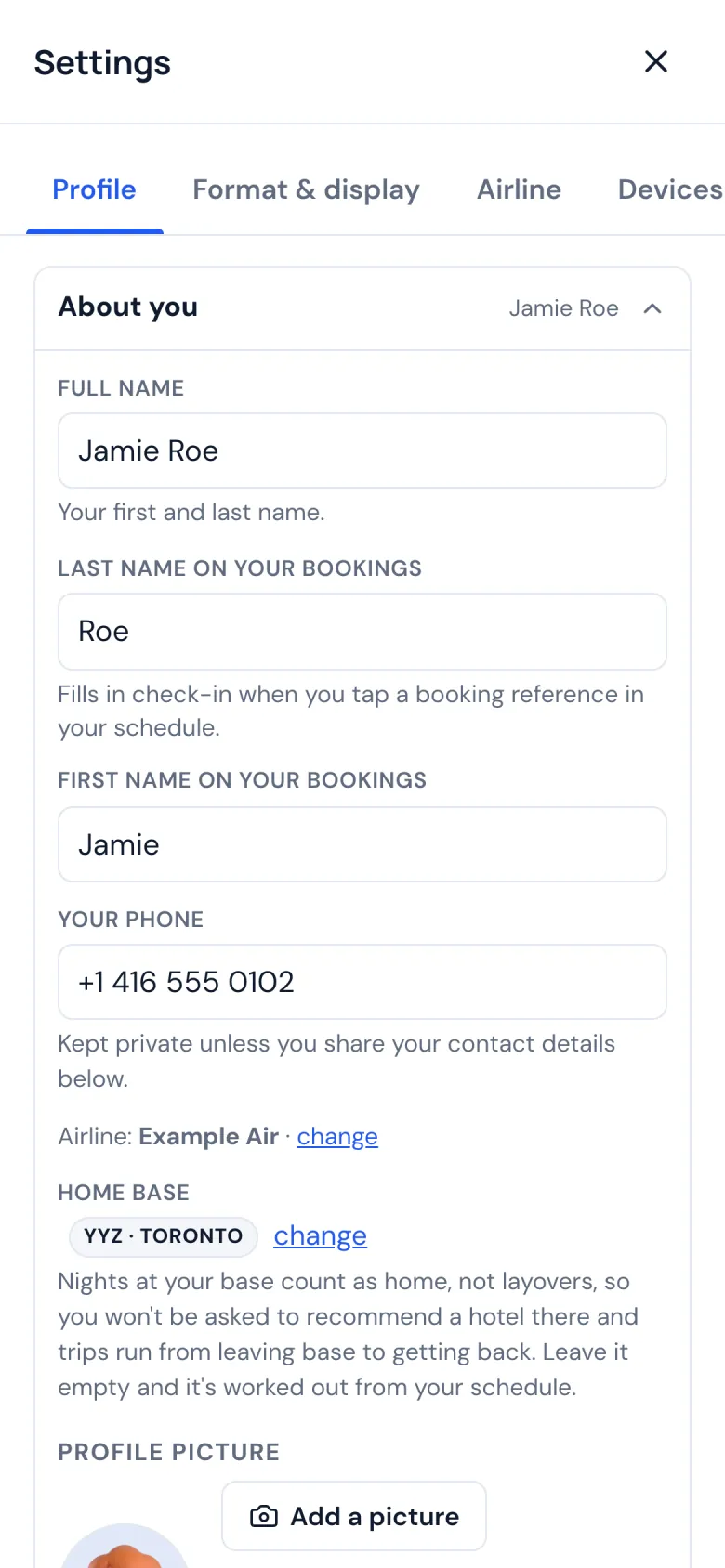
Settings · Step 26 of 28
Make it yours
Your name as it is on your bookings, so check-in fills it in for you, your phone number, your home base, and the app in light or dark.
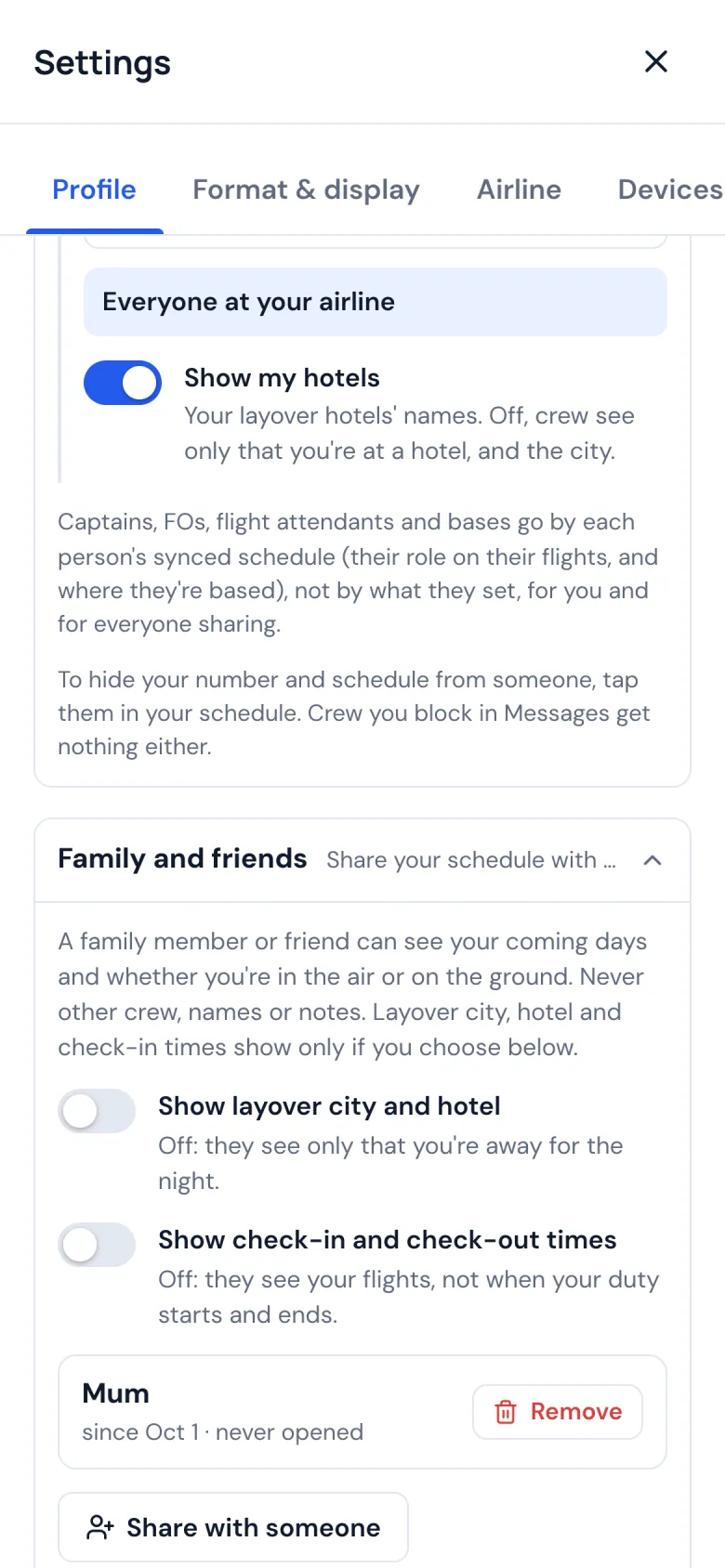
Settings · Step 27 of 28
You choose what's shared
Who sees your hotels, your number and your schedule, and family or friends who can follow your days: in the air or on the ground, never your crew.
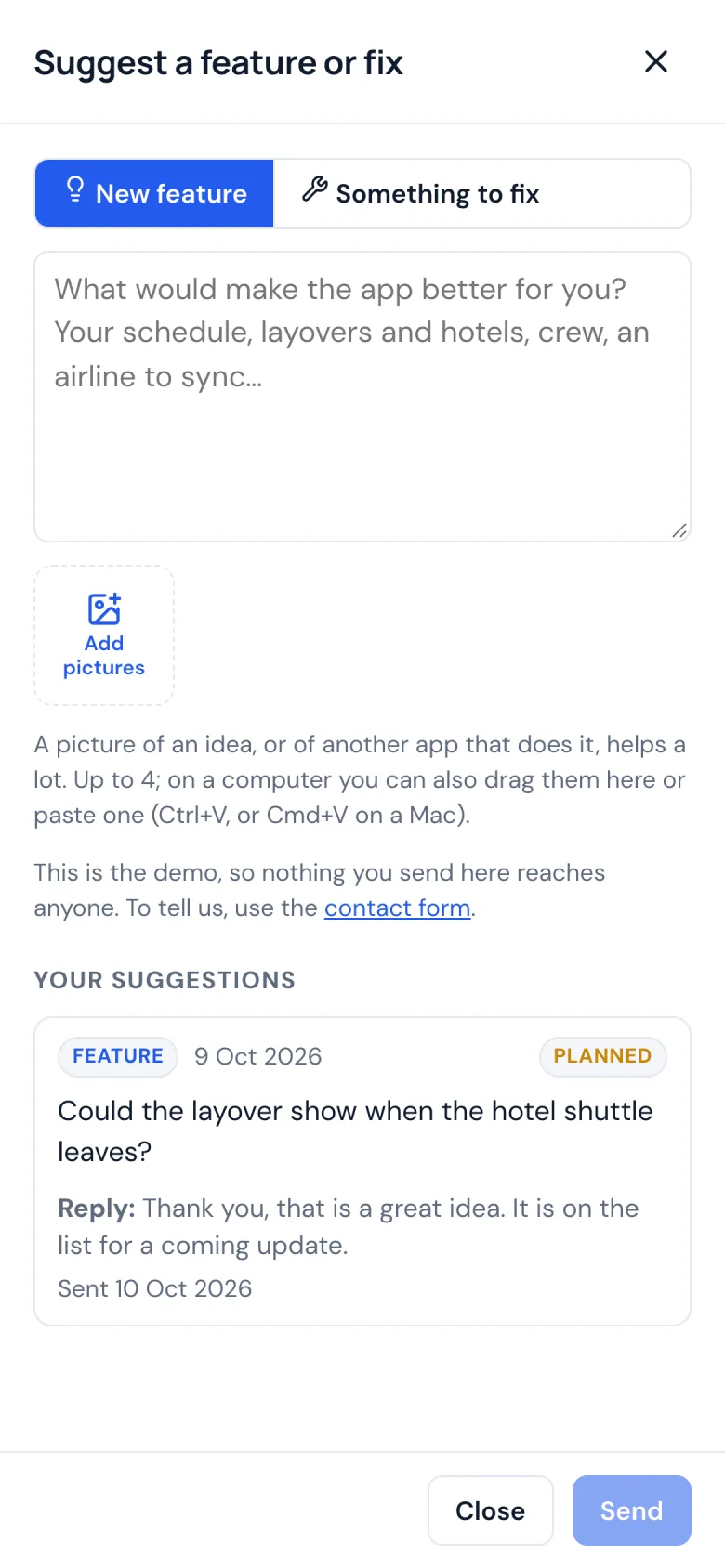
Settings · Step 28 of 28
Suggest a feature or fix
Ask for a feature or tell us what to fix, with pictures if they help. The reply comes back to you in the app.
Made-up airline, crew and schedule. Some features depend on your airline, such as confirming changes or memos in the app. For information only: always check your airline's own systems. Get the Android app; the iPhone app is on its way.